↑ | Setup | Camera Setup
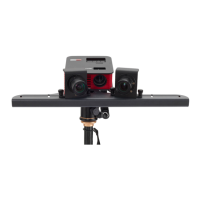
Select your camera under "Setup / Camera Setup". This automatically sets recommended values for
important properties (e.g. "Gain"). See also topic Camera Control.
In case of limited USB bandwidth, the camera connection might become unstable. In that case, you can set
a FrameRateLimit that limits the maximum number of camera images per second. Scanning will than
take longer.
↑ | Setup | Projector Setup
Setting up the projector as Extended Desktop in Windows
Works on most computers: Press Win+P on your keyboard and select "Extended".
Otherwise: Click the right mouse button on a blank area of your Windows desktop, select "Screen
resolution" or "Display settings" (depending on your Windows version).



 To Next Page