31
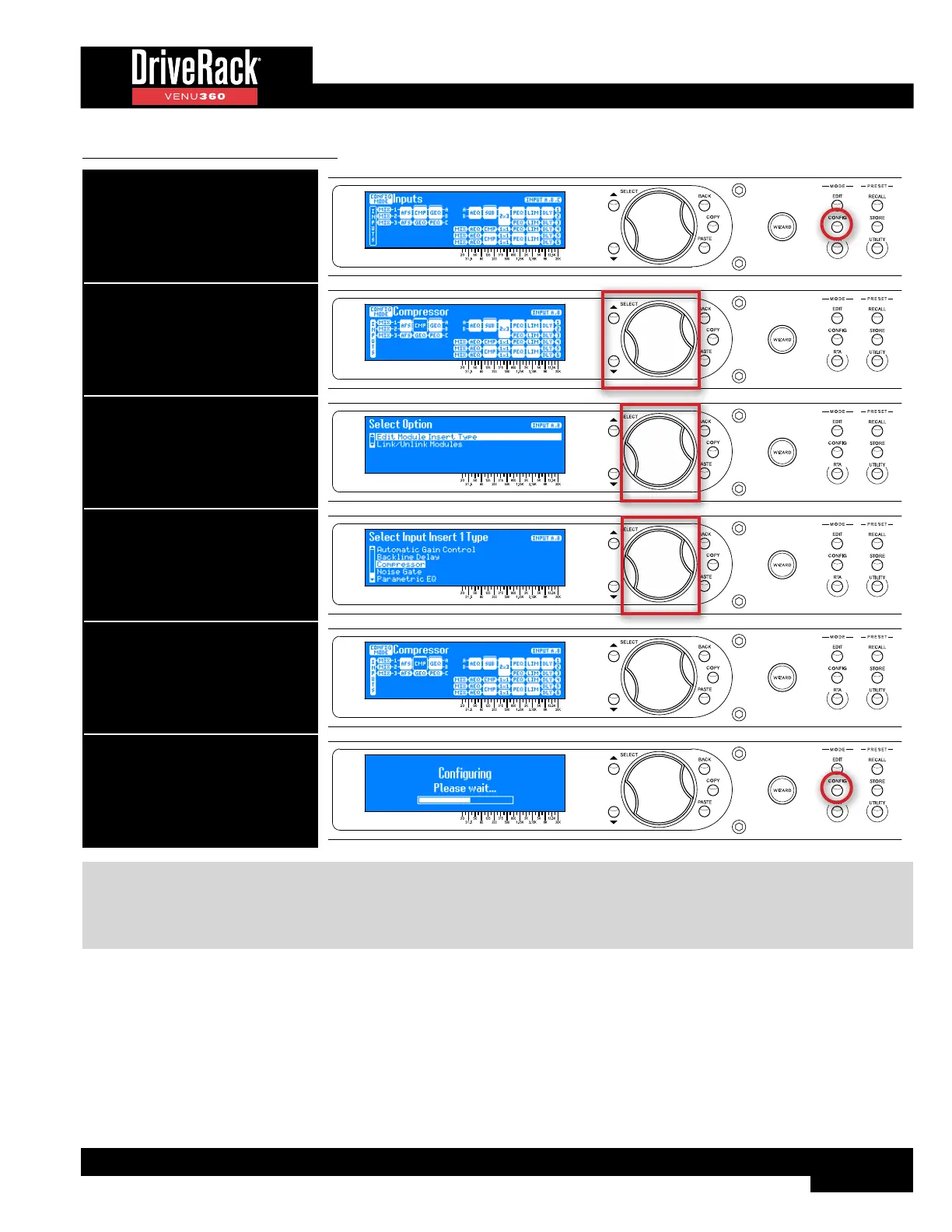
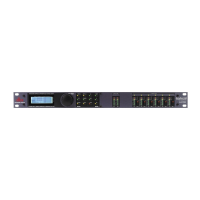
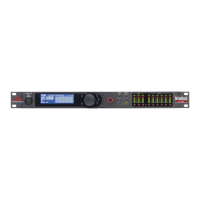
To configure insert module types:
1. Press the CONFIG button.
2. Select an insert module using
the SELECT wheel and UP/DOWN
buttons.
3. Press SELECT then select the
“Edit Module Insert Type” option
with the SELECT wheel.
4. Select the desired option by
turning then pressing the SELECT
wheel.
5. Repeat steps 2-4 to configure any
additional insert modules. See TIP
following table for information
on copying/pasting insert module
types.
6. When done, press the CONFIG
button twice to apply the changes.
TIP: Insert types can also be copied and pasted using the COPY/PASTE buttons, rather than entering the Insert Type
Selection menu for each one. Simply select an inserted module and press the COPY button. Now select the desired insert
slot destination and press the PASTE button. This provides a much more efficient way to configure multiple insert slots as
the same module type.


 To Next Page