44
Copying/Pasting Processing Module Settings
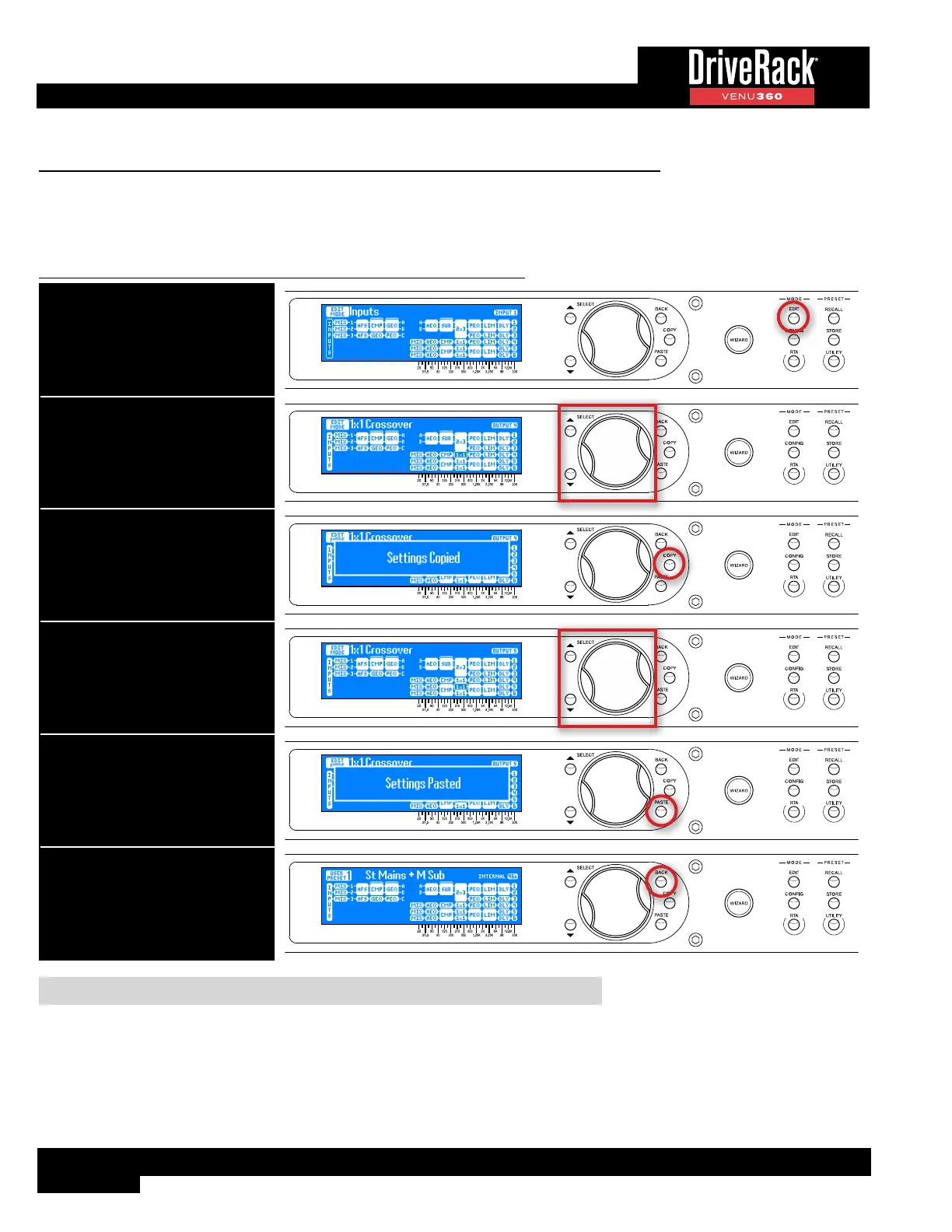
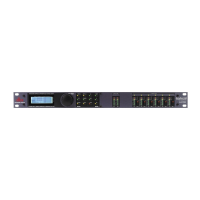
In Edit mode, the COPY/PASTE buttons allow you to copy all parameters of a module and paste them to another like
processing module. A like processing module is one that is of the same processing type and contains the same parameters as
the processing module that was copied.
To copy/paste settings from one processing module to another:
1. Press the EDIT button.
2. Select the module you wish to
copy using the SELECT wheel and
UP/DOWN buttons.
3. Press the COPY button.
4. Select the like module you wish
to paste the settings to using
the SELECT wheel and UP/DOWN
buttons.
5. Press the PASTE button. Repeat
steps 2-5 to copy/paste additional
settings.
6. When done editing, press the
BACK button repeatedly to return
to the Home screen.
TIP: Processing module settings can also be copied and pasted between presets.


 To Next Page