18
Using the Key Fob Remote Control (continued)
OPERATING THE KEY FOB REMOTE CONTROL
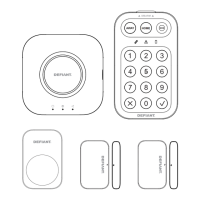
The remote can be used to arm, disarm, and operate the system instantly.
□ ARM – Arms the system, triggering the preset exit delay. When triggered, the Smart
Panel’s LED light will ash Red and indicate the triggered zone.
□ DISARM – Disarms the system instantly and the system will return to Standby mode.
□ ALERT – Puts the system into Alert mode and a chime will sound if any of the sensors
are triggered. The Green light on the Smart Panel LED display will ash and indicate the
triggered zone.
□ HOME – Sets the system in Home mode which will operate the system in both Arm and
Alert modes in different preset zones.
□ PANIC – If the HOME and ALERT buttons are pressed together the systems alarm is
immediately activated
DELETING A REMOTE CONTROL FROM THE SMART PANEL
If a Remote Control device is damaged or lost, it can be deleted from the system as follows:
Step Procedure Example
1 Ensure you are in STANDBY mode by entering the
default PIN of 1 2 3 4 OR your new 4-digit PIN and
pressing the Enter button.
The Smart Panel displays this image when in STANDY mode. One
beep indicates that you entered a valid PIN. Three beeps indicate
that an invalid operation was performed.
2 Enter the 4-digit PIN followed by pressing the Enter
button.
The Smart Panel displays this image:
3
Press and to enter the Remote Control
Deleting mode. Then input the ID number of the
Remote Control you wish to delete from the system.
The LCD display ashes the total number of remotes currently
enrolled to the system. For example, if the Smart Panel has 3
remotes enrolled, the LCD display will ash “03”.
Input the remote ID no. (e.g. “02”) for the remote you wish to
delete (Inputting “00” will delete all remote controls).
The LCD display will then ash the total number of remotes
enrolled after deletion. One beep indicates that the remote was
successfully deleted from the Smart Panel.
4 Press the Enter button to conrm the enrollment and
return the Smart Panel to STANDBY.


 To Next Page