Preparing Your Printer 13
Preparing Your Printer
Setting Up the Printer
If you have not already done so,
follow the steps on the
Setup
Diagram
(poster) to complete the
hardware and software installation.
Using the Operator Panel
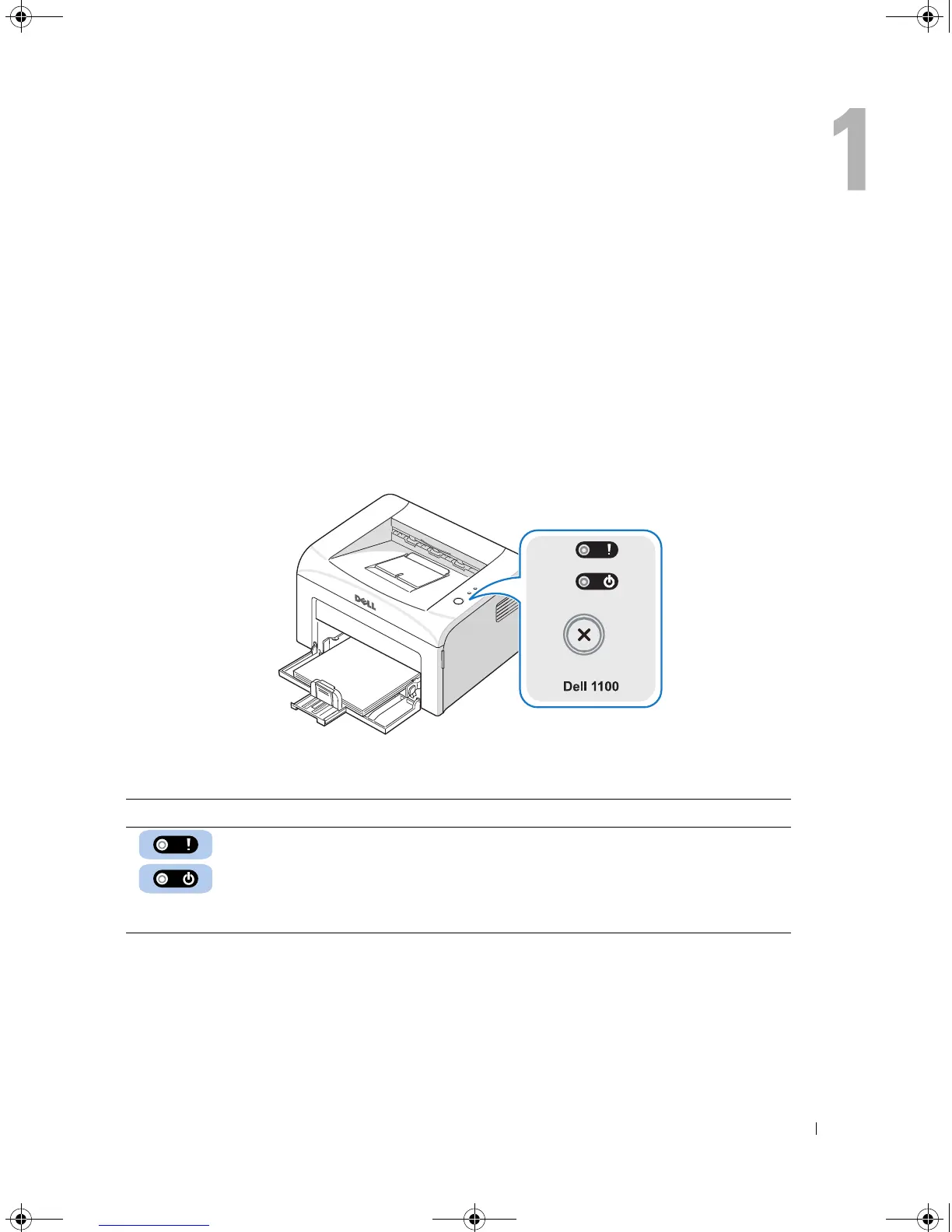
The operator panel on the top right side of your printer has two LEDs and one button.
LEDs
LED Description
The operator panel LEDs signify different things, depending on their sequence.
LEDs that are off, on, and/or blinking indicate printer conditions, such as printer
status, intervention (for example, out of paper and jammed paper), or service.
For more information on what the LEDs sequence means and what you can do,
see “Understanding the Operator Panel LEDs” on page 40.
1100-OM_EN.book Page 13 Friday, May 20, 2005 3:14 PM







 To Next Page