Troubleshooting 39
3
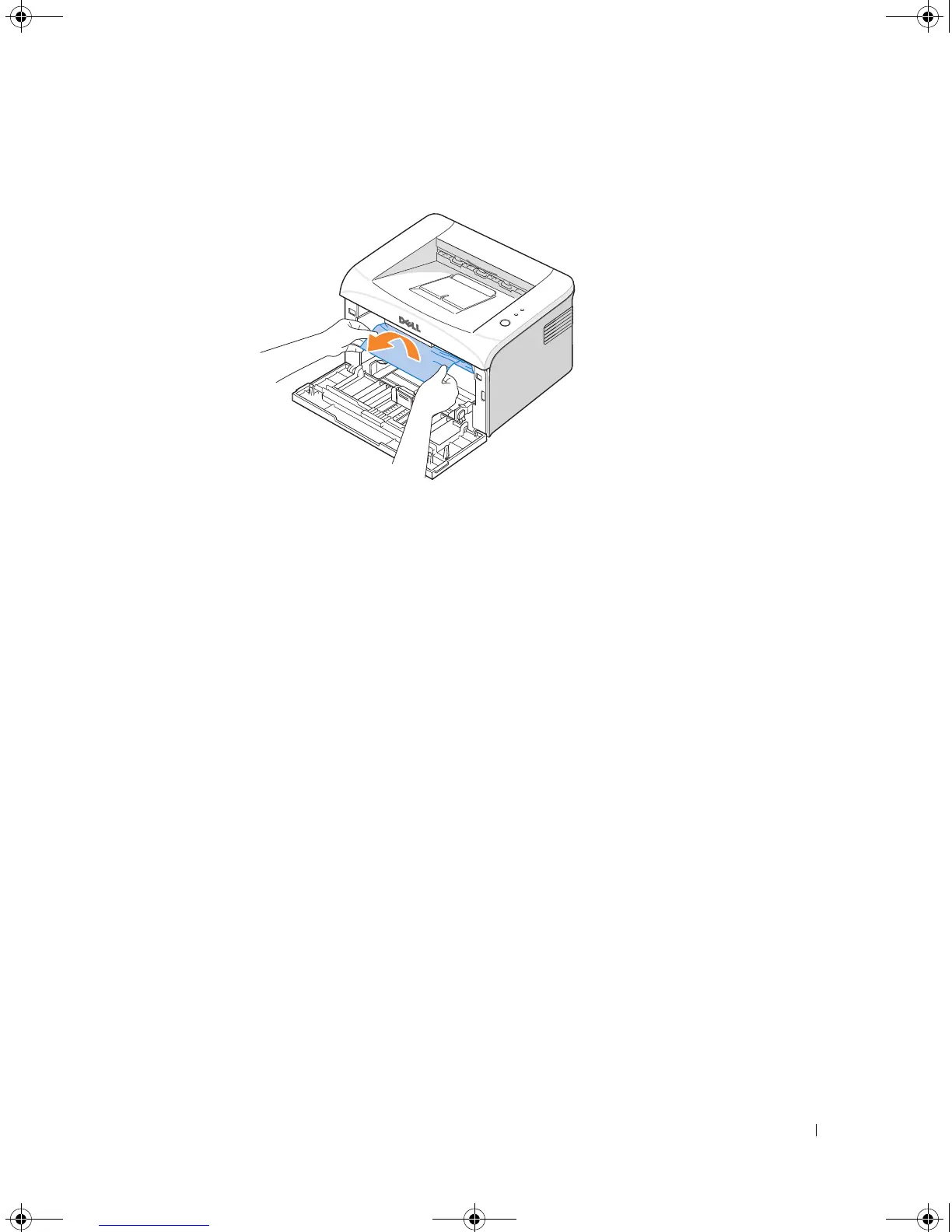
Remove the paper by gently pulling it toward you.
4
Check that there is no other paper in the printer.
5
Reinstall the toner cartridge and close the front cover. Your printer resumes printing the
document from failed pages.
Tips for Avoiding Paper Jams
By selecting the correct paper types, most paper jams can be avoided. When a paper jam
occurs, follow the steps outlined in "Clearing Jams in the Paper Tray" on page 35.
• Follow the procedures in "Loading Paper in the Paper Tray" on page 19. Ensure that the
adjustable guides are correctly positioned.
• Do not overload the paper tray.
• Do not remove the paper from the tray while your printer is printing.
• Do not add paper to the tray while your printer is printing.
• Flex, fan, and straighten the paper before loading.
• Do not use creased, damp, or curled paper.
• Do not mix paper types in the paper tray.
• Use only recommended print materials. See page 17.
• Ensure that the recommended print side of print materials is facing up in the paper tray.
1100-OM_EN.book Page 39 Friday, May 20, 2005 3:14 PM







 To Next Page