40 Troubleshooting
www.dell.com | support.dell.com
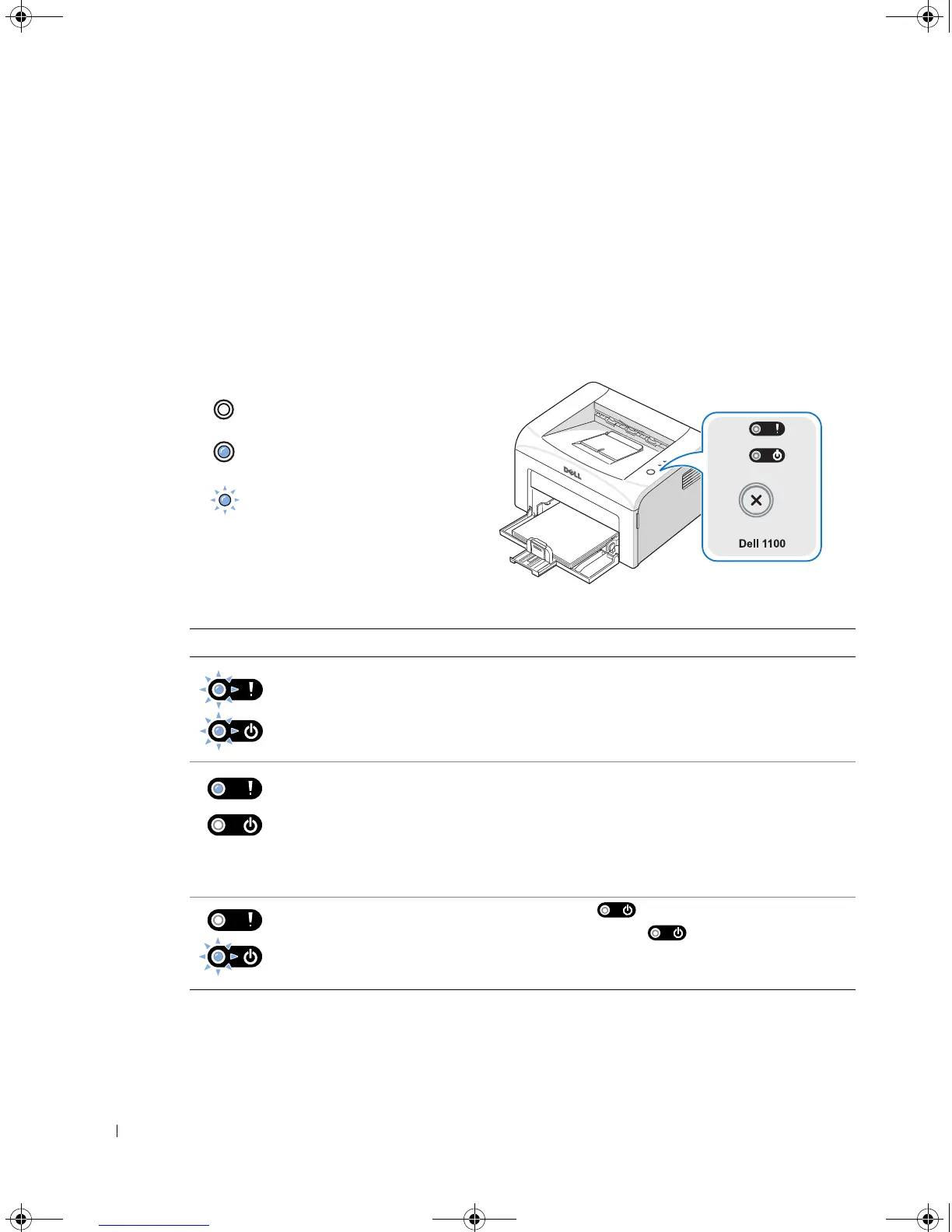
Understanding the Operator Panel LEDs
The operator panel LEDs signify different things, depending on their sequences. LEDs that
are off, on, and/or blinking indicate printer conditions such as printer status, intervention (for
example, out of paper and jammed paper), or service.
The following table shows the most common LED sequences. Find the LED pattern below
that matches the printer LED pattern and check the meaning and solution.
LED Status Legend
LED Pattern Meaning and Suggested Solution
Your printer has some problems.
If this problem occurs,
contact your
service representative.
• A paper jam has occurred. To solve the problem, see “Clearing Jams in
the Paper Tray” on page 35.
• The front cover is open. Close the front cover.
• The top cover is open. Close the top cover.
• A toner cartridge is not installed. Install a toner cartridge. See
“Replacing the Toner Cartridge” on page 30.
• If the printer is receiving data, blinks green slowly.
• If the printer is printing received data, blinks green quickly.
symbol for “light off”
symbol for “light on”
symbol for “light blinking”
(Red)
(Green)
(Red)
(Green)
1100-OM_EN.book Page 40 Friday, May 20, 2005 3:14 PM







 To Next Page