1-10 Dell
®
1700 Flat Panel Monitor User’s Guide
Table 1-1. Menu adjustments
Icon Settings and
Sub-menus
Description
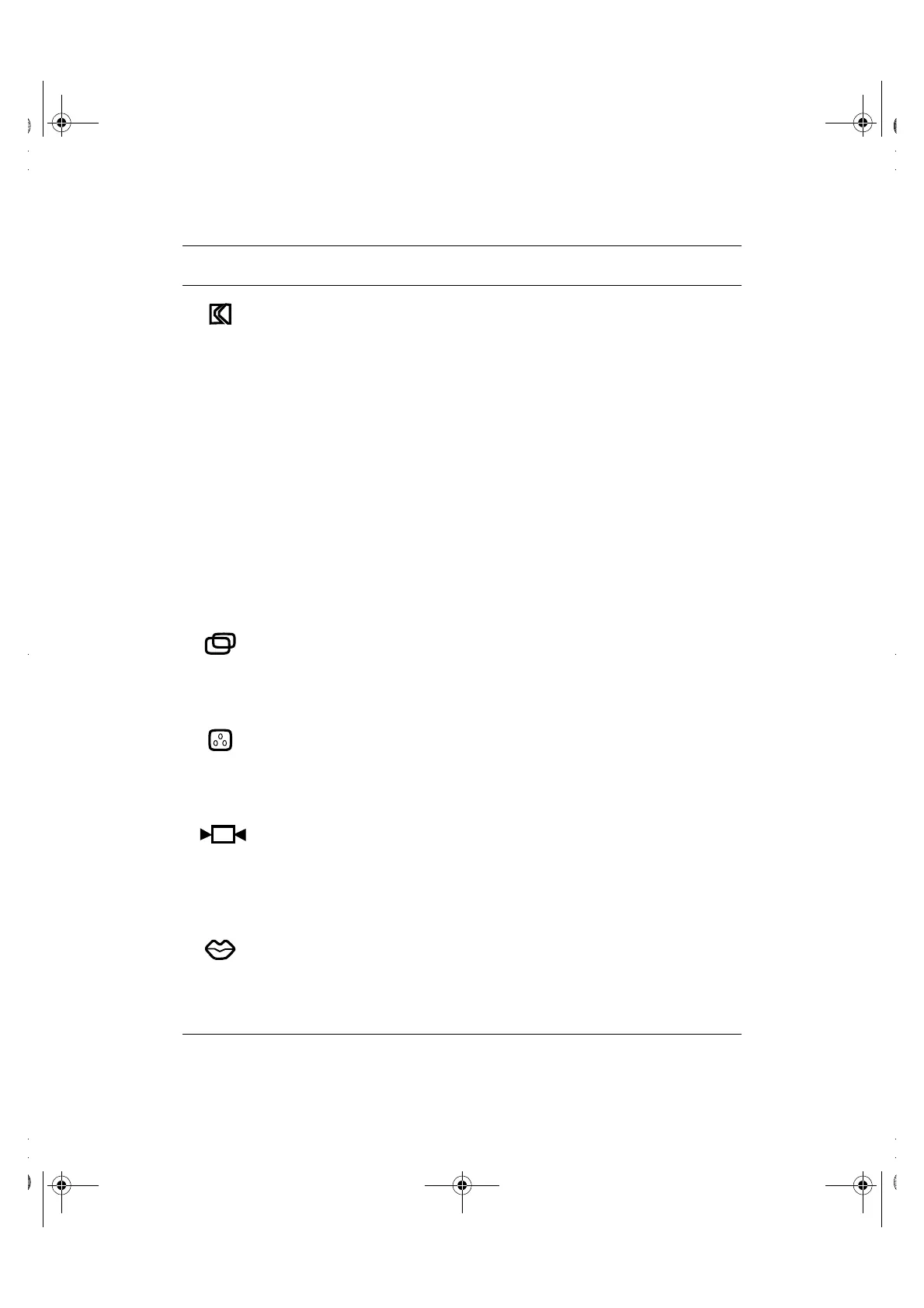
Image Lock:
• Auto
Adjustment
Select this icon to adjust for and limit the amount of
noise in the video signal which causes horizontal lines
or areas on the screen where the image appears to be
unstable and jitters or shimmers.
Auto Adjustment allows the monitor to self-adjust to
the incoming video signal. After using Auto Adjustment
you can further tune your monitor to your liking using
the Fine and Coarse adjustments.
• Fine
• Coarse
The Fine and Coarse adjustments allow you to more
closely adjust your monitor to your preference.
Use the “–” and “+” buttons to adjust away
interference.
If satisfactory results are not obtained using the Fine
adjustment, use the Coarse adjustment and then use
Fine again.
This function may change the width of the display
image. Use the Horizontal function on the Position
menu to center the display image on the screen.
Position:
• Horizontal
• Vertical
Select this icon to move the viewing area on the
monitor screen.
Use the “–” and “+” buttons to move the viewing area
to the left or right when Horizontal is selected and up
and down when Vertical is selected.
Color Control:
• R(ed)
• G(reen)
• B(lue)
Select this icon to adjust the color hue and saturation.
The color hue is most noticeable in areas of white. Use
the “–” button to decrease the amount of the selected
color. Use the “+” button to increase the amount of the
selected color.
Reset:
• Geometry
• Color
Select this icon to return to the factory preset values for
the selected group of functions. Resetting the
Geometry settings changes the Position settings, Image
Lock settings and changes the Image Size to Expand 2.
Resetting the Color settings changes the colors back to
their original factory settings.
Language:
• English
• Deutsch
• Español
• Français
• Italiano
Select one of the five languages to use for the OSM.
The language chosen affects only the language of the
OSM. It has no effect on any software running on the
computer.
1700FP-E.book Page 10 Monday, November 2, 1998 4:51 PM


 To Next Page