EasyManua.ls Logo

Dell 1710 - Print Quality Problems

Dell 1710
116 pages
Print Icon
To Next Page IconTo Next Page
To Previous Page IconTo Previous Page
Loading...
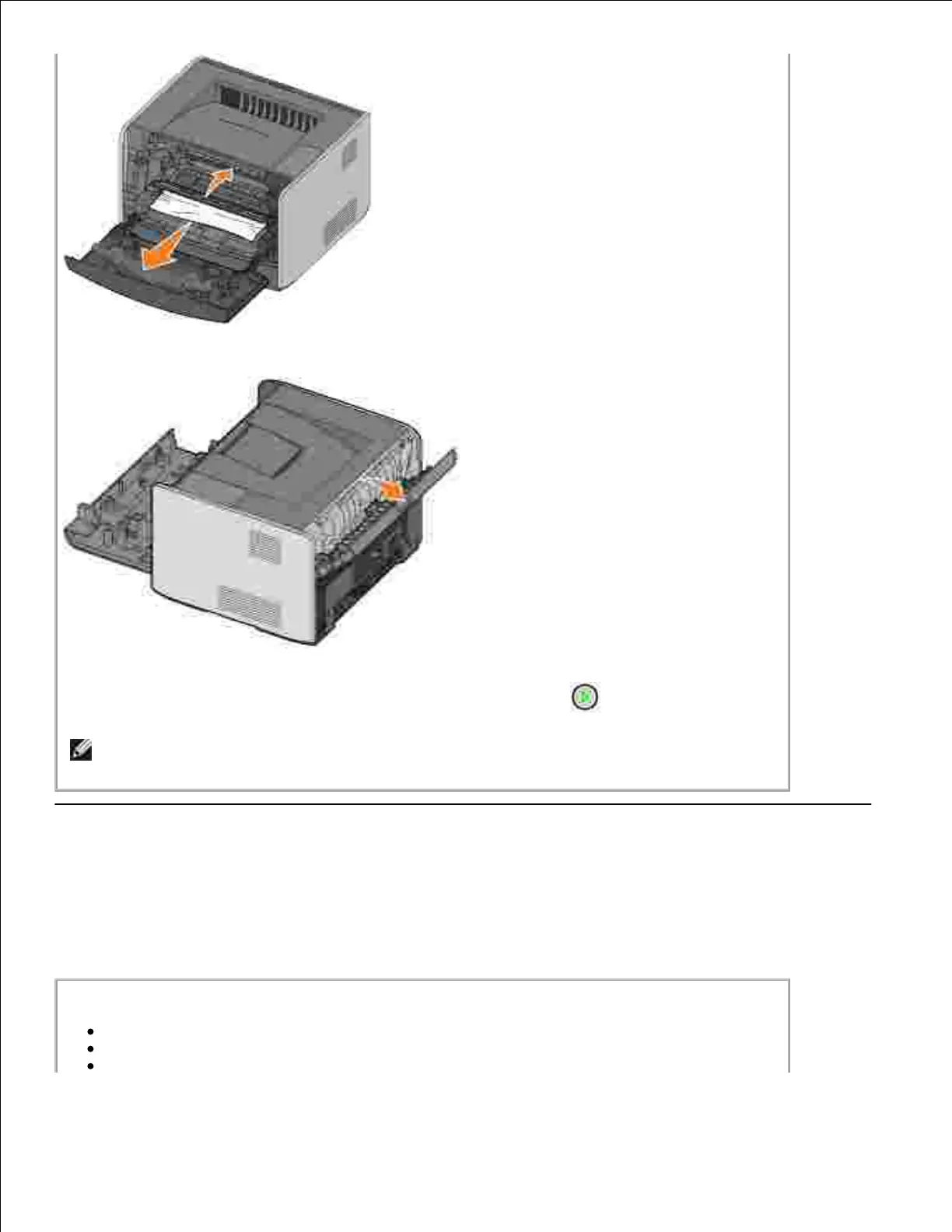
4.
Open the rear exit and remove any jams.5.
After you have cleared the jams, reinstall the toner cartridge assembly, make sure all
printer covers and trays are closed, and then press Continue to resume printing.
6.
NOTE: The printer reprints the pages that caused the paper jam.
Print Quality Problems
Use the following table to find solutions for printing problems you encounter. If you cannot fix the problem,
contact Dell at support.dell.com. You may have a printer part that requires cleaning or replacement by a
service technician.
Print is too light.
The Toner Darkness
2
setting is too light.
You are using paper that does not meet the printer specifications.
The toner cartridge is low on toner.

Table of Contents

Related product manuals