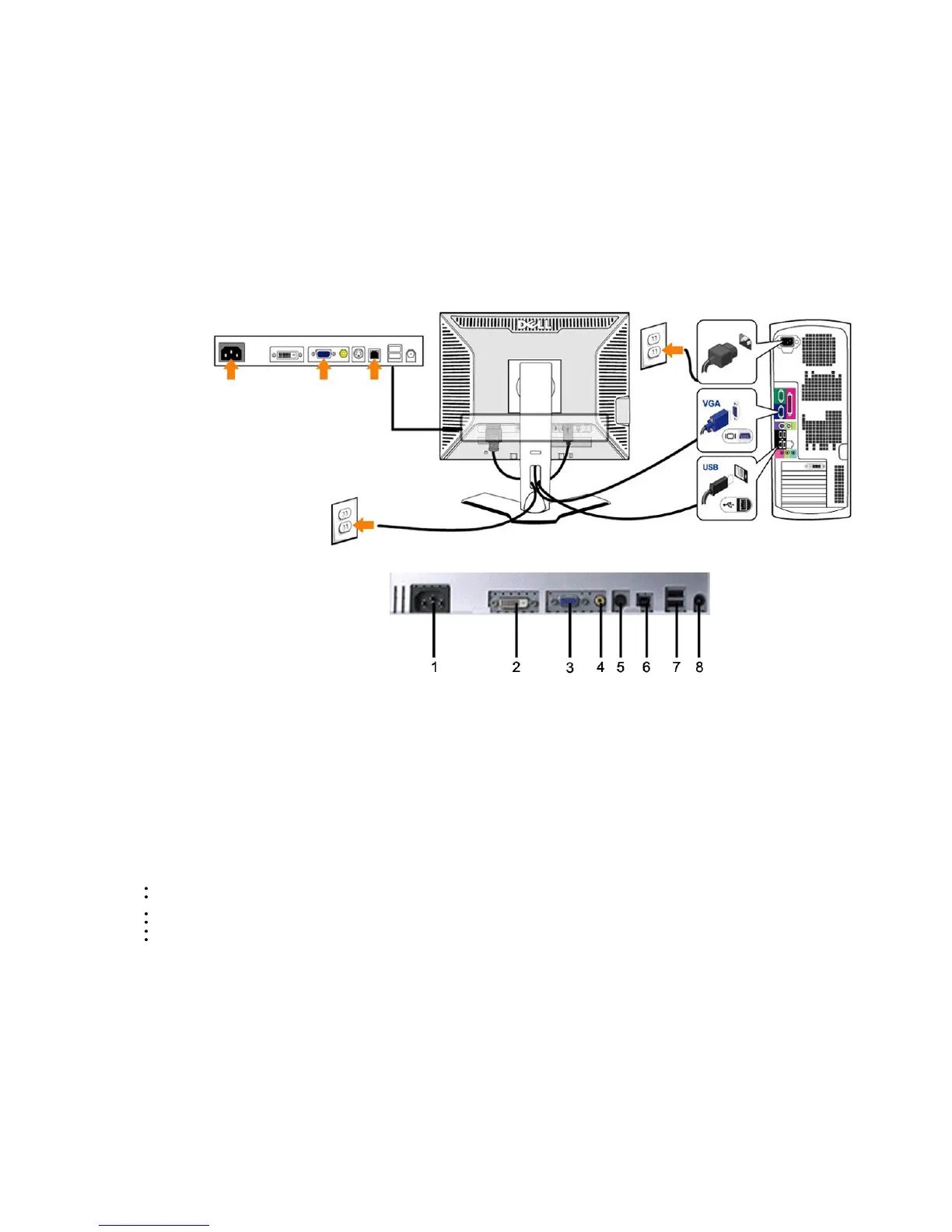
1 AC pow er cord connector
2 DVI connector
3 VGA connector
4 Composite video connector
5 S-Video connector
6 USB upstream port
7 USB downstream ports
8 DC pow er connector for Dell™ Soundbar
To connect your monitor to the computer perform the following steps/instructions.
Turn off your computer and disconnect the power cable.
Connect either the white (digital DVI-D) or the blue (analog VGA) display connector cable to the corresponding video port on the back of your computer. Do not use both cables on the same compute r. The
only case in which both cables can be use d is if they are connected to tw o different computers with appropriate video systems. (Graphics are for illustration only. System appearance may vary).
Connect the upstream USB port (cable supplied) to an appropriate USB port on your computer .
Connect USB peripherals to the dow nstream USB ports (rear or side) on the monitor. (See rear or bottom view for details.)
Plug the pow er cables for your computer and monitor into a nearby outlet.
Turn on the monitor and computer.
If your monitor displays an image, installation is complete. If it does not display an image, see Solving Problems.







 To Next Page