If your monitor displays an image, installation is complete. If it does not display an image, see Solving Problems.
Use the cable holder on the monitor stand to neatly organize the cables.
NOTE: If your computer does not support the DVI connector, you can leave the cable unconnected or remove it.
NOTE: For USB peripherals already connected to your computer, changing the USB connection to your monitor is not necessary.
Using the Front Panel Buttons
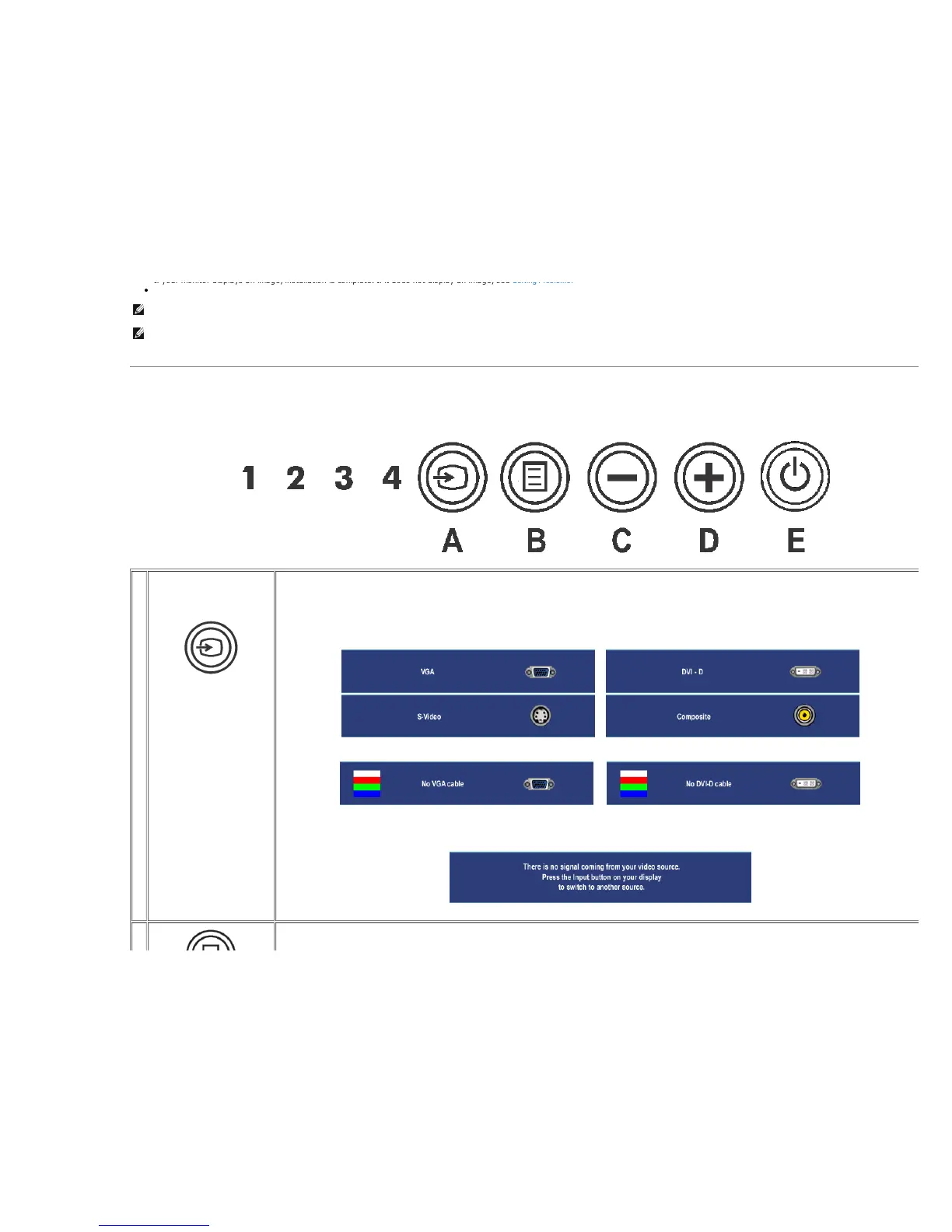
Use the control buttons on the front of the monitor to adjust the characteristics of the image being displayed. As you use these buttons to adjust the controls, an OSD show s their numeric values as they change.
A
Input Source Select
Use Input Source Select button to select between four different video signals that may be connected to your monitor.
1. VGA input
2. DVI-D input
3. S- Video input
4. Composite video input
As you cycle through the inputs you will see the follow ing messages to indicate currently selected input source. It may take 1 or 2 seconds for the image to appear.
or
or
If either VGA or DVI-D input is selected and both VGA and DVI-D cables are not connected, a floating dialog box as shown below will appear.
or
If either S-Video or Composite input is selected and both cables are not connected or the video source is turned off, the screen will not have an image. If any button is
presse d (except power button), the monitor displays the follow ing message:
B The MENU button is used to launch the on-screen display(OSD) and select the OSD Menu. See Accessing the Menu Sys tem .







 To Next Page