3. Push the MENU button once to activate the highlighted option.
4. Push and button to select the desired parameter.
5. Push MENU to enter the slide bar and then use the and buttons, according to the indicators on the menu, to make your changes.
6. Select the "back" option to return to the main menu or "exit" to exit the OSD menu.
Icon Menu and Submenus Description
EXIT
Select to exit the main menu.
BRIGHTNESS
& CONT RAST
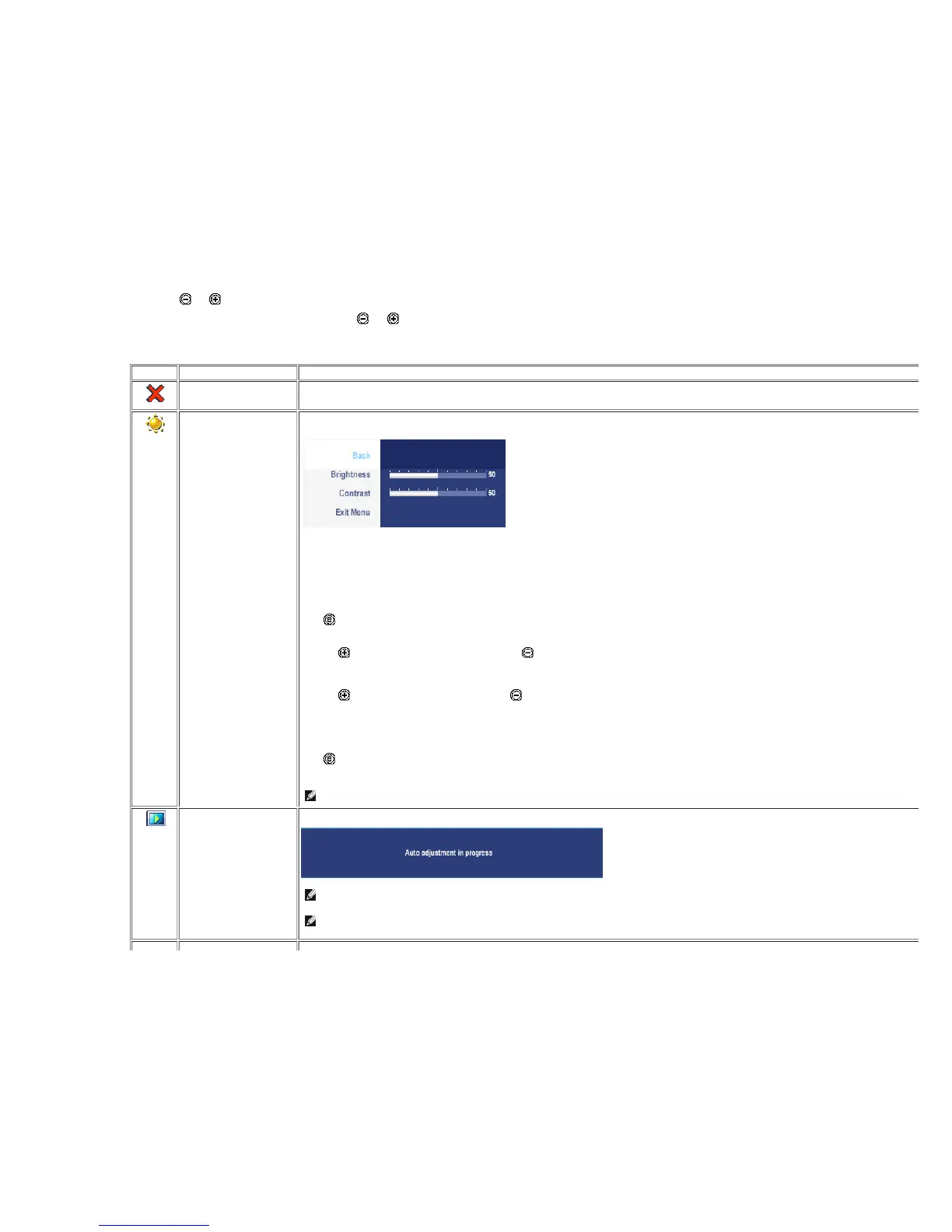
Back
Brightness
Contrast
Exit Menu
This menu is to activate Brightness/Contrast adjustment.
Push to select Back to go back to the main menu.
Brightness adjusts the luminance of the backlight.
Push the button to increase brightness and push the button to decrease brightness (min 0 ~ max 100).
Adjust Brightness first, and then adjust Contrast only if furthe r adjustment is necessary.
Push the button to increase contrast and push the button to decrease contrast (min 0 ~ max 100).
The Contrast function adjusts the degree of difference betw een darkness and lightness on the monitor screen.
Push to exit the OSD main menu.
NOTE: When using DVI source, the contrast adjustment is not available.
AUTO ADJUST
Even though your computer recognizes your monitor on startup, the Auto Adjustment function optimizes the display settings for use with your particular setup.
NOTE: In most cases, Auto Adjust produces the best image for your configuration.
NOTE: AUTO ADJUST option is only available when you are using the analog (VGA) connector.







 To Next Page