68 Understanding the Software
www.dell.com | support.dell.com
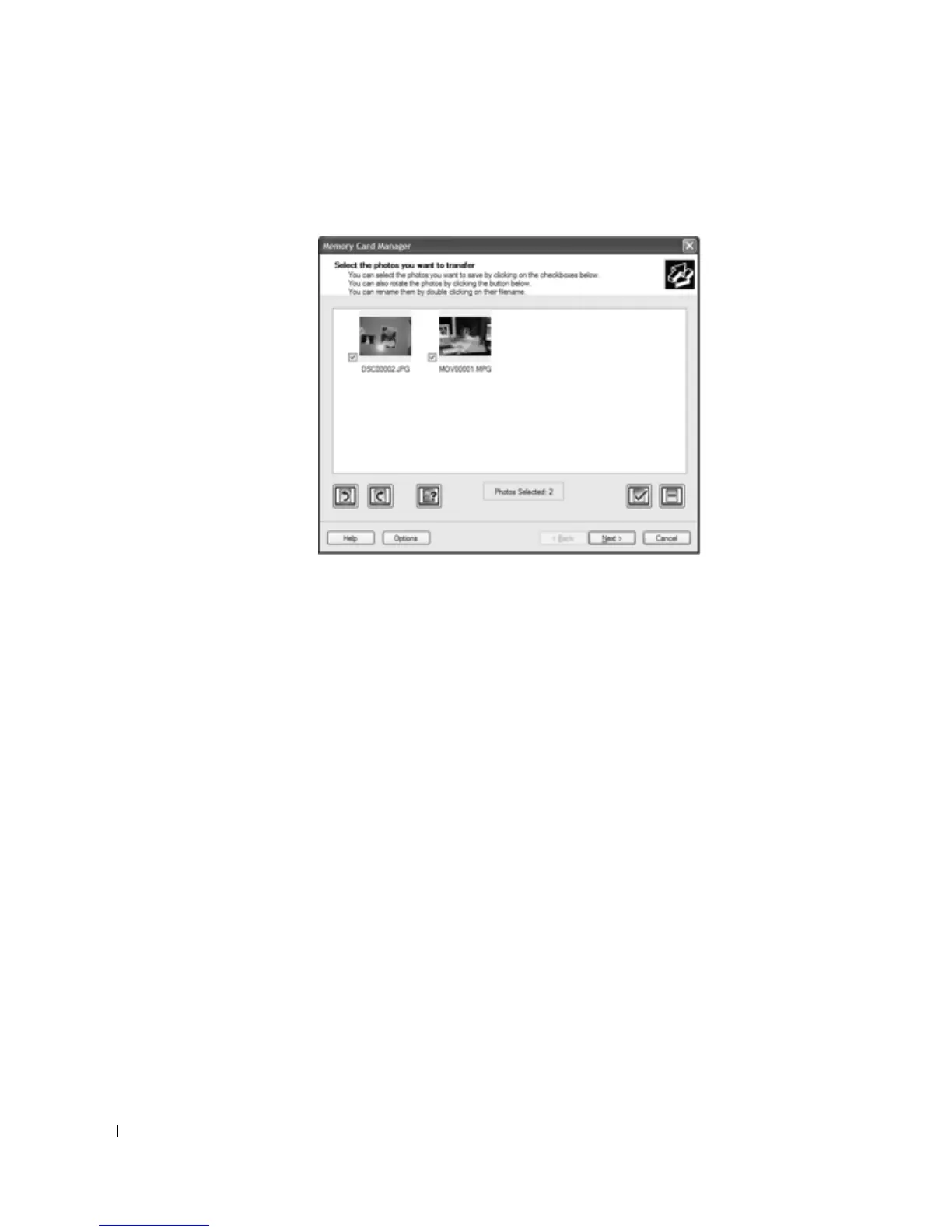
Using Memory Card Manager
Memory Card Manager allows you to display, manage, edit, print, and save photos from your
memory card or USB memory key to your computer.
To launch Memory Card Manager:
1 Insert a memory card into the memory card slot or a USB memory key into the PictBridge
port on the front of the printer.
2 Select Save to Computer from the Photo Mode menu.
You can also launch Memory Card Manager from your computer by clicking
Start→Programs or All Programs→Dell Printers→Dell Photo AIO Printer
944→Memory Card Manager.
Dell Ink Management System
Each time you print a job, a printing progress screen appears, which shows the progress of the
print job as well as the amount of ink remaining and the approximate number of pages
remaining in the cartridge. The page counter is hidden during the first 50 pages of cartridge use,
until printing habits are learned and a more accurate count can be given. The number of pages
remaining changes as a result of the type of print jobs the printer completes.
When your ink cartridge levels are low, a Low Ink Warning appears on your screen when you try
to print. This warning is displayed every time you print until you install a new ink cartridge. For
more information on replacing ink cartridges, see "Replacing Ink Cartridges" on page 71.













 To Next Page