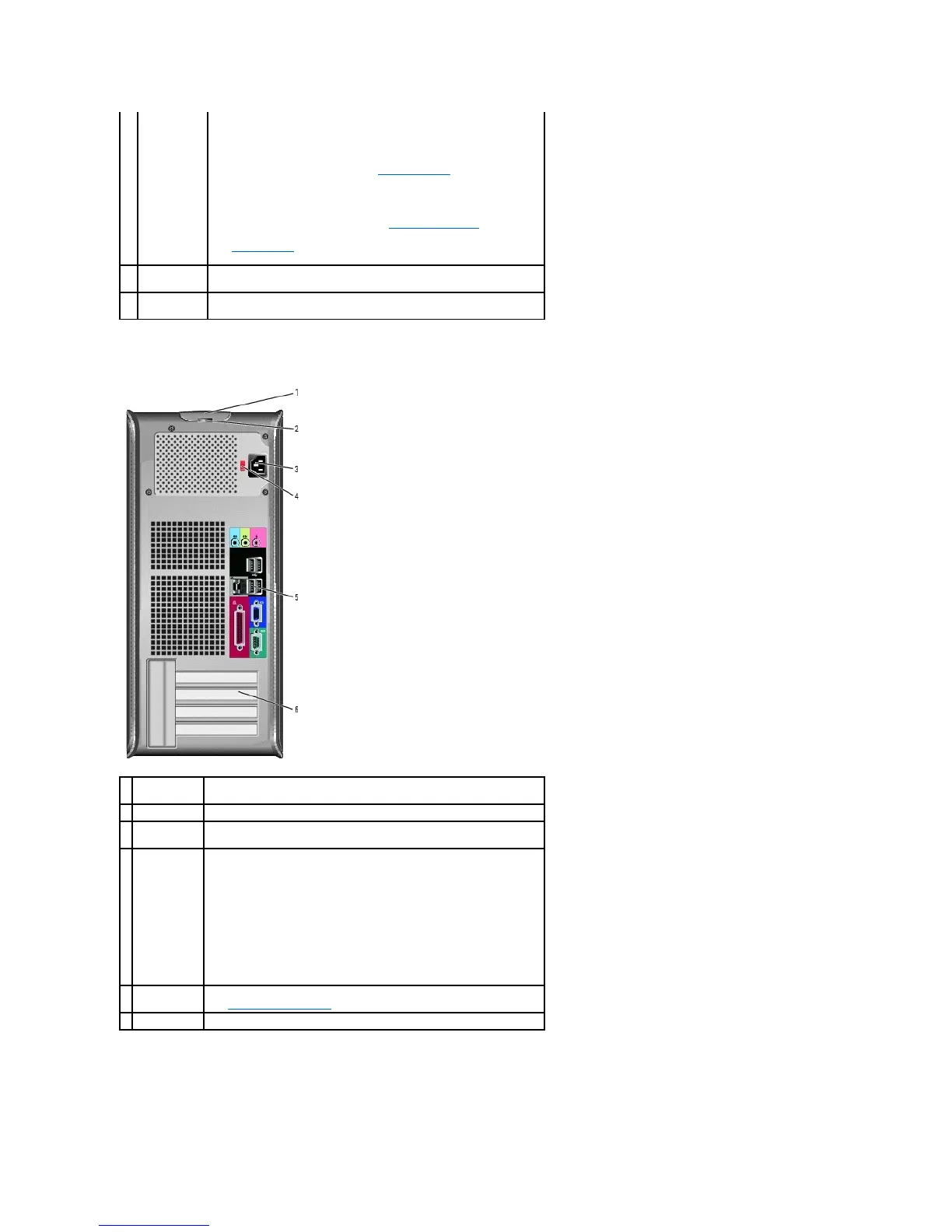
Back View
Back-Panel Connectors
different operating states:
l No light — The computer is turned off.
l Steady green — The computer is in a normal operating state.
l Blinking green — The computer is in a power-saving mode.
l Blinking or solid amber — See Power Problems.
To exit from a power-saving mode, press the power button or use the
keyboard or the mouse if it is configured as a wake device in the
Windows Device Manager. For more information about sleep modes and
exiting from a power-saving mode, see Power Management.
See System Lights for a description of light codes that can help you
troubleshoot problems with your computer.
Use the headphone connector to attach headphones.
This light indicates that a LAN (local area network) connection is
established.
This latch allows you to open the computer cover.
Insert a padlock to lock the computer cover.
Insert the power cable into this connector.
Your computer is equipped with a manual voltage-selection switch. To
help avoid damaging a computer with a manual voltage-selection switch,
set the switch for the voltage that most closely matches the AC power
available in your location.
NOTICE: In Japan, the voltage selection switch must be set to the 115-V
position.
Also, ensure that your monitor and attached devices are electrically rated
to operate with the AC power available in your location.
Plug serial, USB, and other devices into the appropriate connector.
See Back-Panel Connectors for details.
Access connectors for any installed PCI and PCI Express cards.




 To Next Page