● If the battery gets stuck inside your computer as a result of swelling, do not try to release it as puncturing,
bending, or crushing a lithium-ion battery can be dangerous. In such an instance, contact Dell technical
support for assistance. See www.dell.com/contactdell.
● Always purchase genuine batteries from www.dell.com or authorized Dell partners and resellers.
● Swollen batteries should not be used and should be replaced and disposed properly. For guidelines on how to
handle and replace swollen Lithium-ion batteries, see Handling swollen Lithium-ion batteries.
Removing the battery
Prerequisites
1. Follow the procedure in Before working inside your computer.
2. Remove the base cover.
About this task
NOTE: Before removing the base cover, ensure that there is no SD card installed in the SD-card slot on your computer.
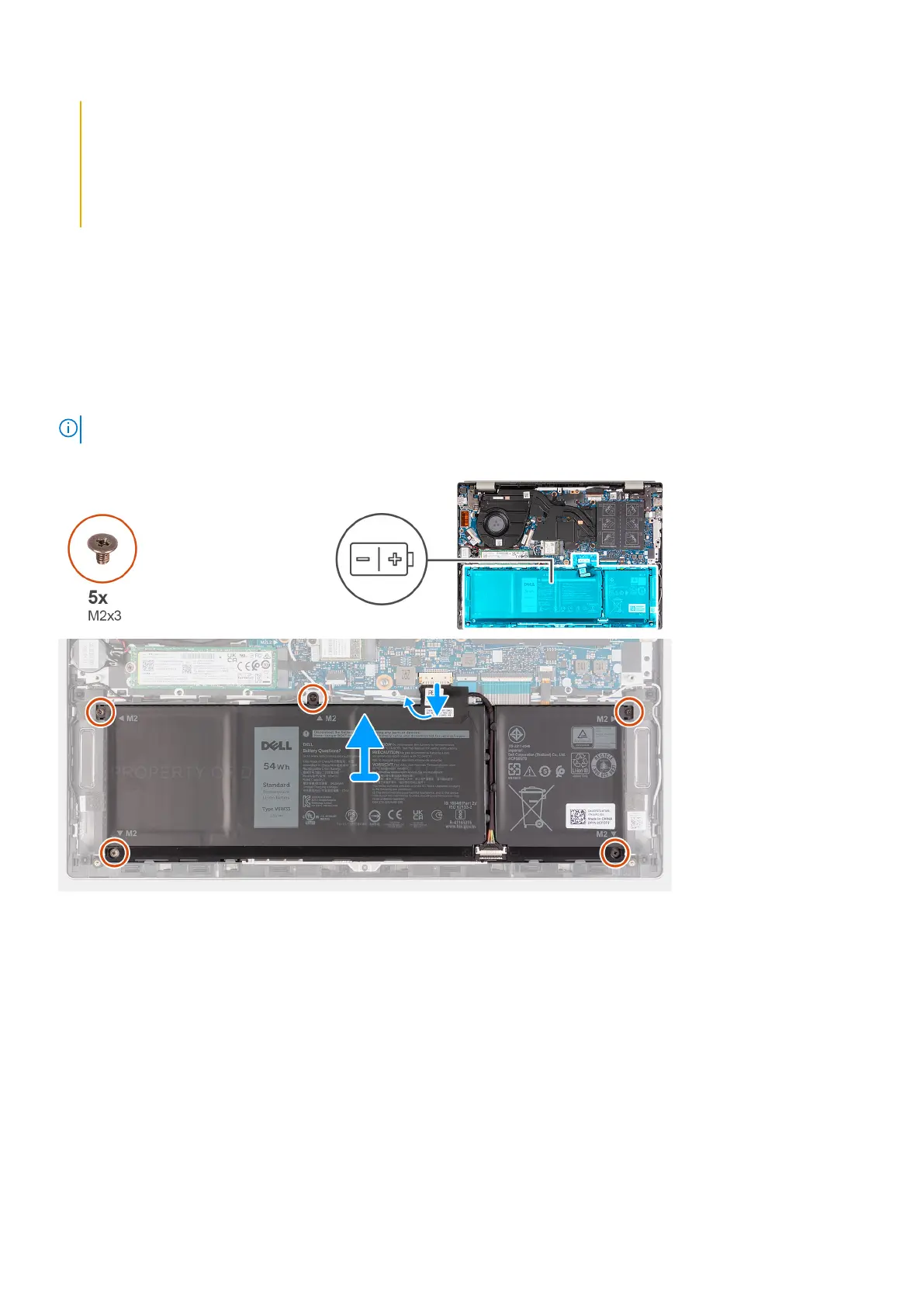
The following image(s) indicate the location of the battery and provides a visual representation of the removal procedure.
Steps
1. Peel the tape that secures the battery cable to the battery.
2. Disconnect the battery cable from the system board, if applicable.
3. Remove the five screws (M2x3) that secure the battery to the palm-rest and keyboard assembly.
4. Lift the battery off the palm-rest and keyboard assembly.
Installing the battery
Prerequisites
If you are replacing a component, remove the existing component before performing the installation process.
20
Removing and installing components


 To Next Page