Troubleshooting | 99
Built-in diagnostics
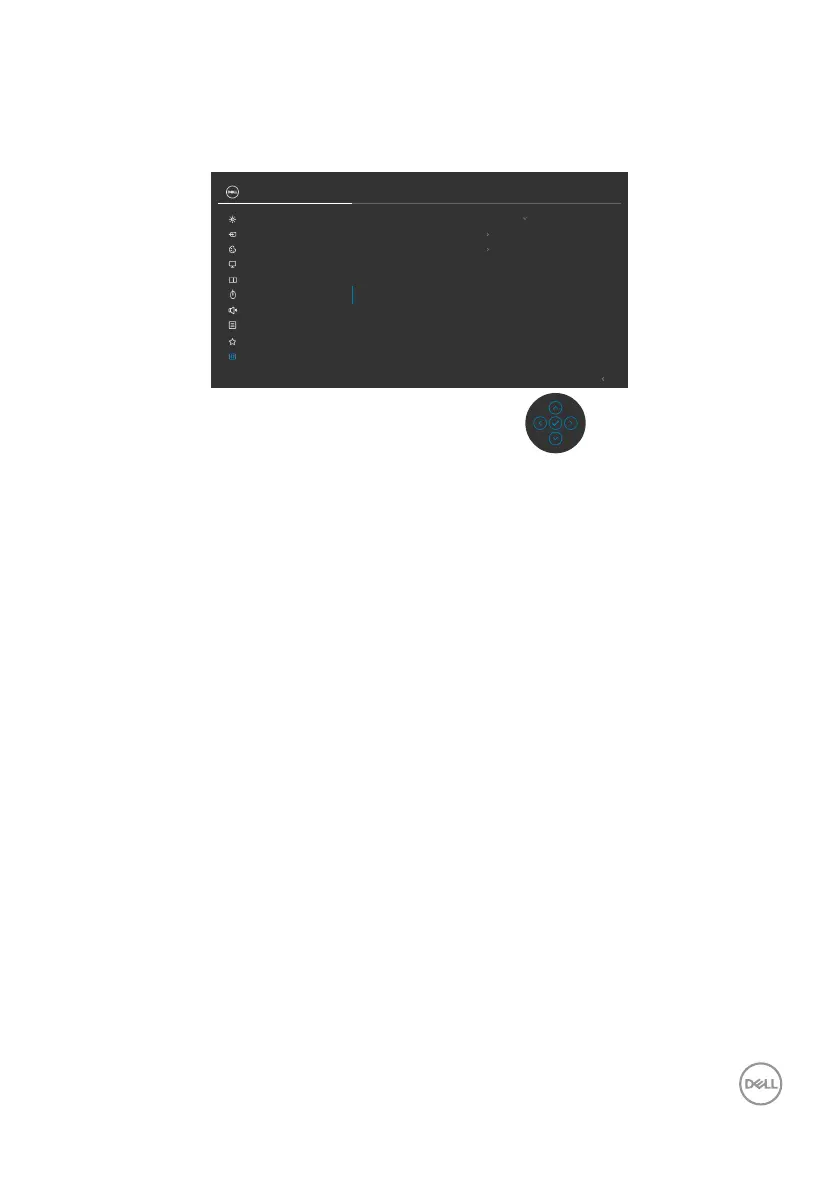
Your monitor has a built-in diagnostic tool that helps you determine if the screen
abnormality you are experiencing is an inherent problem with your monitor, or with your
computer and video card.
Exit
34 Monitor
Input Source
Color
Brightness/Contrast
Display
PIP/PBP
Personalize
Others
Menu
USB
Audio & Webcam
Display Info
Reset Others
Factory Reset
Firmware M2T101
Service Tag ABCDEFG
DDC/CI On
LCD Conditioning
O
ENERGY STAR
®
Select
√
Self-Diagnostic Select √
To run the built-in diagnostics:
1. Ensure that the screen is clean (no dust particles on the surface of the screen).
2. Select OSD items of Self-Diagnostics in Others feature.
3. Press the joystick button to start the diagnostics. A gray screen is displayed.
4. Observe if the screen has any defects or abnormalities.
5. Toggle the joystick once again until a red screen is displayed.
6. Observe if the screen has any defects or abnormalities.
7. Repeat steps 5 and 6 until the screen displays green, blue, black, and white
colors. Note any abnormalities or defects.
The test is complete when a text screen is displayed. To exit, toggle the joystick control
again.
If you do not detect any screen abnormalities upon using the built-in diagnostic tool,
the monitor is functioning properly. Check the video card and computer.



 To Next Page