14 | About your monitor
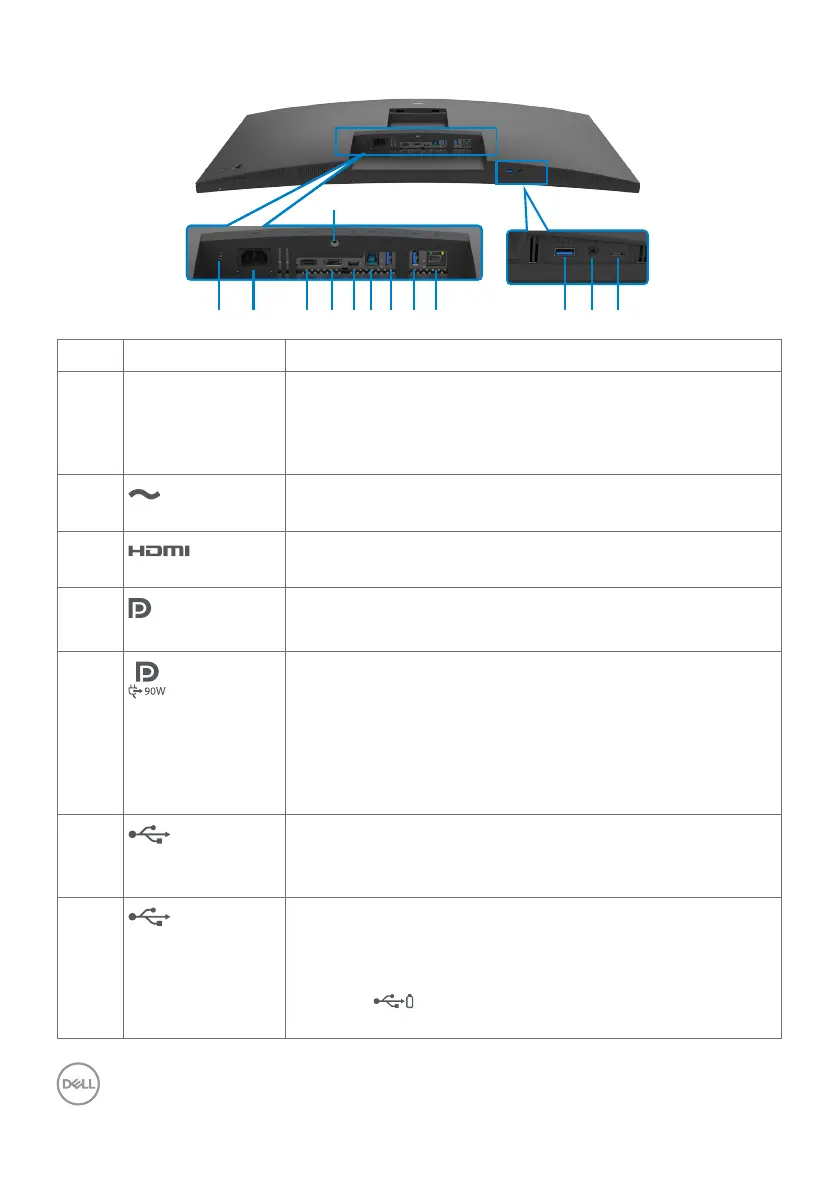
Bottom view
13
Label Description Use
1 Security lock slot
(based on
Kensington
Security Slot
TM
)
Secures monitor with security cable lock (sold separately).
2
Power connector
Connect the power cable.
3
HDMI port
Connect your computer with the HDMI cable.
4
DisplayPort
(
in)
Connect your computer with the DisplayPort cable.
5
USB Type-C
upstream/
DisplayPort
(Video + data)
Connect to your computer using the USB Type-C cable.
The USB Type-C port offers the fastest transfer rate (USB
3.2 Gen1) and the alternate mode with DP 1.2 supporting
maximum resolution of 3440 x 1440 at 60 Hz, PD 20 V/4.5
A, 15 V/3 A, 9 V/3 A, 5 V/3 A.
NOTE: USB Type-C is not supported on Windows
versions that are prior to Windows 10.
6
USB-B upstream
port
Connect the USB cable that comes with your monitor to
the computer. Once this cable is connected, you can use
the USB downstream connectors on the monitor.
7,8,10
Super speed USB
5 Gbps (USB 3.2
Gen1) (3)
Connect your USB device. You can use these ports only
after you have connected the USB cable (Type-A to
Type-B or Type-C to Type-C) from the computer to the
monitor.
Port with battery icon supports Battery Charging
Rev. 1.2.



 To Next Page