Replacing the solid-state drive/Intel Optane
memory module
Enable the Intel Optane memory after you replace the Intel Optane memory module. For more information about enabling the
Intel Optane memory, see Enabling Intel Optane memory.
NOTE: Before working inside your computer, read the safety information that shipped with your computer and follow the
steps in Before working inside your computer. After working inside your computer, follow the instructions in After working
inside your computer. For more safety best practices, see the Regulatory Compliance home page at www.dell.com/
regulatory_compliance.
CAUTION: Solid-state drives are fragile. Exercise care when handling the solid-state drive.
Procedure
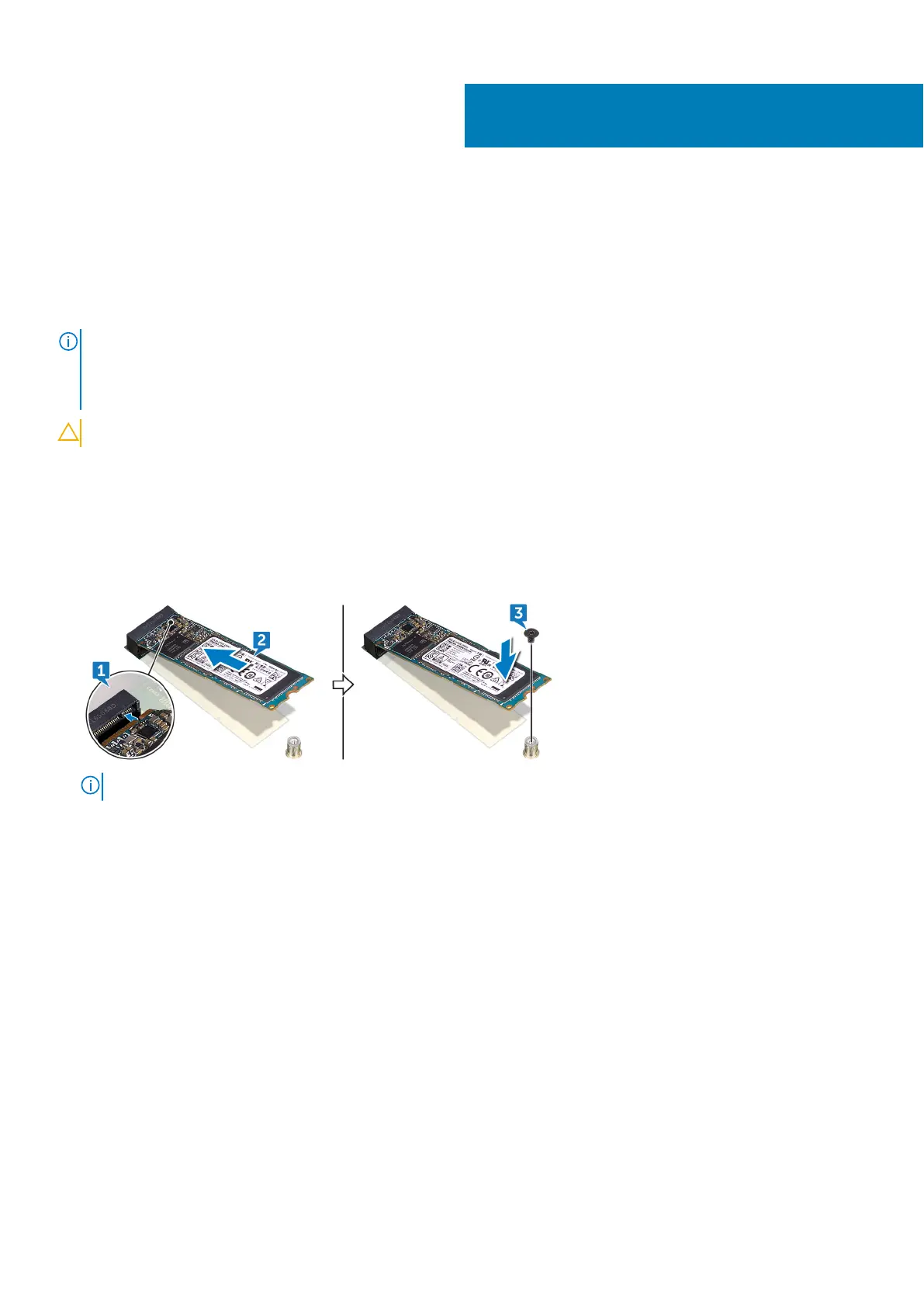
1. Align the notch on the solid-state drive/Intel Optane with the tab on the solid-state drive/Intel Optane slot.
2. Slide the solid-state drive/Intel Optane into the solid-state drive/Intel Optane slot.
3. Replace the screw (M2x2.2) that secures the solid-state drive/Intel Optane to the palm rest and keyboard assembly
NOTE: If available, replace the solid-state drive shield after replacing the solid-state drive/Intel Optane.
Post-requisites
1. Replace the base cover.
2. Replace the optical drive.
23
44 Replacing the solid-state drive/Intel Optane memory module



 To Next Page