Replacing the hard drive
Enable Intel Optane after replacing the SATA storage. For more information about enabling the Intel Optane, see Enabling Intel
Optane.
NOTE: Before working inside your computer, read the safety information that shipped with your computer and follow the
steps in Before working inside your computer. After working inside your computer, follow the instructions in After working
inside your computer. For more safety best practices, see the Regulatory Compliance home page at www.dell.com/
regulatory_compliance.
CAUTION: Hard drives are fragile. Exercise care when handling the hard drive.
Procedure
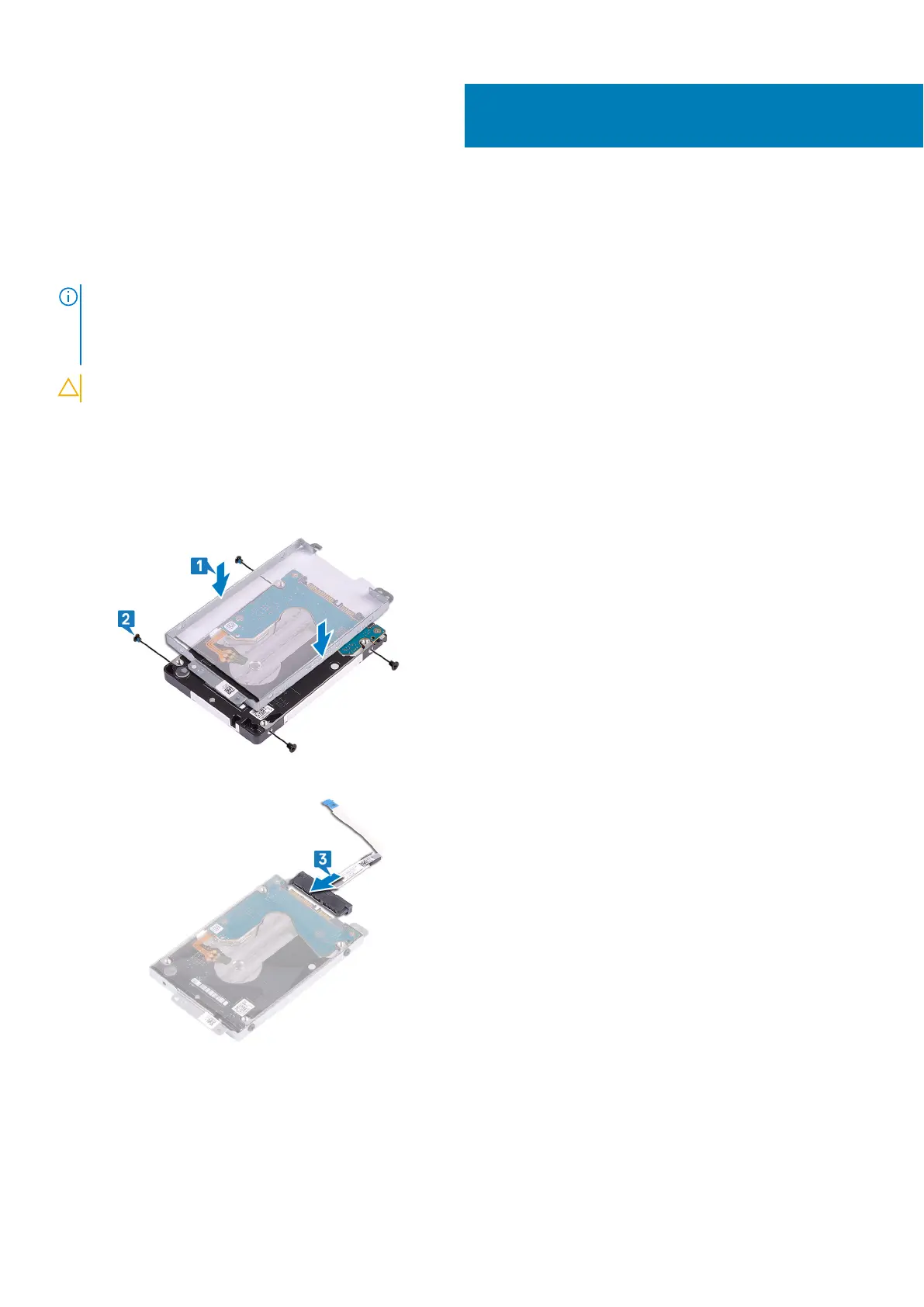
1. Align the screw holes on the hard-drive bracket with the screw holes on the hard drive.
2. Replace the four screws (M3x3) that secure the hard-drive bracket to the hard drive.
3. Connect the interposer to the hard-drive assembly.
4. Align the screw holes on the hard-drive assembly with the screw holes on the palm rest and keyboard assembly.
5. Replace the four screws (M2x3) that secure the hard-drive assembly to the palm rest and keyboard assembly.
6. Connect the hard-drive cable to the system board and close the latch to secure the cable.
25
Replacing the hard drive 47


 To Next Page