Running the SupportAssist Pre-Boot System Performance Check
1. Turn on your computer.
2. As the computer boots, press the F12 key as the Dell logo appears.
3. On the boot menu screen, select the Diagnostics option.
4. Click the arrow at the bottom left corner.
Diagnostics front page is displayed.
5. Click the arrow in the lower-right corner to go to the page listing.
The items detected are listed.
6. To run a diagnostic test on a specific device, press Esc and click Yes to stop the diagnostic test.
7. Select the device from the left pane and click Run Tests.
8. If there are any issues, error codes are displayed.
Note the error code and validation number and contact Dell.
Diagnostics
Power and battery-status light:
Indicates the power state and battery state of the computer.
Solid white – Power adapter is connected and the battery is charging.
Solid amber – Battery charge is low or critical.
Off – Battery is fully charged.
For example, the power and battery-status light blinks amber two times followed by a pause, and then blinks white three times
followed by a pause. This 2,3 pattern continues until the computer is turned off indicating no memory or RAM is detected.
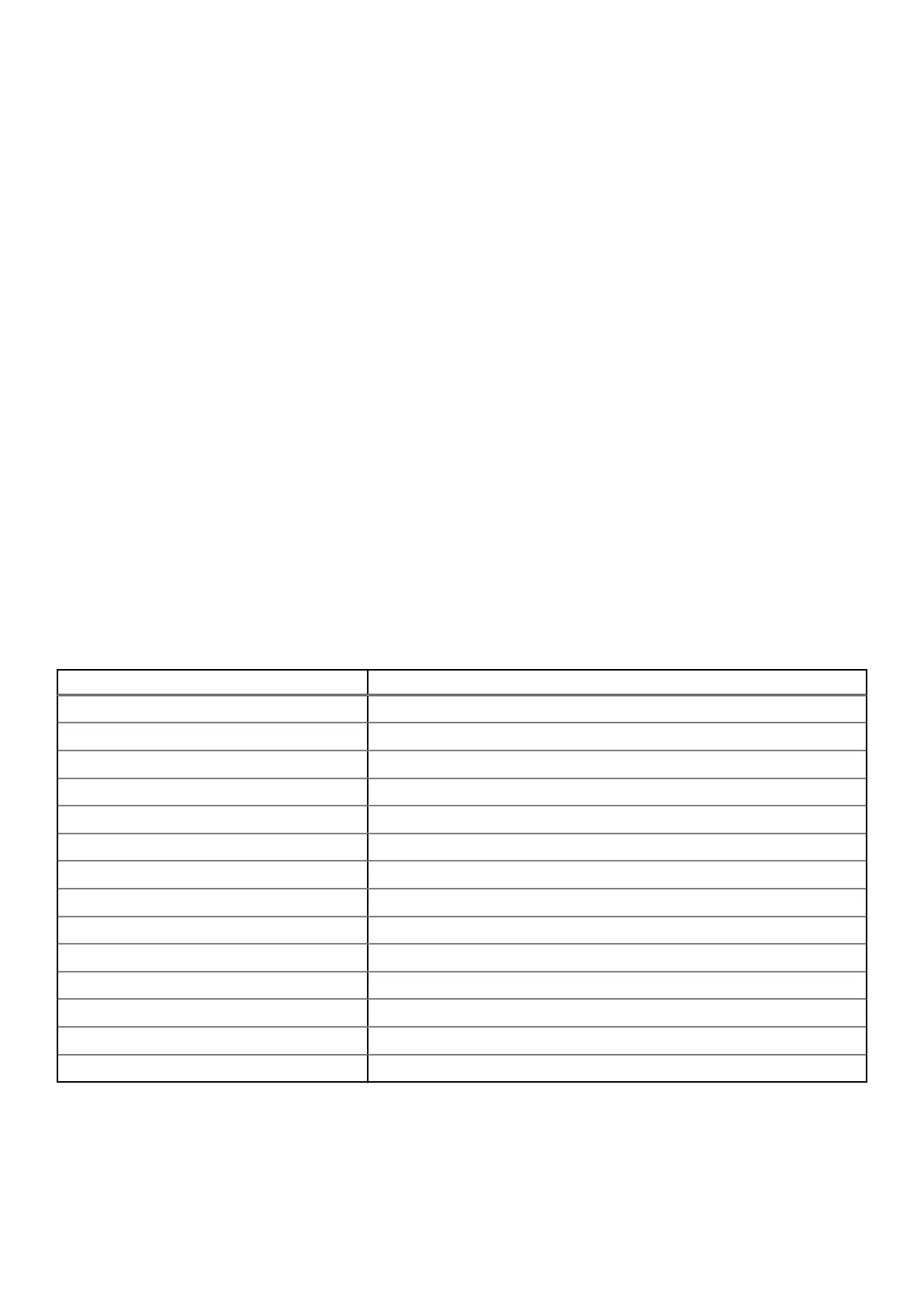
The following table shows different light patterns and what they indicate.
Table 15. Diagnostics
Diagostic light codes Problem description
2,1 Processor failure
2,2 System board: BIOS or ROM (Read-Only Memory) failure
2,3 No memory or RAM (Random-Access Memory) detected
2,4 Memory or RAM (Random-Access Memory) failure
2,5 Invalid memory installed
2,6 System-board or chipset error
2,7 Display failure
3,1 Coin-cell battery failure
3,2 PCI, video card/chip failure
3,3 Recovery image not found
3,4 Recovery image found but invalid
3,5 Power-rail failure
3,6 System BIOS Flash incomplete
3,7 Management Engine (ME) error
Camera status light: Indicates whether the camera is in use.
● Solid white – Camera is in use.
● Off – Camera is not in use.
Caps Lock status light: Indicates whether Caps Lock is enabled or disabled.
Troubleshooting
93



 To Next Page