Using the Display 49
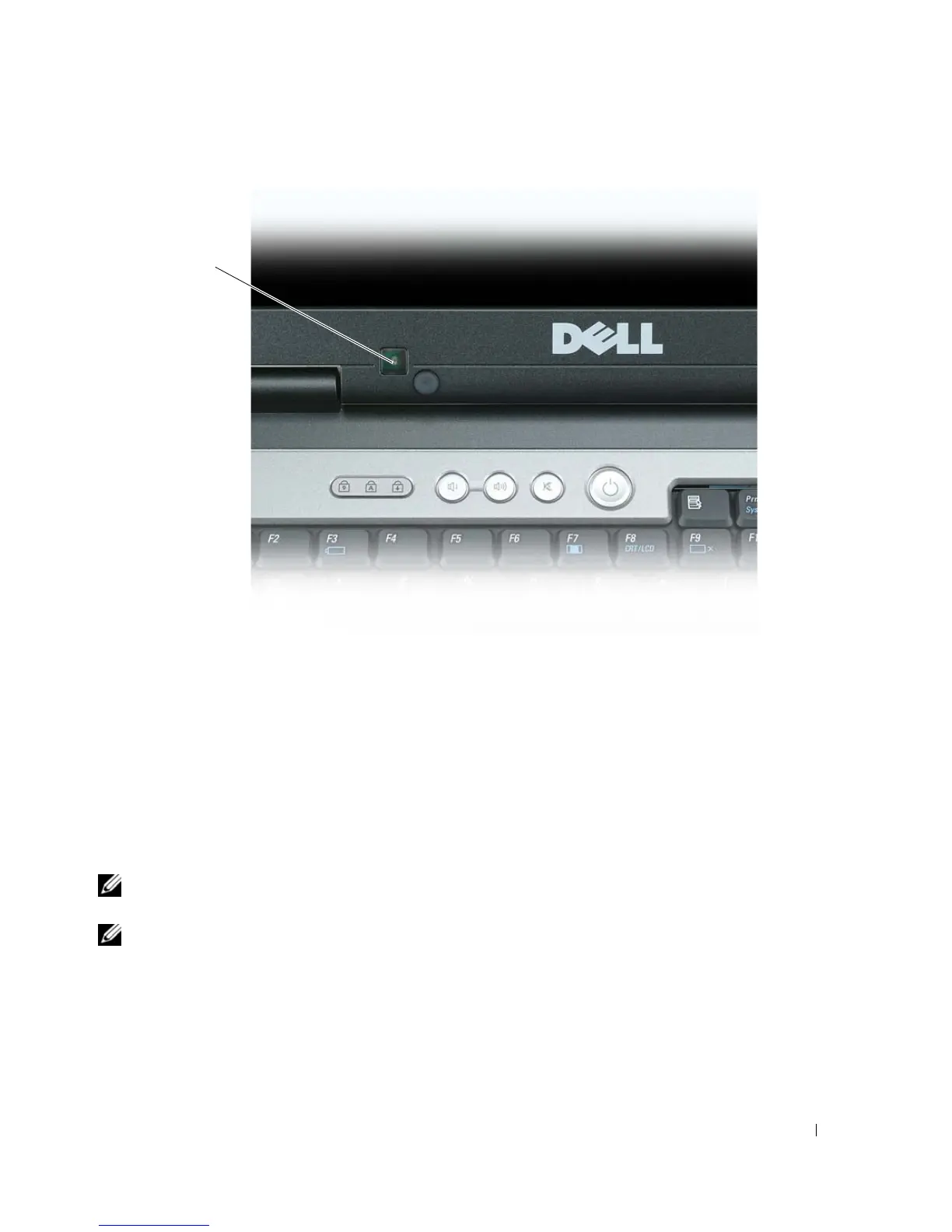
The ambient light sensor is disabled when your computer is shipped to you. If you enable the sensor and
then use any of the display brightness key combinations, the sensor is disabled and the display brightness
is increased or decreased accordingly.
Dell™ QuickSet allows you to enable or disable the ambient light sensor feature. You can also adjust
maximum and minimum brightness settings that are activated when you enable the ambient light sensor
feature. For more information about QuickSet, right-click the QuickSet icon in the taskbar, and click
Help.
NOTE: Rebooting the computer returns the ambient light sensor to the setting (either enabled or disabled) as it
was before it was adjusted.
NOTE: The ambient light sensor adjusts the display backlighting on your portable computer only. It does not
control the brightness on any external monitors or projectors.
1 ambient light sensor
1


 To Next Page