Troubleshooting | 71
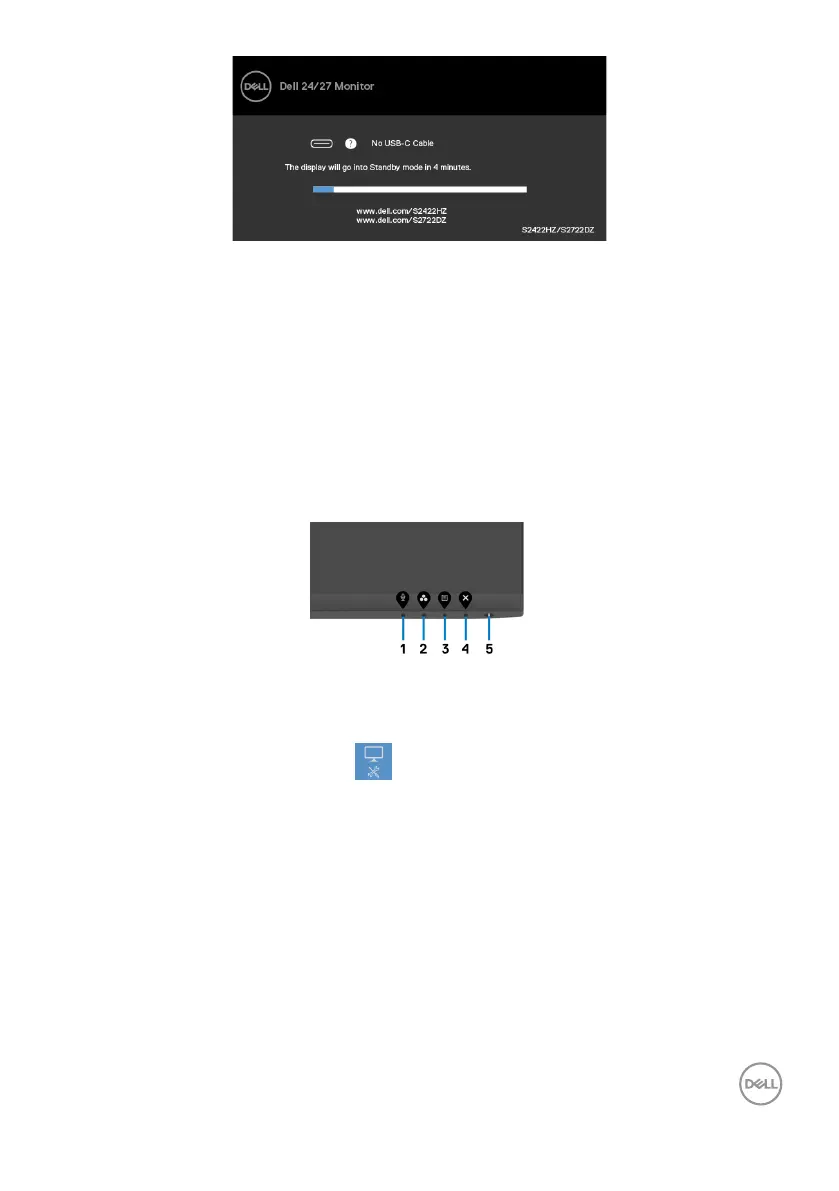
This dialog box also appears during normal operation and when the video cable is
disconnected or damaged.
4. Turn o your monitor and reconnect the video cable; Then, turn on both your
computer and the monitor.
If your monitor screen remains blank after you use the previous procedure, check your
video controller and computer, as your monitor is functioning properly.
Built-in diagnostics
Your monitor has a built-in diagnostic tool. It helps you determine if the screen
abnormality that you are experiencing is an inherent problem with your monitor, or with
your computer and video card.
To run the built-in diagnostics:
1. Ensure that the screen is clean (no dust particles on the surface of the screen).
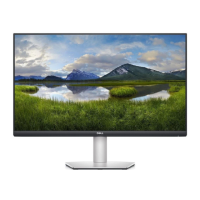
2. Press and hold Button 4 for four seconds, a menu appears on the screen.
3. Select the Built-in diagnostics option. A gray screen is displayed.
4. Observe if the screen has any defects or abnormalities.
5. Press Button 1 on the front panel again. The color of the screen changes to red.
6. Observe if the screen has any defects or abnormalities.
7. Repeat steps 5 and 6 until the screen displays green, blue, black, and white
colors. Note any abnormalities or defects.
The test is complete when the text screen is displayed. To exit, press Button 1 again.
If you do not detect any screen abnormalities upon using the built-in diagnostic tool,
the monitor is functioning properly. Check the video card and computer.



 To Next Page