28 | Connecting and Setting Up Your Printer
3 Wait for Dell Printer Easy Install wizard to find your printer.
For a network (wired) printer, select your printer after the printer is found, and then
click Next.
For a USB printer, Dell Printer Easy Install automatically installs your printer after the
printer is found.
• If Dell Printer Easy Install does not find any printer, the main menu window of Dell Printer
Easy Install appears. See "Installing Printer Drivers on Windows® Computers".
4 Click Finish to exit the wizard when the Ready to Print! screen appears.
5 Eject the Software and Documentation disc.
Configuring the Wireless Settings
The wireless adapter allows you to use the printer with wireless network connection.
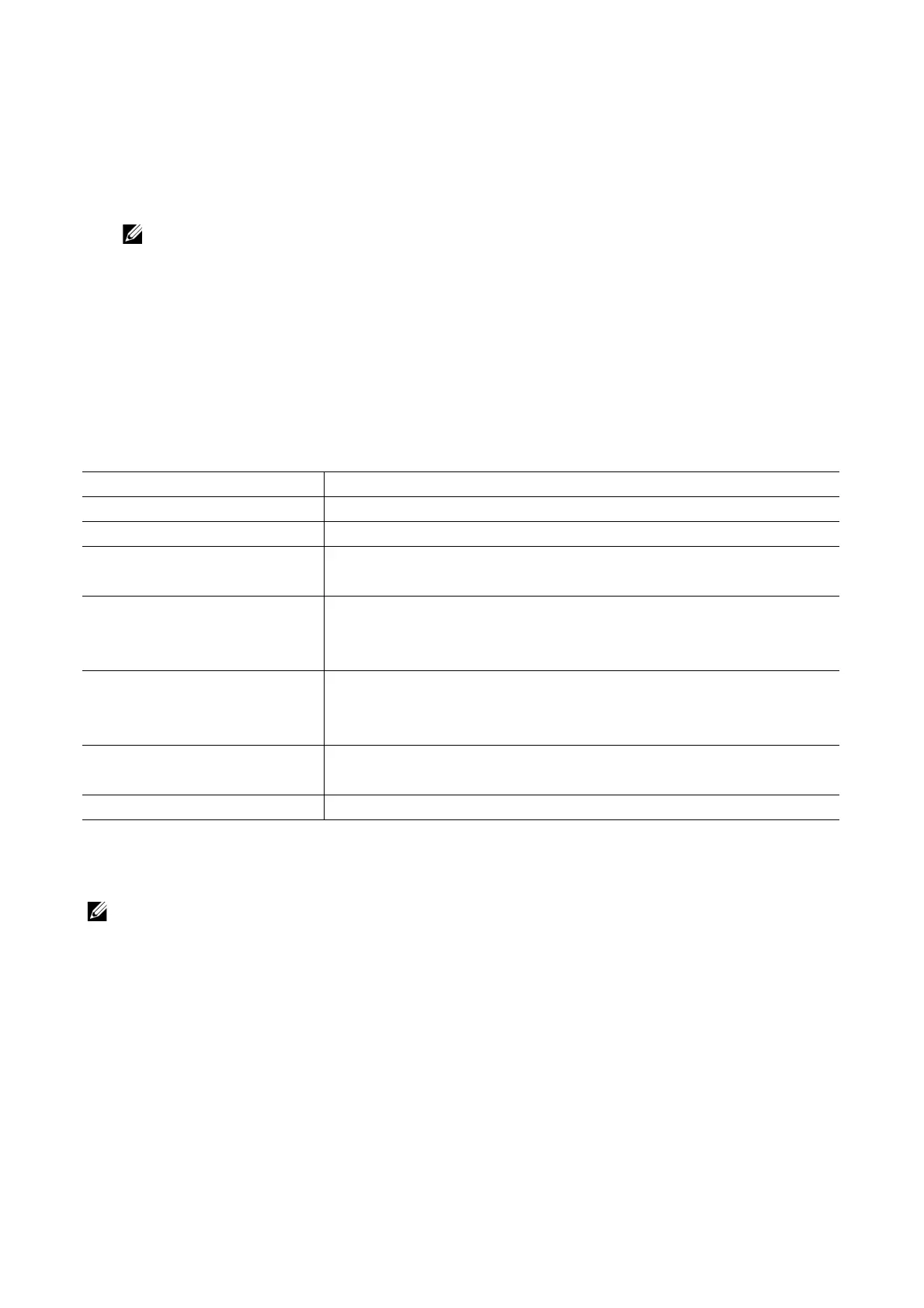
The specifications of the wireless adapter are described below.
*1
EAP method supports PEAPv0/MS-CHAPv2, EAP-TLS, EAP-TTLS/PAP, EAP-TTLS/CHAP and
EAP-TTLS/MSCHAPV2.
*2
WPS 2.0 compliant.
• The wireless adapter is configured as a secondary network interface by default.
If the wireless connection is the only network to be used, the wireless adapter must be set as the
primary interface.
• When the wireless adapter is configured as a primary network interface, you cannot use IEEE 802.1x
authentication on the Ethernet port.
Item Specification
Connectivity Technology Wireless
Compliant Standards IEEE 802.11a, 802.11b, 802.11g, and 802.11n
Bandwidth IEEE 802.11n, 802.11g and 802.11b: 2.4 GHz
IEEE 802.11n and 802.11a: 5 GHz
Data Transfer Rate IEEE 802.11n: 72 Mbps
IEEE 802.11g and 802.11a: 54, 48, 36, 24, 18, 12, 9, and 6 Mbps
IEEE 802.11b: 11, 5.5, 2, and 1 Mbps
Security 64 (40-bit key)/128 (104-bit key) WEP,
WPA Personal (TKIP, AES), WPA2 Personal (AES),
WPA Enterprise (TKIP, AES)
*1
, WPA2 Enterprise (AES)
*1
Wi-Fi Protected Setup (WPS)
*2
Push-Button Configuration (PBC),
Personal Identification Number (PIN)
Wireless Mode Infrastructure, Ad-hoc, Wi-Fi Direct









 To Next Page