126 Customizing Your Dell™ Streak
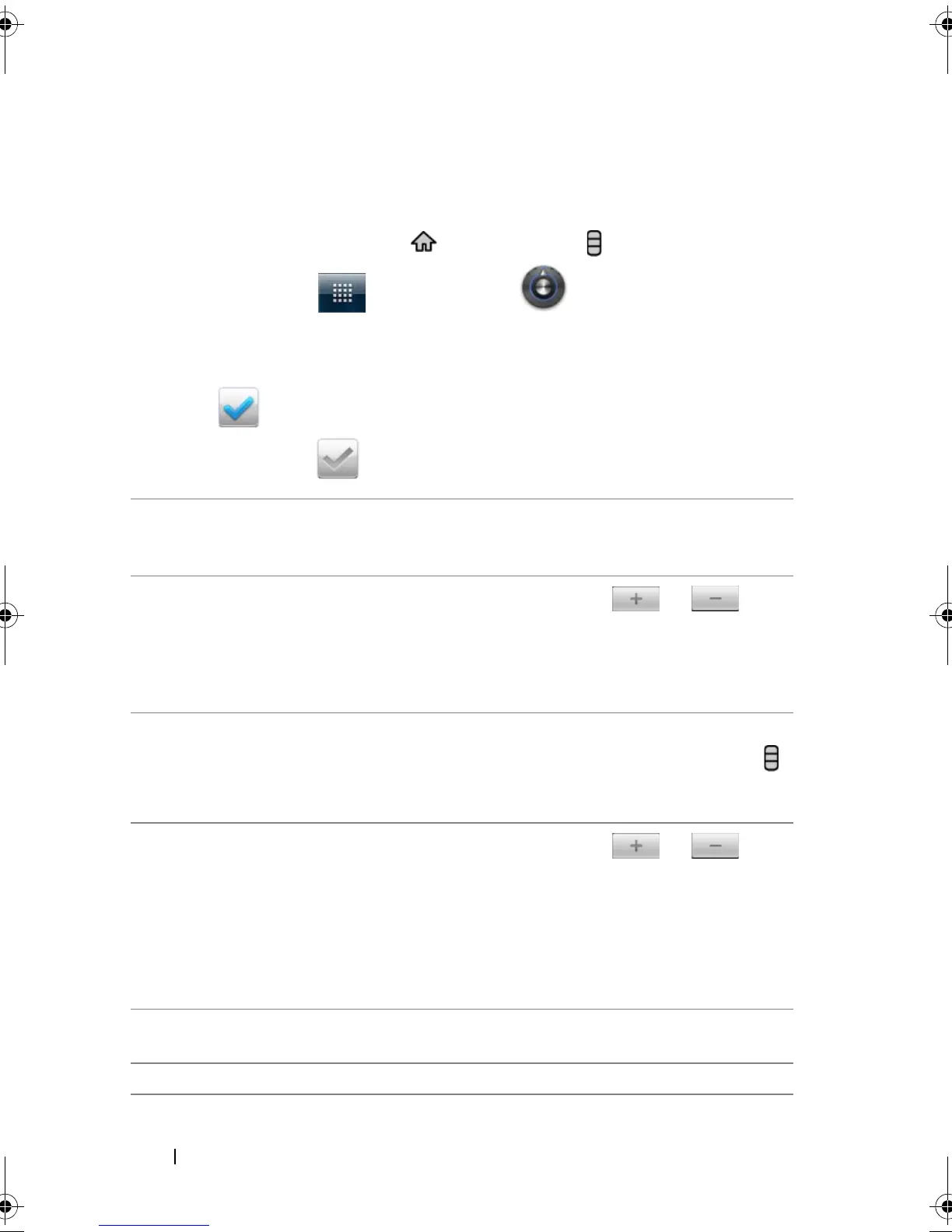
To manually set the date, time, and time
zone
1 Touch the Home button → Menu button → Settings→ Date &
time, or touch → Settings icon → Date & time.
2 Flick the list to locate and touch a desired item.
3 To enable a setting, touch the setting option to select the check
box ; to disable a setting, touch the setting option to clear
the check box .
Select time source Choose to set the device time manually or
automatically from your mobile network or from
the Internet.
Set date
1 Touch or touch and hold or to
adjust the day, month, and year; you can also
touch the day, month, or year to type a date
using the on-screen keyboard.
2 Touch Set to confirm the date.
Set time zone Select a city or region that represents the time
zone for your device. Touch the Menu button
to sort the time zone list alphabetically or by time
zone.
Set time
1 Touch or touch and hold or to
adjust the hour and minute; you can also
touch the hour or minute to type a time using
the on-screen keyboard.
2 Touch the AM/PM button if the 12-hour format
is in use.
3 Touch Set to confirm the time.
Use 24-hour format Clear the check box of this feature if you want to
display time using the 12-hour format.
Select date format Select a format used for displaying the date.
bk0.book Page 126 Friday, November 19, 2010 12:24 PM










 To Next Page