Understanding Your Dell™ Streak 33
To rename a Home screen folder
1 Touch a folder to open the folder panel.
2 Touch and hold the top area of the folder panel
, until the Rename
folder menu opens.
3 Touch the Folder name text box to type the name using the on-
screen keyboard.
4 Touch OK to confirm.
Status Bar
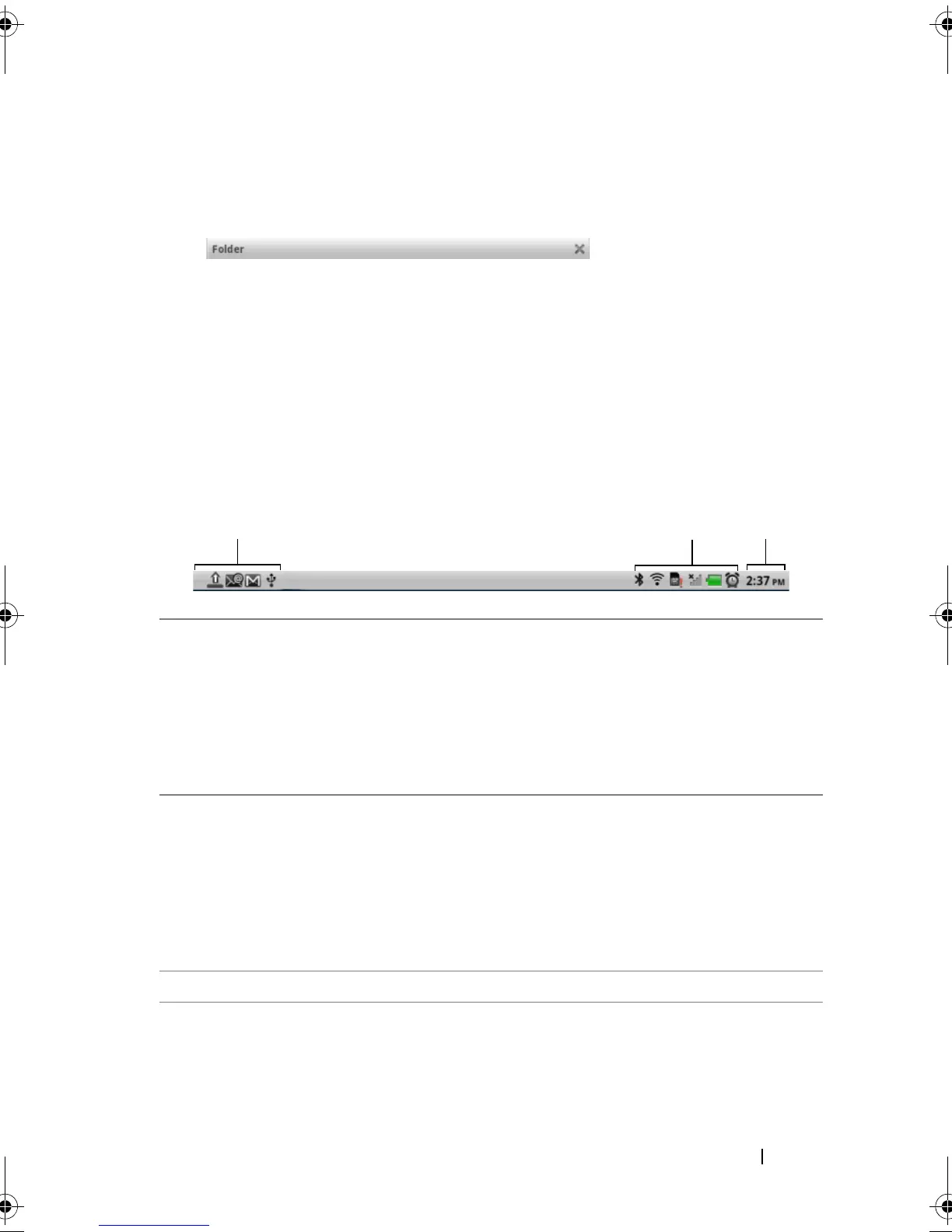
The status bar at the top of the Home screen displays the notification,
status, and time areas.
1 Notification area • The notification area displays notification
icons to inform you of missed calls, new e-
mail, messages, and so on.
• Touch and drag down the status bar to view
the notifications listed in the order of arrival
time, and then touch a notification to view the
desired message, e-mail, or missed call record.
2 Status area • Displays status icons to show the current state
of your device, such as battery power,
charging progress, alarms set, network
connections, and so on.
• Touch and drag down the status bar to view
the information regarding the carrier currently
in use, remaining battery charge, and so on.
3 Time area Displays the current time.
bk0.book Page 33 Friday, November 19, 2010 12:24 PM










 To Next Page