Protecting Your Dell™ Streak 129
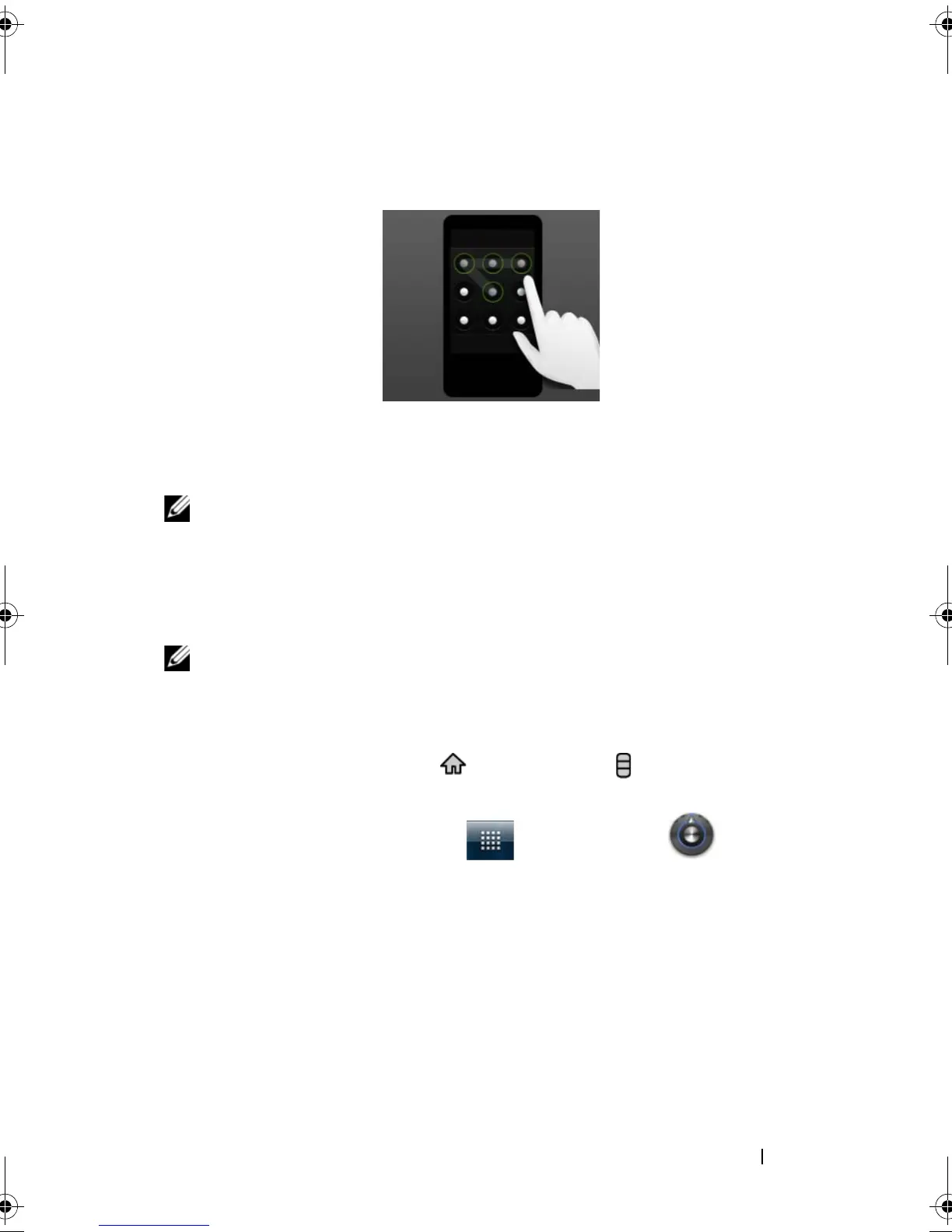
3 Study the animated example of how to draw a pattern. Then
touch Next when you are ready to draw your own pattern.
4 Drag your finger to draw the unlock pattern by connecting at least
four dots in a vertical, horizontal and/or diagonal direction. Take
your finger off the screen when a pattern is drawn.
NOTE: You must flick your finger on the screen to create the pattern
and not touch individual dots.
5 The device records the pattern if it is correctly drawn. Touch
Continue.
6 Draw the pattern again as prompted, and then touch Confirm.
NOTE: To change your unlock screen pattern, you need to draw the old
pattern before proceeding with steps 4 to 6 to draw a new one.
To disable or change the screen unlock pattern
1 Touch the Home button → Menu button → Settings→
Location & security→ Change screen lock, or
touch the Launcher button → Settings icon →
Location & security→ Change screen lock.
2 Draw the pattern you created.
3 Select None to disable screen unlock security; select Pattern to
draw a new unlock pattern.
bk0.book Page 129 Friday, November 19, 2010 12:24 PM










 To Next Page