1. Click ® Programs.
2. Click Dell Printers.
3. Click Dell V505.
In Windows
®
XP or Windows 2000:
Click Start® Programs or All Programs® Dell Printers® Dell V505.
b. Select Dell Fax Setup Utility.
The Dell Fax Setup Wizard Query dialog box opens.
c. Click No.
The Dell Fax Setup Utility dialog box opens.
d. Click the Ringing and Answering tab.
e. From the Pick up on the field, select 5 rings.
f. Click OK.
A confirmation dialog box opens.
g. Click OK to overwrite the fax settings on your printer.
A dialog box opens.
h. Click Yes.
i. Click Close.
6. On your answering machine, set the number of rings to automatically answer the phone to 3 or fewer. For more
information, see the documentation that came with your answering machine.
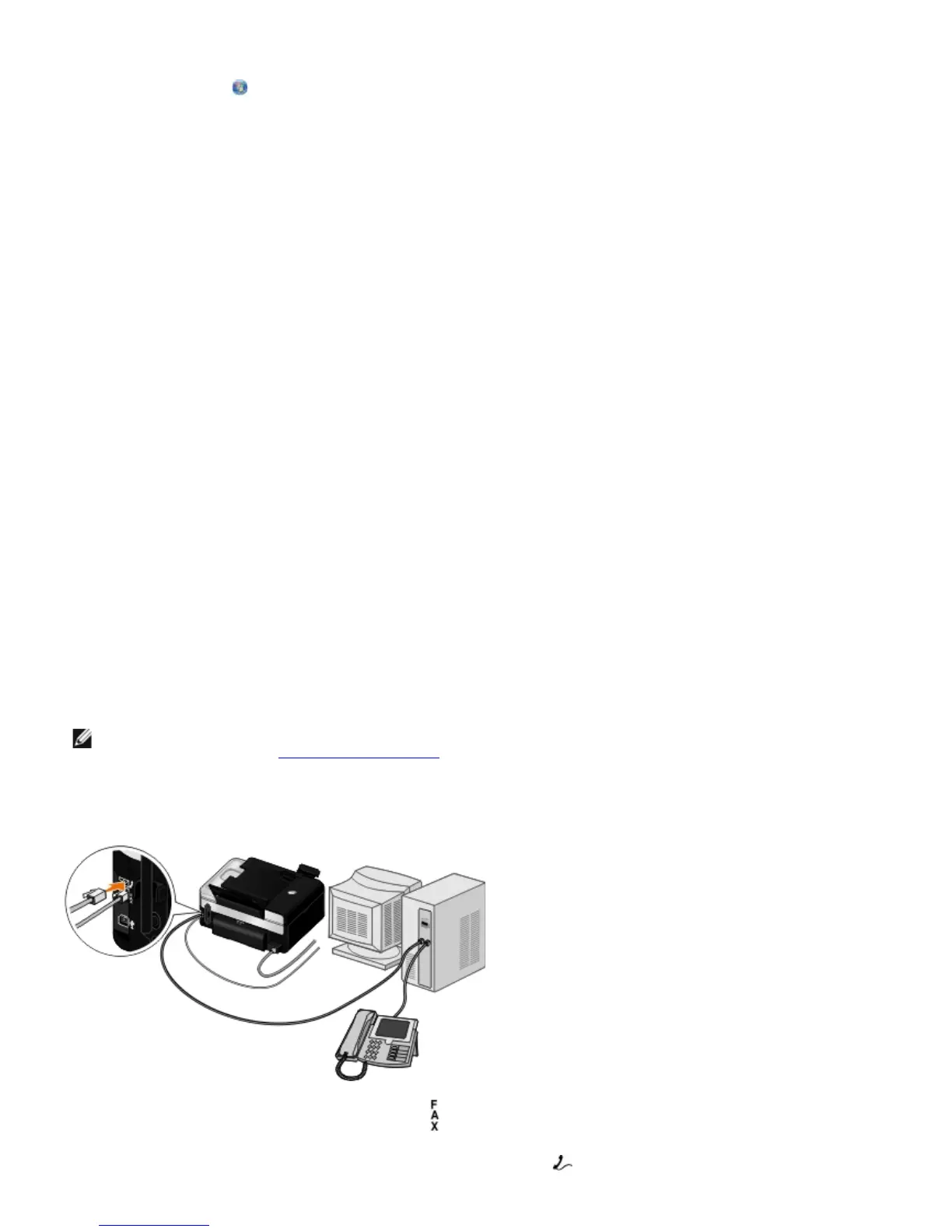
Connecting to a Computer Modem
1. Connect a phone cord from the FAX connector ( —lower connector) on the printer to an active telephone wall jack.
2. Remove the blue protective plug from the PHONE jack connector (
—middle connector).
NOTE: This setup only works if the Auto Answer setting is set to On (factory default setting) or Scheduled.
For more information, see
Changing the Fax Setup.














 To Next Page