If you are sending a fax from within an application, the printer must be connected to a computer with a USB cable.
Fax Setup Menu
The option you select from the Fax Setup heading controls the settings shown on the display.
1. From the Fax Setup menu, use the left and right Arrow buttons to scroll to available options.
2. Press the Select button .
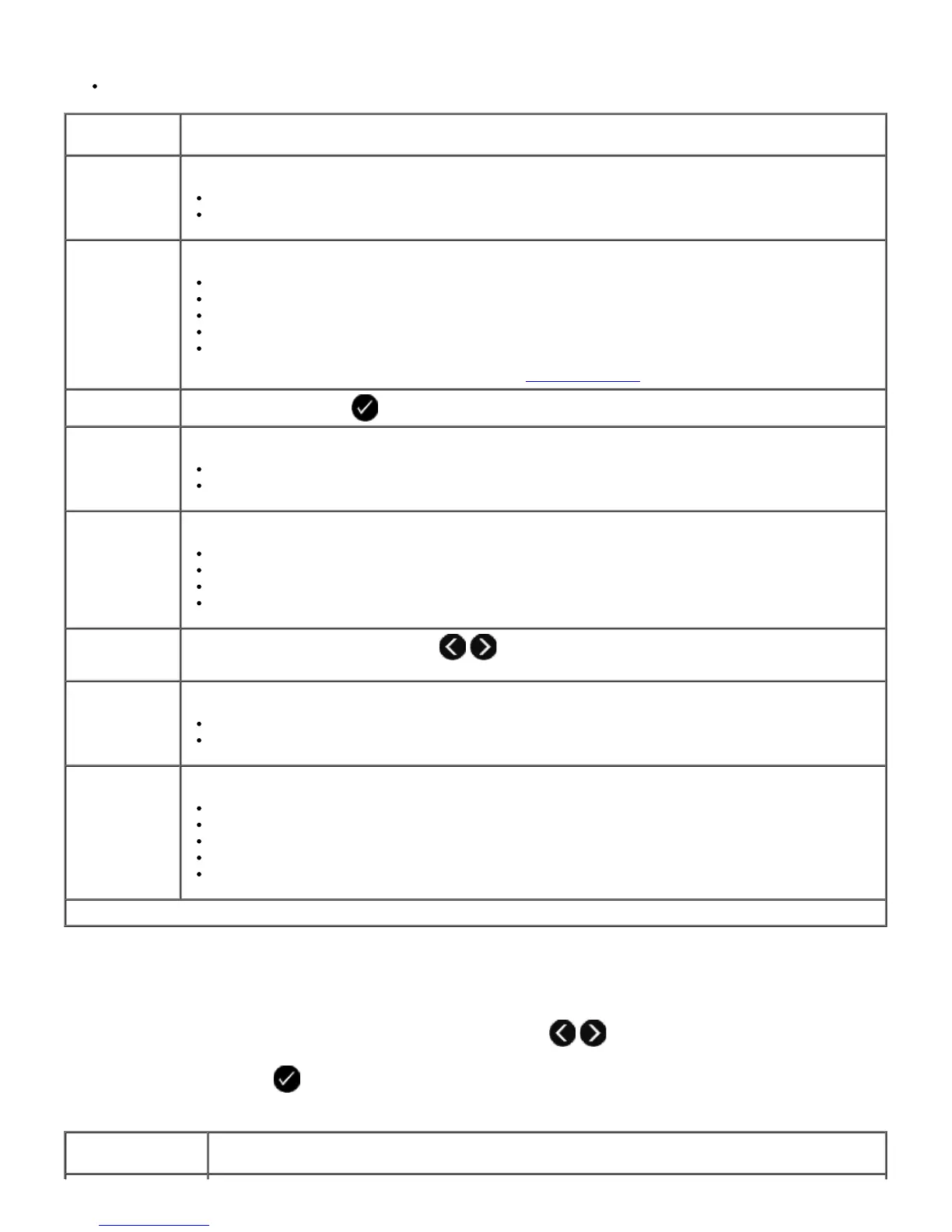
From this
menu item:
You can:
*Factory default setting/Current setting selected by user
Fax Color Specify your fax to be color or black and white.
*Black and White
Color
Phone Book Specify the action which you want to perform in your Phone Book.
View
Add
Remove
Modify
Print
For more information about your Phone Book, see
Using Speed Dial.
On Hook Dial
Press the Select button
if you want the printer to go off hook.
Delay Fax Send a delayed fax or view faxes waiting to be sent.
Delay Until
View Pending
Quality Specify the quality (resolution) of the fax being sent.
*Standard
Fine
Superfine
Ultrafine
Dark
Use the left and right Arrow buttons
to specify the darkness setting. Default darkness setting
is when the asterisk (*) is in the middle of the bar.
Original Size Specify the size of the document being scanned for fax.
*8.5x11”
A4
Fax Setup Set various setup features for your printer's fax settings.
Reports
Ringing and Answering
Fax Printing
Dialing and Sending
Fax Blocking
Fax Setup Menu
From this menu
item:
You can:














 To Next Page