Understanding the Automatic Paper Type Sensor
Your printer has an automatic paper type sensor that detects the following paper types:
Plain/heavyweight matte
Transparency
Photo/glossy
If you load one of these paper types, the printer detects the paper type and automatically adjusts the Quality/Speed
settings.
To choose paper size:
1. With your document open, click File® Print.
postcards, or photo cards
The print side of the cards faces up.
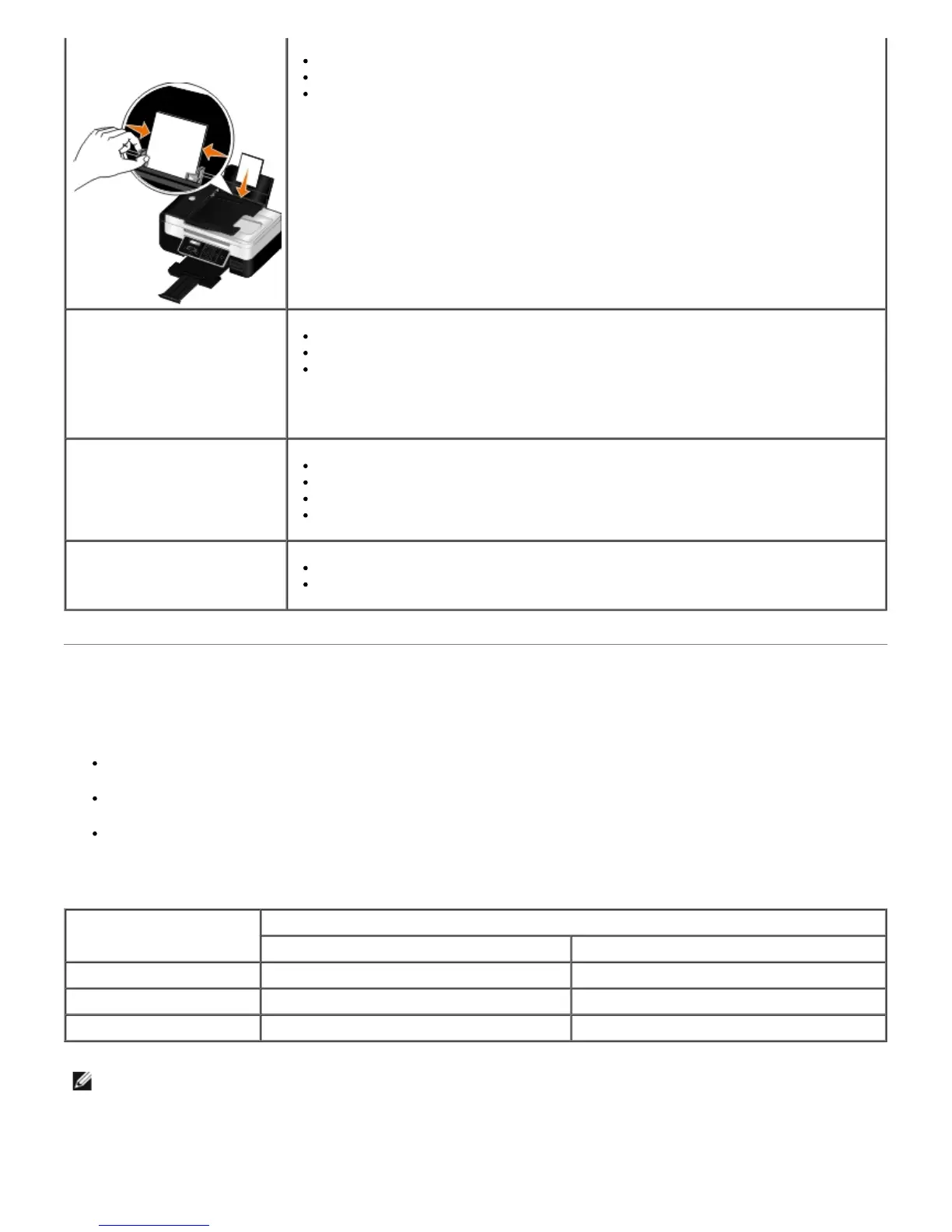
The paper guides rest against the edges of the cards.
You select Automatic, Normal, or Photo print quality.
25 sheets of photo/glossy
paper
The print side of the paper faces up.
The paper guides rest against the edges of the paper.
You select Automatic, Normal, or Photo print quality.
10 iron-on transfers
You follow the loading instructions on the iron-on transfer packaging.
The print side of the transfer faces up.
The paper guides rest against the edges of the transfer.
You select Automatic, Normal, or Photo print quality.
50 transparencies
The rough side of the transparencies faces up.
The paper guides rest against the edges of the transparencies.
NOTE: Draft mode is available, but is not recommended for use with expensive
paper such as heavyweight matte, labels, photo cards and glossy paper.
NOTE: Draft mode is available, but is not recommended for use with expensive
paper such as heavyweight matte, labels, photo cards and glossy paper.
Paper type Quality/Speed settings
Black and Color Cartridges Installed Photo and Color Cartridges Installed
Plain/heavyweight matte Normal Photo
Transparency Normal Photo
Photo/glossy Photo Photo
NOTE: Your printer cannot detect paper size.














 To Next Page