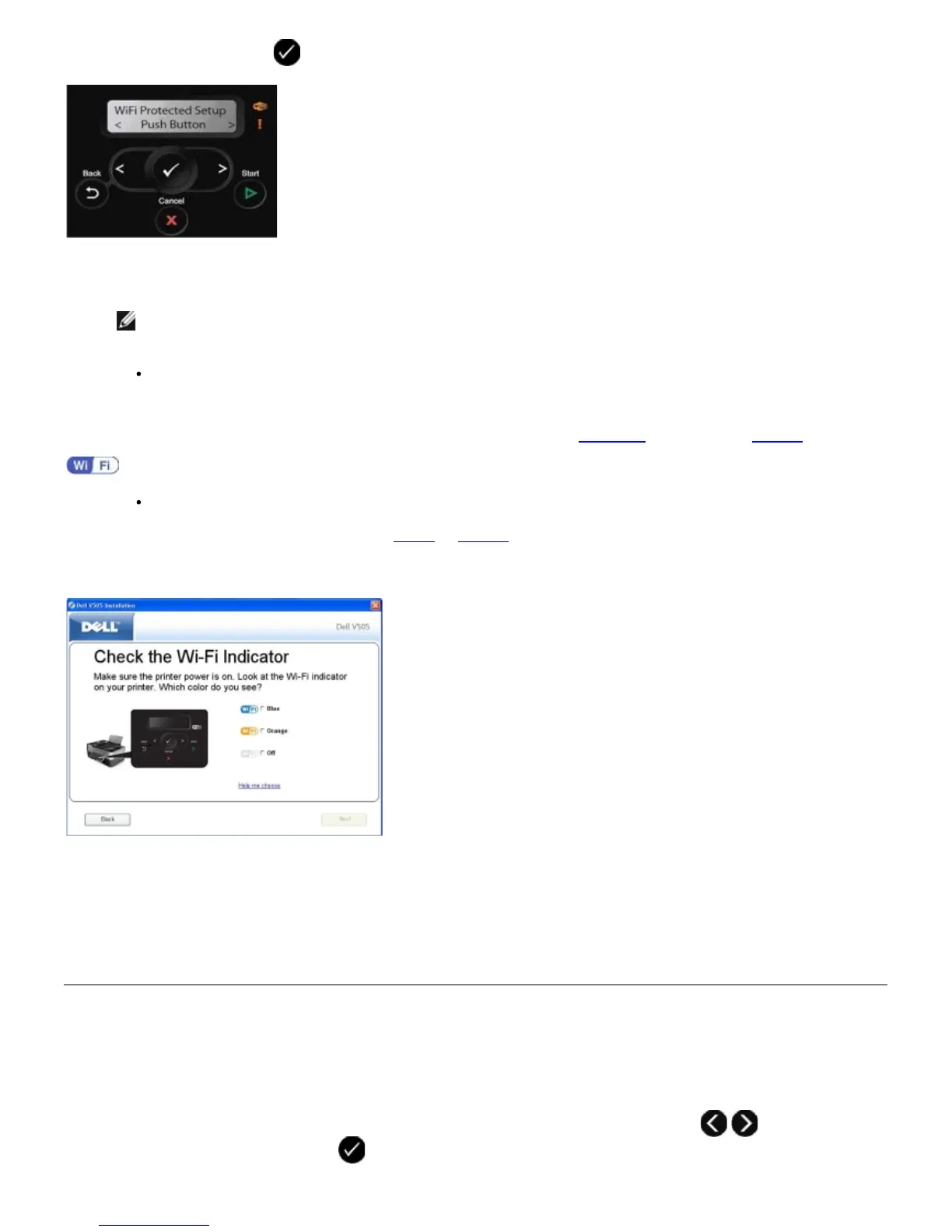
13. Go to your router, and then press the push button on your router within two minutes. Wait for the configuration to
complete.
NOTE: Some routers may require less time or more time to configure. Refer to your router's manual to see
the time required to push the router button before setup connection expires.
If setup is successful
Wi-Fi Protected Setup Successful appears on the printer operator panel.
Check if the printer's Wi-Fi LED turns blue. For more information, see
Wi-Fi LED. Continue with step 15.
If setup is unsuccessful or times out
Wait for a few minutes, and then perform
step 8 to step 13 again.
14. Follow the instructions on the installation screen to complete setup.
Using Windows Vista
To configure your printer on the wireless network using WPS, you may use Windows Vista™ instead of the Push-Button or
PIN methods. For more information about using Windows Vista, see the documentation that came with your operating
system.
Printing a Network Setup Page
To find your printer IP address and other wireless network settings like your SSID, BSS Type and wireless security mode,
print a network setup page.
1. From the main menu of the printer operator panel, press the left or right Arrow button
to scroll to Setup,
and then press the Select button .














 To Next Page