Printing Envelopes
1. Turn on your computer and printer, and ensure that they are connected.
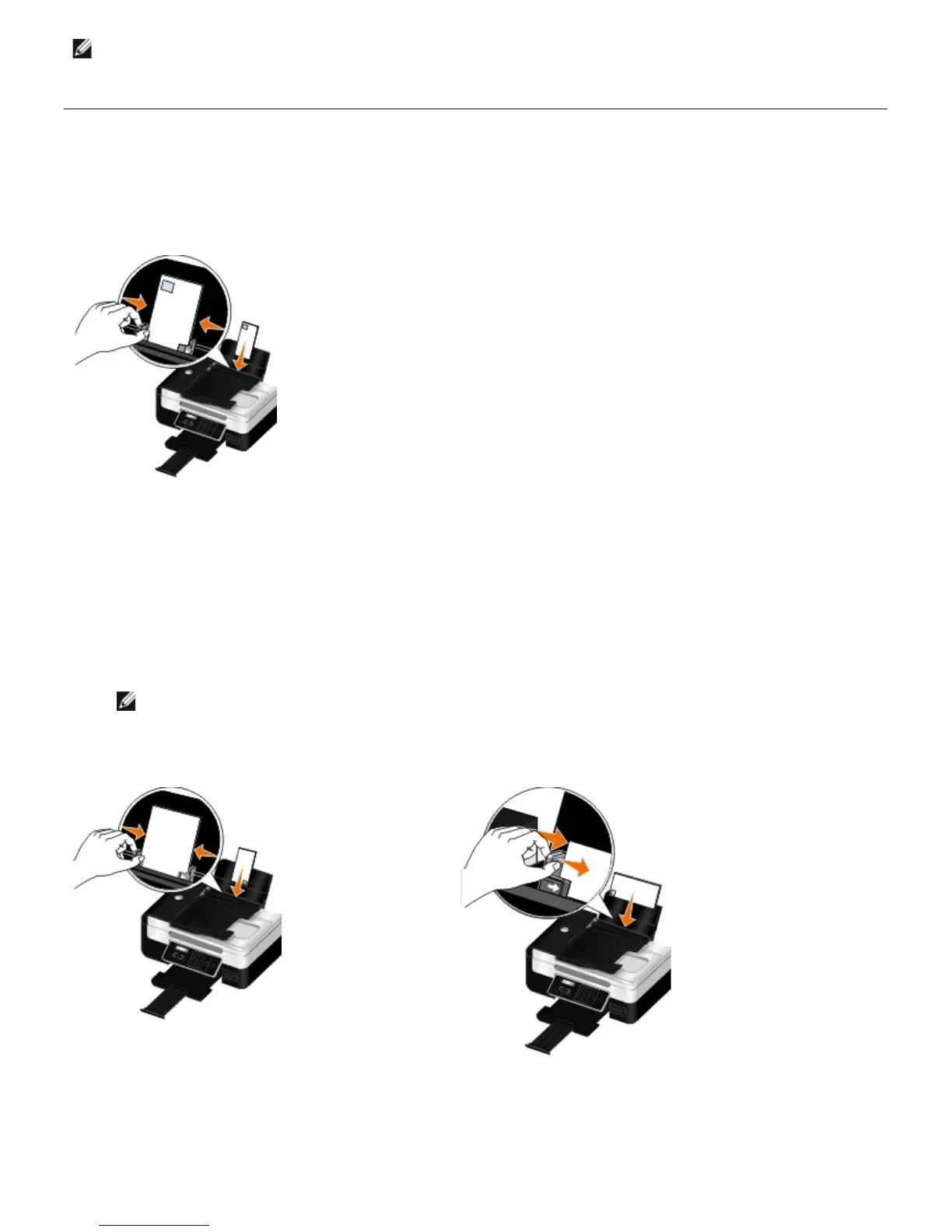
2. Load the envelope with the print side facing up.
3. With your document open, click File® Print.
The Print dialog box opens.
4. Click Preferences, Properties, Options, or Setup (depending on the program or operating system).
The Printing Preferences dialog box opens.
5. On the Print Setup tab, select Envelope, and then choose the size of the envelope from the Paper size: drop-
down menu.
NOTE: If you are mailing within Japan, the envelope can be printed in portrait orientation with the stamp in
the lower right corner or in landscape orientation with the stamp in the lower left corner. If you are mailing
internationally, print landscape orientation with the stamp in the upper left corner.
mode selection for PictBridge printing. For more information, see the documentation included with your
camera.
If mailing within Japan, the envelopes can be loaded in two ways:
If mailing internationally, load the envelope this way:














 To Next Page