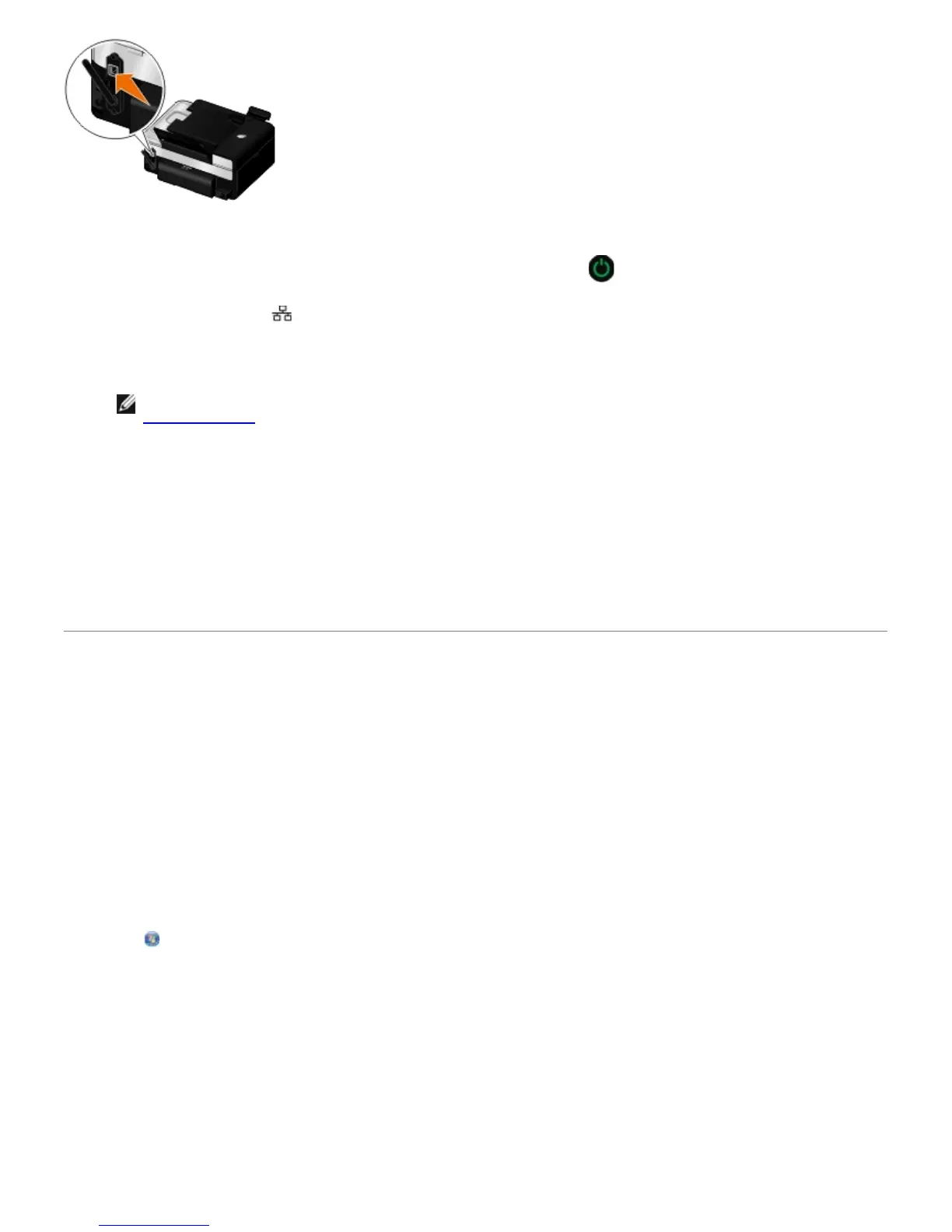
1. Connect your printer to your network using an Ethernet cable (sold separately).
2. Connect the power cable to the wall, and then press the Power button .
The Ethernet wired icon
appears in the main menu on the operator panel.
3. Ensure that your computer is on, and then insert the Drivers and Utilities CD that came with your printer. The CD
launches automatically.
NOTE: If you do not have your Drivers and Utilities CD, you can download the appropriate software from
support.dell.com.
4. From the Welcome screen, click Next.
5. SelectI Agree to the terms of this license agreement, and then click Next.
6. From the Install Additional Software or Software Already Installed screen, click Next.
7. From the Select Connection Type screen, select Wired Network Connection, and then click Next.
8. Follow the instructions on your screen to complete setup.
Configuring the Printer on a Wireless Network Using a
Temporary USB Cable (recommended for most users)
Configuration Overview
Configuring the adapter using the Wireless Setup Utility involves connecting the printer in which the adapter has been
installed to a computer by USB cable, and launching the Drivers and Utilities CD.
If you need to adjust the wireless adapter settings after installation, the CD is not required. Launch the Wireless Setup
Utility.
In Windows Vista:
1. Click
® Programs.
2. Click Dell Printers.
3. Click Dell V505.
4. Click Wireless Setup Utility.
In Windows XP and Windows 2000:
1. Click Start® Programs or All Programs® Dell Printers® Dell V505.
2. Click Wireless Setup Utility.














 To Next Page