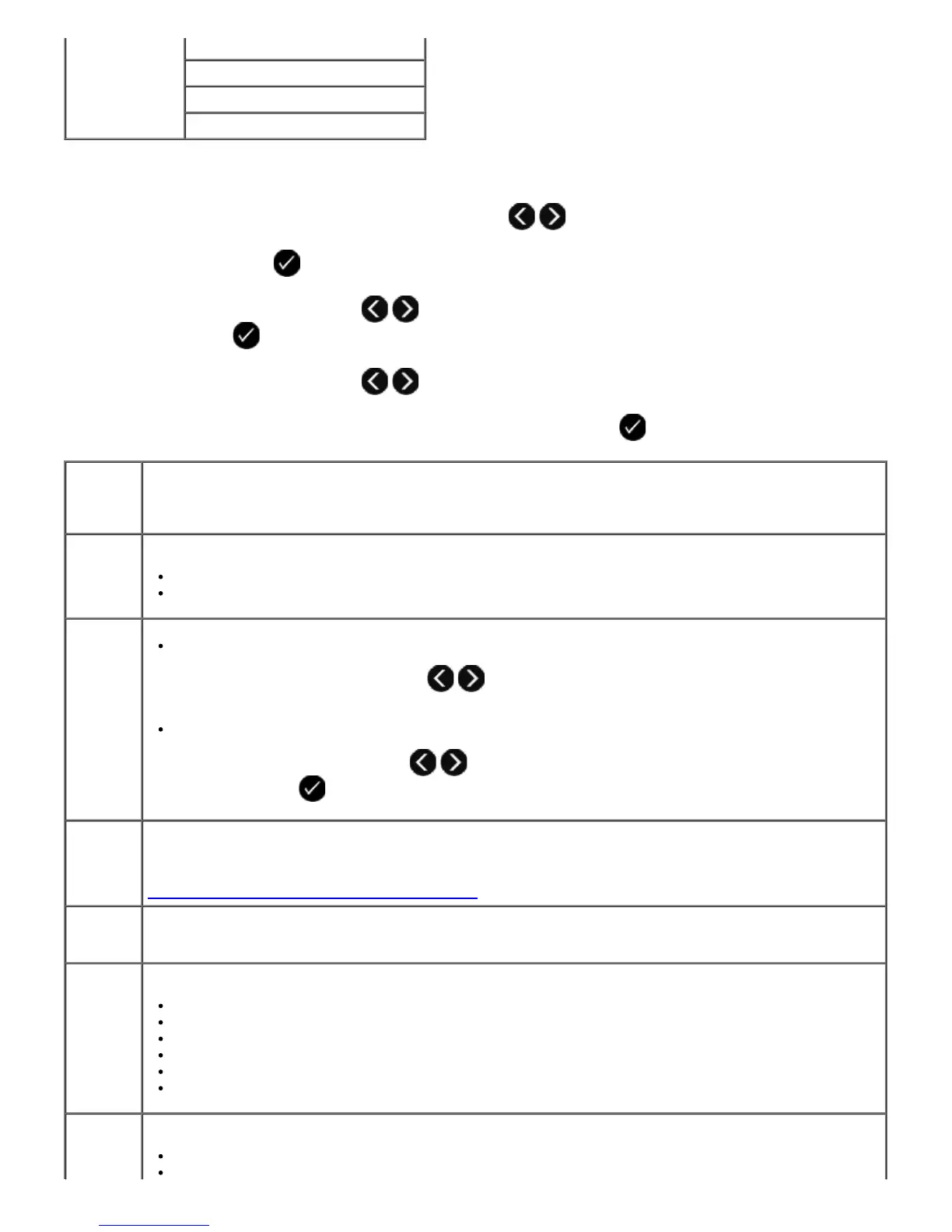
To view or change the Scan Mode menu settings:
1. From the main menu, use the left and right Arrow buttons to scroll to SCAN.
2. Press the Select button .
3. Use the left and right Arrow buttons until the heading you want appears on the display, and then press
the Select button .
4. Use the left and right Arrow buttons to scroll through the available menu items.
5. When the setting you want appears on the display, press the Select button to save the setting.
Scan To Memory Device
Quality
Original Size
From
this
menu
item:
You can:
Scan
Color
Select color or black and white for your copy.
*Color
Black
Scan To
Computer
If your printer is connected locally (using USB):
Use the left and right Arrow buttons to select the application to which you want your scanned
image or document to be sent.
If your printer is connected to a network:
Use the left or right Arrow button to scroll through the available computers, and then press
the Select button to access the list of applications available on that computer.
Scan To
Network
Send scanned images or documents to a list of computers connected to a network.
NOTE: If the computer you are sending scanned images or documents to requires a PIN, you are prompted
to enter the PIN before the scan is initiated. For more information about scanning across a network, see
Scanning a Document or Photo Across a Network.
Scan To
Memory
Device
Automatically save the documents or images on the scanner glass or ADF to the inserted memory card or
USB key.
Quality Select the resolution for which you want your original document or image to be scanned.
*Automatic
75 dpi
150 dpi
300 dpi
600 dpi
1200 dpi
Original
Size
Select the size of the original document you want to scan.
*Auto Detect














 To Next Page