EasyManua.ls Logo

Dell Vostro 3535 - User Manual

Dell Vostro 3535
156 pages
Print Icon
To Next Page IconTo Next Page
Loading...
https://tehnoteka.rs
Uputstvo za upotrebu (EN)
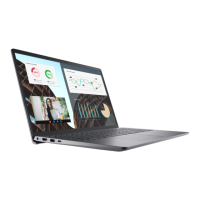
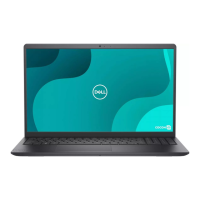
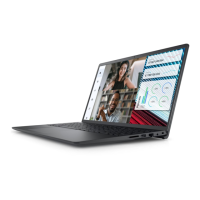
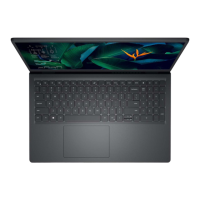
DELL laptop Vostro 3535 (NOT22361)
Tehnoteka je online destinacija za upoređivanje cena i karakteristika bele tehnike,
potrošačke elektronike i IT uređaja kod trgovinskih lanaca i internet prodavnica u Srbiji.
Naša stranica vam omogućava da istražite najnovije informacije, detaljne karakteristike
i konkurentne cene proizvoda.
Posetite nas i uživajte u ekskluzivnom iskustvu pametne kupovine klikom na link:
https://tehnoteka.rs/p/dell-laptop-vostro-3535-not22361-akcija-cena/
1 / 156

Table of Contents

Questions and Answers

  • G
    Grace Perkins MDAug 12, 2025
    What to do if Dell Vostro 3535 Laptop has memory/RAM failure?
    • N
      Nicole MorrisAug 12, 2025
      If you are experiencing memory/RAM failure on your Dell Laptop, try the following: * Reset and swap the memory modules among the slots. * If the problem continues, replace the memory module.
  • R
    Rhonda JonesAug 16, 2025
    What to do if Dell Laptop battery is swollen?
    • M
      Meghan RichardsAug 16, 2025
      If you notice a swollen battery in your Dell Laptop, immediately stop using the laptop. Disconnect the AC adapter and allow the battery to fully drain to prevent further damage to the device or its internal components. Swollen batteries should be replaced and disposed of properly. It is recommended to contact Dell product support to explore options for replacing the battery under your warranty or service contract.
  • B
    Becky MooreAug 20, 2025
    What to do if Dell Vostro 3535 says invalid memory installed?
    • G
      Gina BaileyAug 20, 2025
      If your Dell Laptop indicates that invalid memory is installed, try resetting and swapping the memory modules among the slots. If the problem persists, replace the memory module.
  • R
    Rebecca ChambersAug 23, 2025
    How to fix BIOS recovery image not found on Dell Vostro 3535?
    • D
      David WeberAug 25, 2025
      If the BIOS recovery image is not found on your Dell Laptop, flash the latest BIOS version. If the issue persists, replace the system board.
  • A
    Ashley ReedAug 27, 2025
    What to do if flash corruption detected by SBIOS on Dell Vostro 3535?
    • M
      Michael DavisAug 28, 2025
      If flash corruption is detected by SBIOS on your Dell Laptop, press the power button for over 25 seconds to perform an RTC reset. If the issue continues, replace the system board. Alternatively, disconnect all power sources (AC, battery, coin cell) and drain flea power by pressing and holding the power button for 3-5 seconds. If the problem persists, replace the system board.
  • S
    Sarah MooreAug 31, 2025
    How to fix LCD failure (SBIOS message) on Dell Vostro 3535 Laptop?
    • B
      brianbishopAug 31, 2025
      If your Dell Laptop's LCD is failing and displaying an SBIOS message, replace the LCD module.
  • D
    davismichelleSep 4, 2025
    How to fix power rail failure on Dell Vostro 3535 Laptop?
    • F
      friedmanreginaldSep 4, 2025
      If your Dell Laptop is experiencing a power rail failure, replace the system board.
  • M
    Maria DillonSep 8, 2025
    What to do if Dell Vostro 3535 Laptop LCD failure (EC detection of power rail failure)?
    • G
      Gary ValenzuelaSep 8, 2025
      If the LCD failure on your Dell Laptop is due to EC detection of power rail failure, replace the system board.

Summary

Chapter 1: Views of Vostro 15 3535

Chapter 2: Set up your Vostro 15 3535

Initial System Setup

Step-by-step guide for setting up the laptop for the first time.

Chapter 4: Working inside your computer

Safety Instructions and Precautions

Essential safety instructions for working inside the computer and preventing damage.

ESD Protection and Handling

Procedures for preventing electrostatic discharge damage during servicing.

Chapter 5: CRU Replacement Procedures

Chapter 6: FRU Replacement Procedures

Battery Handling and Replacement

Safety precautions and procedures for replacing the Li-ion battery.

Chapter 8: BIOS Setup and Updates

Navigating and Configuring BIOS

Instructions for entering, navigating, and configuring BIOS settings.

BIOS Update and Password Management

Procedures for updating BIOS and managing system/setup passwords.

Chapter 9: Troubleshooting and Diagnostics

Battery and System Diagnostics

Information on swollen batteries, diagnostic lights, and self-tests (BIST).

Dell Vostro 3535 Specifications

General IconGeneral
BrandDell
ModelVostro 3535
CategoryLaptop
LanguageEnglish

Related product manuals