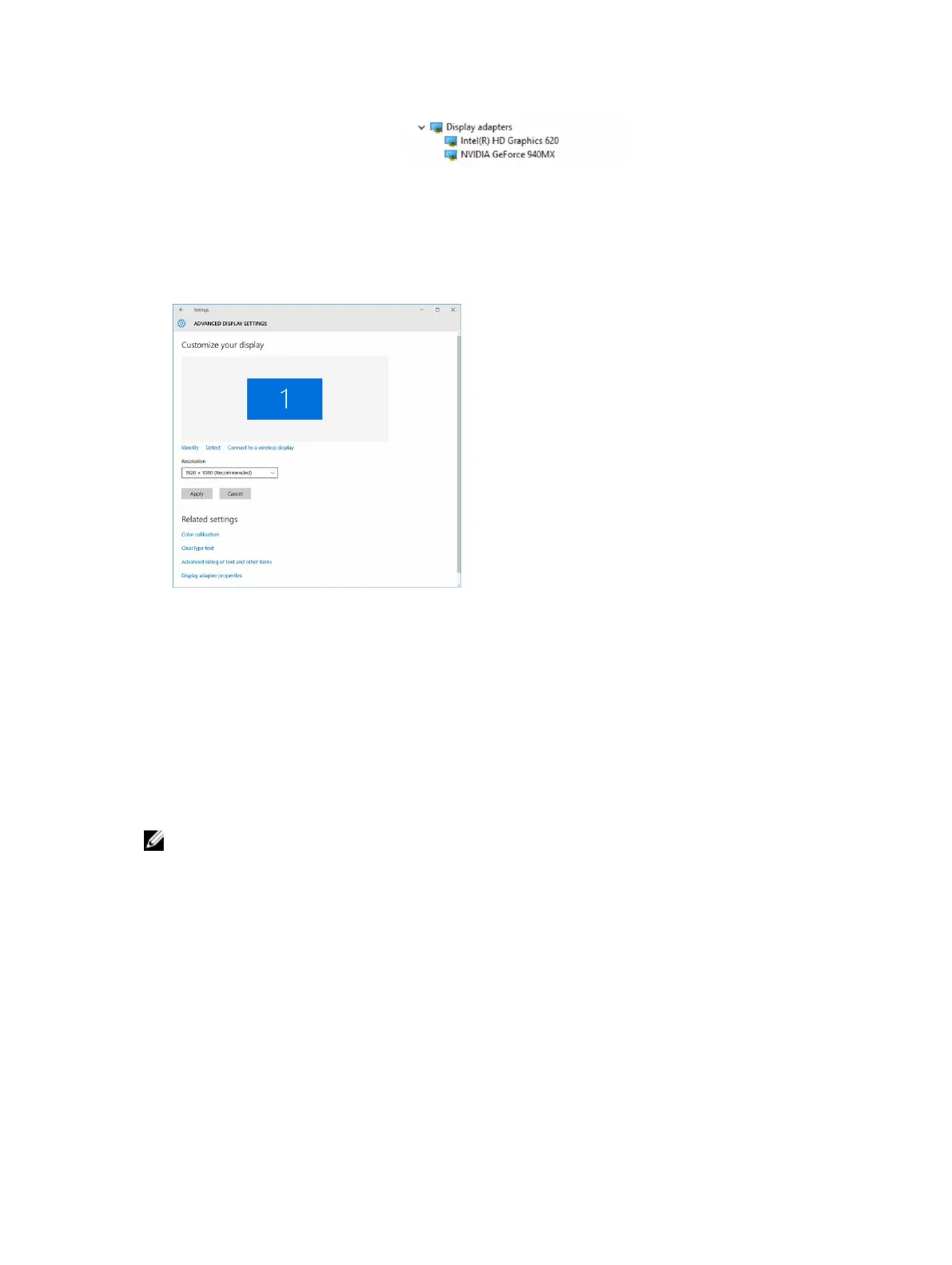
The display adapters are displayed.
Changing the screen resolution
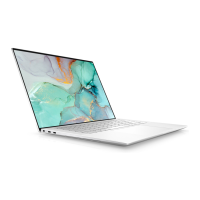
1. Press and hold the desktop screen and select Display Settings.
2. Tap or click Advanced display settings.
3. Select the required resolution from the drop-down list and tap Apply.
Rotating the display
1. Press and hold on the desktop screen.
A sub menu is displayed.
2. Select Graphic Options → Rotation and choose on of the following:
• Rotate to Normal
• Rotate to 90 Degrees
• Rotate to 180 Degrees
• Rotate to 270 Degrees
NOTE: The Display can also be rotated using the following key combinations:
• Ctrl + Alt + Up arrow key (Rotate to normal)
• Right arrow key (Rotate 90 degrees)
• Down arrow key (Rotate 180 degrees)
• Left arrow key (Rotate 270 degrees)
Display options
This laptop has 14– inch HD with 1366 x 768 pixels resolution (maximum).
53



 To Next Page