15
6. Press "Deliver" to start delivery;
7. When the desired quantity has been delivered into the cup,
press “Stop”.
8. If the drink in the cup is as desired, press "Save" to store
the settings, or "Cancel" to retain the previous parameters.
9. Press “X” to go back to the homepage.
The appliance goes back to the homepage (C).
Please note:
• If saved, the new settings will be stored ONLY in the se-
lected prole.
• When customizing a single drink, the corresponding dou-
ble version is customized likewise, automatically, and the
machine displays the message "Settings saved for both
double and single recipe";
• It is possible to exit programming mode at any given mo-
ment by pressing “X”: the values will not be saved.
• Once the drink has been customized, the settings will
show "Reset" (in the middle of the bottom line) and "my"
(among the quantity selections). Pressing "Reset", the set-
tings for the drink revert to the factory default values.
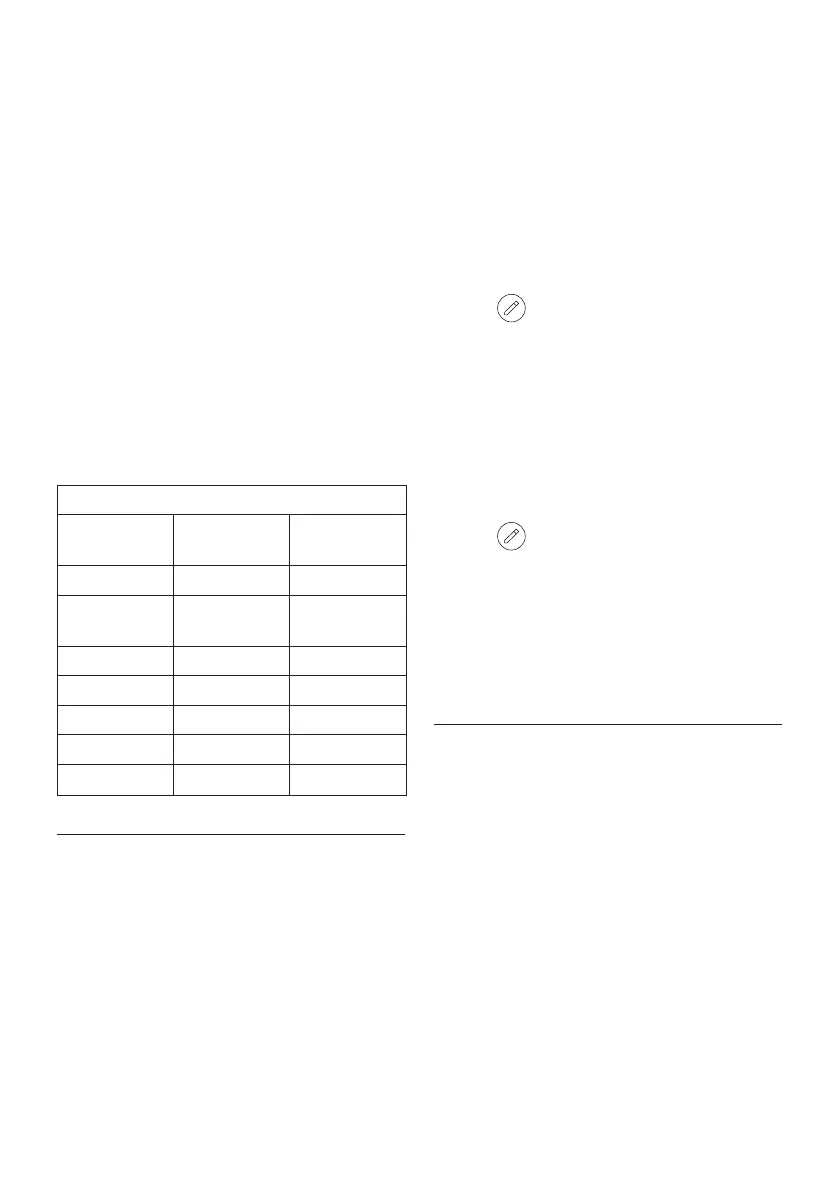
Drink quantities table
Drink Standard
quantity
Programmable
quantity
Espresso 40ml 20-180 ml
2X Espresso 40 ml + 40 ml 20-180 ml +
20-180 ml
Coee 180ml 100-240 ml
Long 160ml 115-250 ml
Doppio+ 120ml 80-180 ml
Americano 150ml 70-480 ml
Hot water 250ml 20-420 ml
12. SELECTING YOUR PERSONAL PROFILE
The machine allows multiple proles to be saved, each one asso-
ciated with a dierent icon.
The customized drink settings are saved in each prole. The
order in which all the drinks are displayed is based on the fre-
quency of selection.
To select a prole, proceed as follows:
1. From the homepage (C), press the prole currently in use
(C1): the list of selectable proles will appear;
2. Now select the required prole.
To add a new prole:
1. From the homepage (C), press the prole currently in use
(C1): the list of selectable proles will appear;
2. Press “+Add” and create the new prole
3. Press “Change” to change the image and colour of the
prole.
4. To rename the prole, press on the existing name at the
bottom of the prole: the keypad will pop up. Type the new
name and press Ok.
5. Press “Save”.
6. The new prole has been created. Press “X” to go back to
the homepage.
To edit an existing prole:
1. From the homepage (C), press the prole currently in use
(C1): the list of selectable proles will appear;
2. Press on the prole to be edited.
3. Press “Change” to change the image and colour of the
prole.
4. To rename the prole, press on the existing name at the
bottom of the prole: the keypad will pop up. Type the new
name and press Ok.
5. Having made the desired changes, press “Save”.
To delete an existing prole:
1. From the homepage (C), press the prole currently in use
(C1): the list of selectable proles will appear;
2. Press on the prole to be edited.
3. Press "Delete".
4. Conrm the operation by pressing “Yes”.
5. Press “X” to go back to the homepage.
Please note:
Once a selection has been made, the coloured bars of the drink
settings will all appear in the same colour as the prole;
13. CLEANING
13.1 Cleaning the machine
The following parts of the machine must be cleaned periodically:
- internal circuit;
- coee grounds container (A10);
- drip tray (A14) and drip tray grille(A12);
- water tank (A9);
- coee spout (A16);
- removable infuser (A6), accessible after opening the rela-
tive service ap (A5);
- pre-ground coee funnel (A3);
- control panel (B).
- milk carafe (E)
Important!
• Do not use solvents, abrasive detergents or alcohol to
clean the machine. With De’Longhi superautomatic coee
machines, no chemical additives are required for cleaning
purposes.
• Do not use metal objects to remove encrustations or coee
deposits as they could scratch metal or plastic surfaces.




 To Next Page