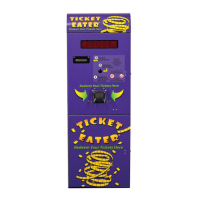
TT-2000 Ticket Eater™ by Deltronic Labs February 2013
Initial Setup
This manual is for the TT-2000 Ticket Eater™ with an AP-100 logic board. Do not use
this manual if you have an earlier version logic board. Earlier version boards lack a USB
connector and are not labeled “AP100”.
As part of the initial setup there are several options in the Ticket Eater logic board that
must be configured for your situation. These settings can be made with the DL Manager
software or by using buttons inside the Ticket Eater. Later sections in this manual explain
both methods.
The initial options that you must set are:
1. Printer Model. Refer to appendix A for more information on the printers. When
using the buttons, this is option 17 in group 99 1.
2. If your sensor board is Rev. 1 to 4 then set the Rev to 4; otherwise set it to 5.
Refer to appendix C for more information on the sensor boards. When using the
buttons, this is option 31 in group 99 3.
3. The Barcoded / Holes-Only option must agree with your tickets and sensor board.
If this setting is wrong the Ticket Eater will not count correctly. When using the
buttons, this is option 30 in group 99 3.
4. If you are using barcoded tickets the Ticket Eater must learn the barcode pattern
on the tickets. When using the buttons, use the options in group 99 4.
5. Receipt message (DL Manager software is required to change the message).
Switching Door Displays
The control signals for the 4 digit and 5 digit seven segment door displays are different
than the control signals for the dot matrix door display Since the normal procedures for
changing options use the door display there is a special procedure for changing between
the dot matrix and the seven segment displays.
1. Start with the power off.
2. Press and hold the SW1 button on the logic board and the red button in front of
the logic board.
3. While holding the buttons turn the machine on.
4. Release SW1 and the red button. If the logic board was previously set for a dot
matrix display it will now be set for a 5 digit display. If it was previously set for a
4 or 5 digit display it will now be set for a dot matrix display.
If you have a 4 digit display, first use this procedure to get the logic board into a 5 digit
display mode. At this point you will be able to see the display. Then use the procedures
explained in the chapter on Changing Options Without Software to change option 36 to 4.


 To Next Page