Access Point Mode
1
Make sure the Extend is plugged into a wall outlet and
has power (the blue Power LED should be solid blue.)
2
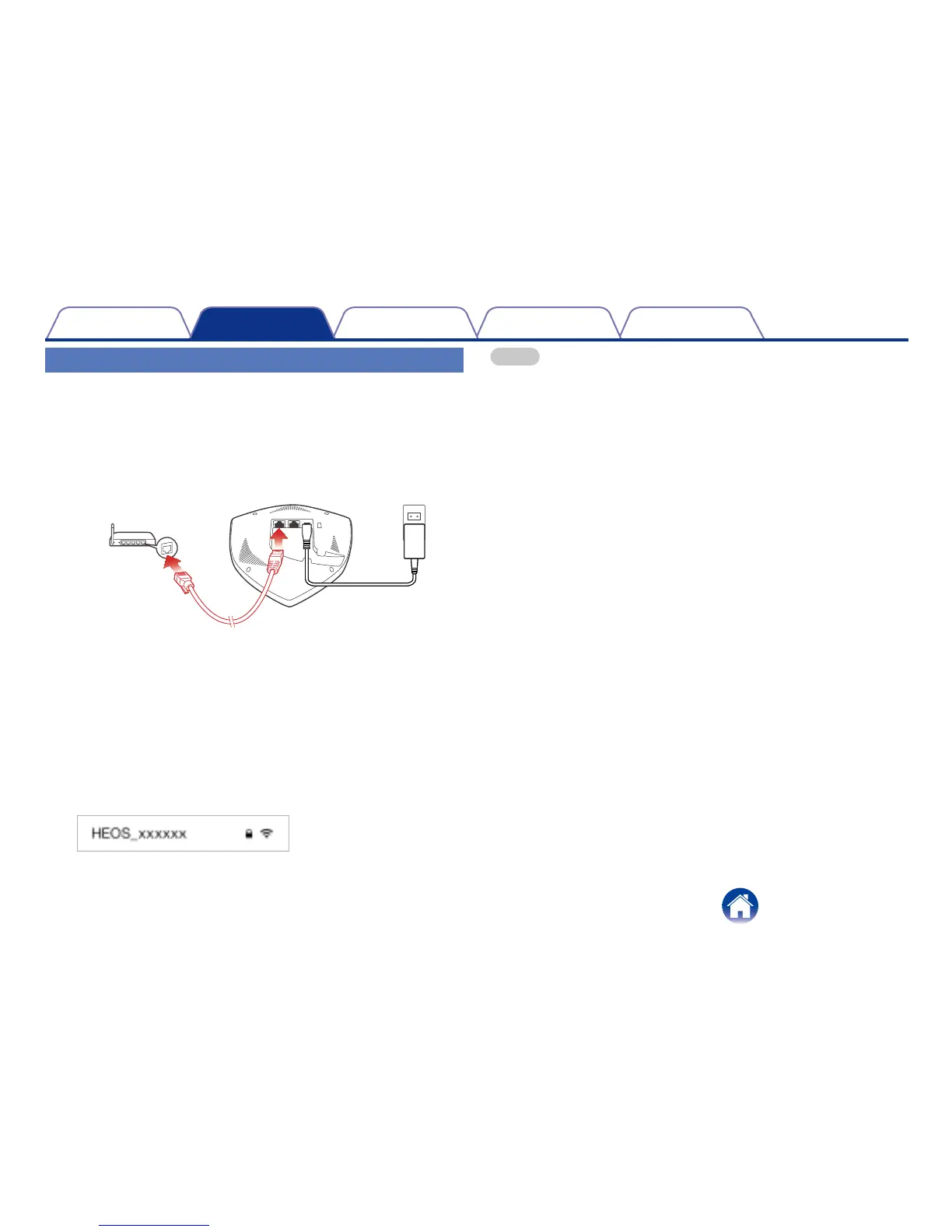
Connect the included Ethernet cable between one of
the two Ethernet jacks on the Extend and your existing
router or switch (the Network LED will be flashing green.)
3
In a few seconds, the Network LED will stop flashing and
turn solid green indicating that the Extend is connected
to your router.
4
HEOS Extend is now operating in Access Point mode.
You can connect to the HEOS Extend by selecting the
network name (SSID) that starts with “HEOS_” and
entering the password printed on the bottom of the
HEOS Extend.
NOTE
• The default network name and password are unique for every HEOS
Extend. This information is printed on the bottom of your HEOS Extend.
• Access Point mode will automatically be configured with both 2.4 GHz and
5 GHz networks enabled and set to the factory default settings. If you wish
to change any of the default settings, please see the Advanced Settings
section below.
• Once your HEOS Extend has been configured in Extender Mode, the
default network name is erased. If you decide to reconfigure your HEOS
Extend in Access Point Mode, the network name (SSID) will be set to the
same name as the network it was previously set to extend. Please see
the Advanced Settings section for instructions about how to change the
network name using the Web UI.


 To Next Page