2 Connecting to the Web Interface via Bonjour
(Mac OS X)
1
Open the Safari browser.
2
Select “Safari” – “Preferences” – “Advanced”, and select
one or both of these options:
Bonjour : P Include Bonjour in the Bookmarks menu
P Include Bonjour in the Favorites bar
3
Select “HEOS Extend” from the Bonjour – Webpages
menu in the Favorites bar or Bookmarks Menu.
4
Enter the default username and password.
2 Connecting to the Web Interface via wired PC
1
Connect the included Ethernet cable between your
HEOS Extend and your PC.
2
Enter “http://169.254.1.1” into your web browser.
3
Enter the default username and password.
Configuring the Advanced Network
Settings
2 Status
Displays status information and current configuration data about the
Extend.
2 2.4 GHz/5 GHz Network
Basic
Used to edit the Band, SSID, and Wi-Fi channel settings.
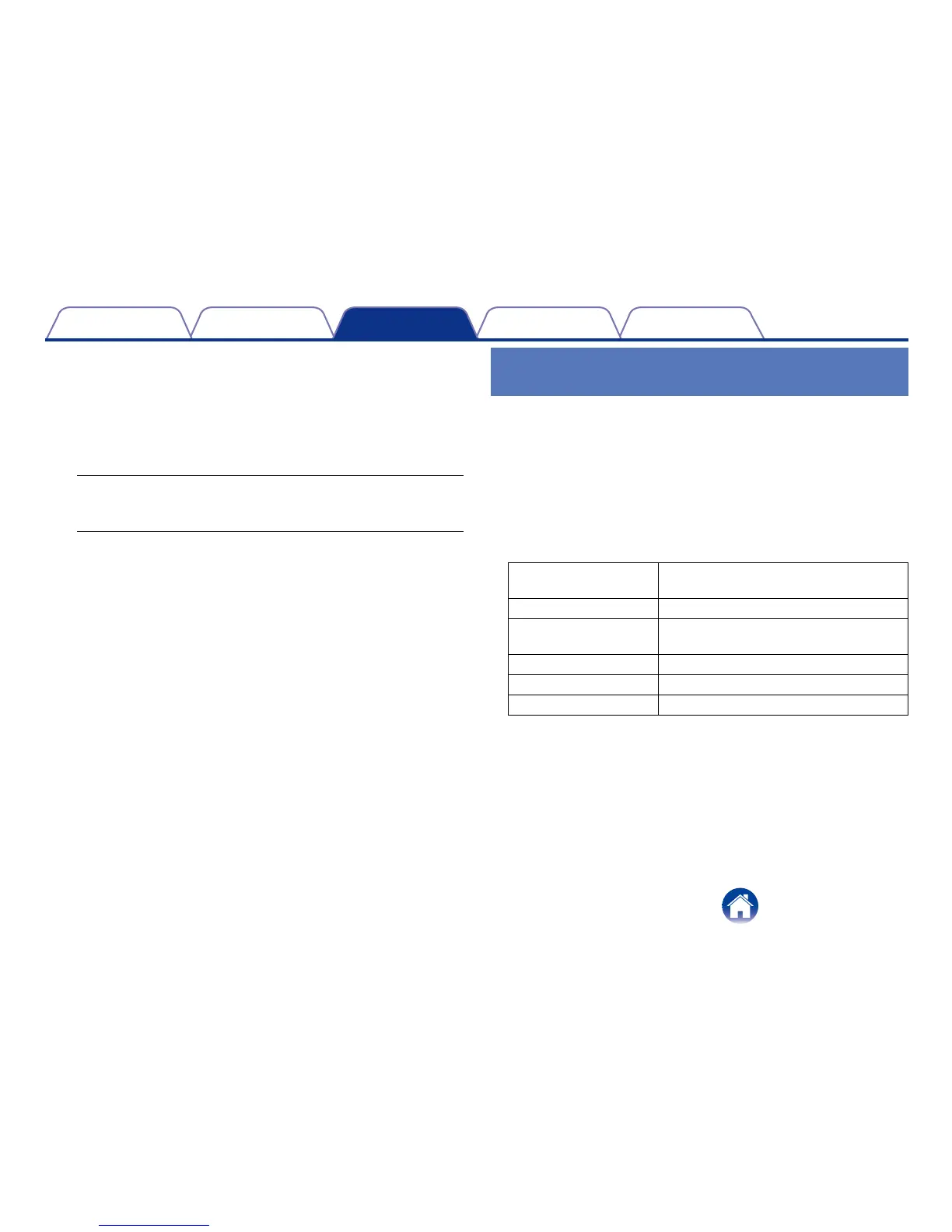
Radio Enable or disable the 2.4 GHz/5 GHz
network.
Band Select which network bands to enable.
SSID The name (SSID) that appears on your
network for each radio (2.4 GHz/5 GHz).
Auto Channel Enable or disable auto channel selection.
Check Channel Time Select auto channel selection period.
Site Survey Used to perform network site surveys.



 To Next Page