To print the alarm list, the controller must be in the OFF mode.
Press the PROGRAM key for five (5) seconds.
I
f the printer communication has been enabled, the first display shown is
To print
the alarm code, press the PROGRAM key.
To exit from printing, press either the UP or DOWN arrow key and the alarm
list will be shown in the display.
The controller will only save the previous 10 alarms.
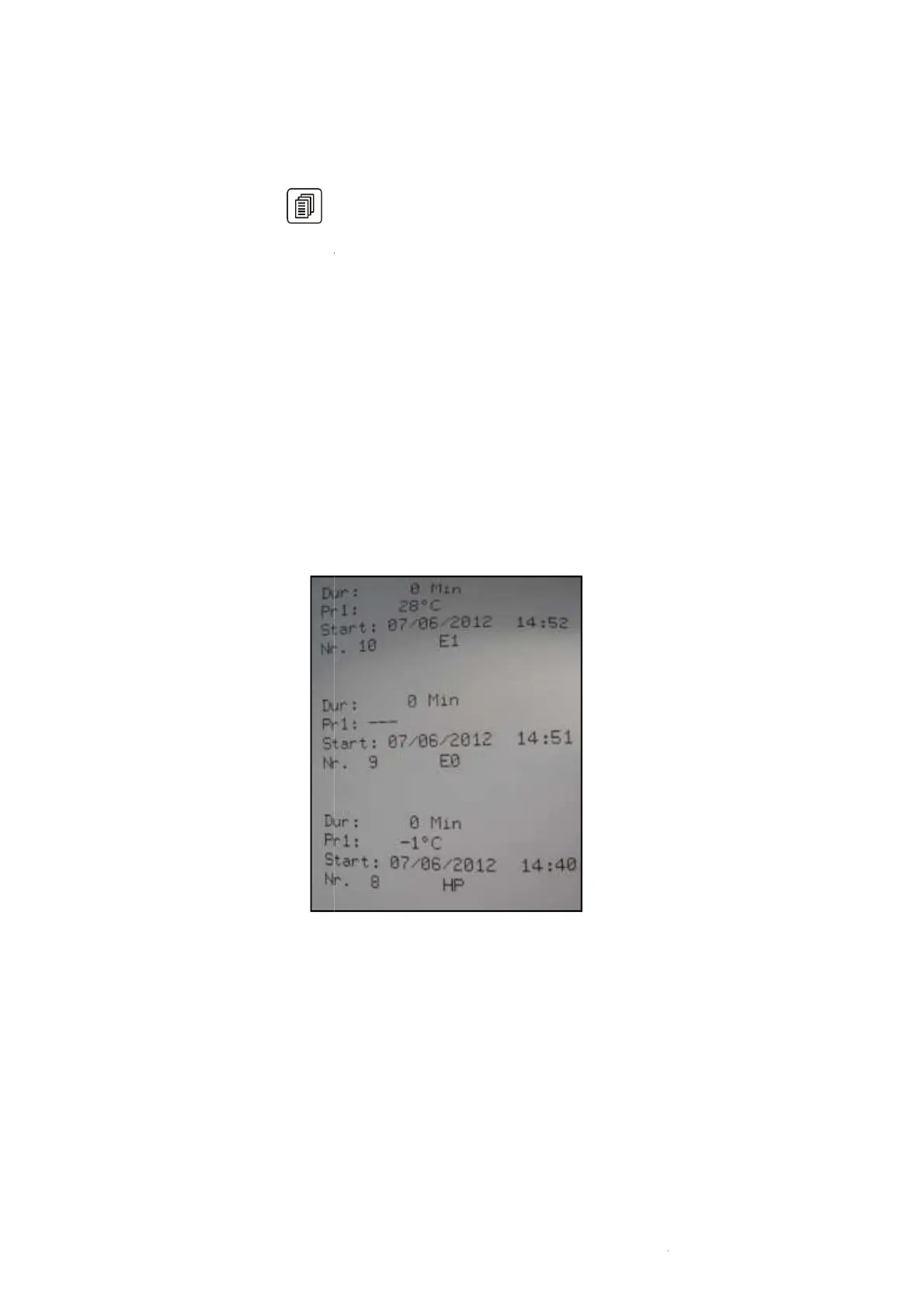
Printed codes will be as shown:
• Alarm duration
• Max/Min Temperature
• Date /Time
• Alarm Code
Printing Cycle Data
With the HACCP printer, it is also possible to print data history related to the
freezing and chilling cycles.
If the printer is left ON and a cycle is started, the
capture frequency is set in Parameter P72 (example: If P72 = 1, device will print
every minute) and give the following information:
• Type of cycle
• Start date and time
• Time, Cabinet and Needle Probe temperatures (each capt
R
To print the alarm list, the controller must be in the OFF mode.
Press the PROGRAM key for five (5) seconds.
f the printer communication has been enabled, the first display shown is
the alarm code, press the PROGRAM key.
To exit from printing, press either the UP or DOWN arrow key and the alarm
list will be shown in the display.
The controller will only save the previous 10 alarms.
Printed codes will be as shown:
With the HACCP printer, it is also possible to print data history related to the
If the printer is left ON and a cycle is started, the
data will be captured. Data
capture frequency is set in Parameter P72 (example: If P72 = 1, device will print
every minute) and give the following information:
• Time, Cabinet and Needle Probe temperatures (each capt
ure line)
07/04/2015
30
f the printer communication has been enabled, the first display shown is
“Prt”.
To exit from printing, press either the UP or DOWN arrow key and the alarm
With the HACCP printer, it is also possible to print data history related to the
data will be captured. Data
capture frequency is set in Parameter P72 (example: If P72 = 1, device will print



 To Next Page