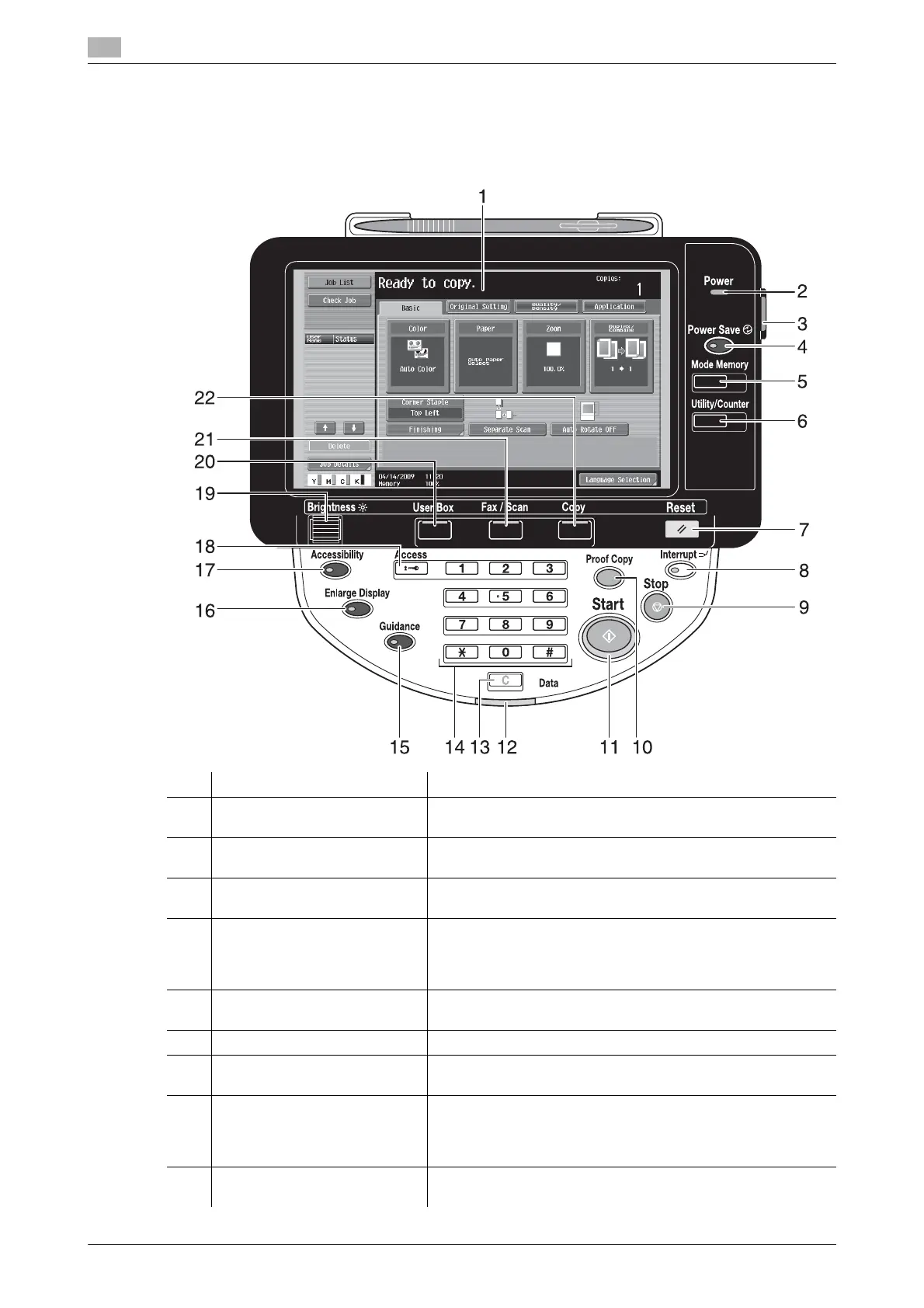
Control panel
1
1-22 ineo+ 220/280/360 (Version 3)
1.11
1.11 Control panel
The control panel consists of the touch panel, which can be used to specify settings for the various functions,
and various keys, such as the [Start] key and the [Stop] key. The operations that can be performed with these
keys are described below.
In this manual, [ ] indicates keys on the control panel and buttons in the touch panel.
No. Part Name Description
1 Touch panel Displays various screens and messages.
Specify the various settings by directly touching the panel.
2 Power indicator Lights up in blue when the machine is turned on with the main
power switch.
3 Sub power switch Press to turn on/off machine operations. When turned off, the
machine enters a state where it conserves energy.
4 [Power Save] key Press to enter Power Save mode. While the machine is in Pow-
er Save mode, the indicator on the [Power Save] key lights up
in green and the touch panel goes off. To cancel Power Save
mode, press the [Power Save] key again.
5 [Memory Mode] key Press to register (store) the desired copy/fax/scan settings as a
program or to recall a registered program.
6 [Utility/Counter] key Press to display the Utility/Counter screen.
7 [Reset] key Press to clear all settings (except programmed settings) en-
tered in the control panel and touch panel.
8 [Interrupt] key Press to enter Interrupt mode. While the machine is in Interrupt
mode, the indicator on the key lights up in green and the mes-
sage "Now in Interrupt mode." appears on the touch panel. To
cancel Interrupt mode, press the [Interrupt] key again.
9 [Stop] key Pressing this key while copying, scanning or printing temporar-
ily stops the operation.










 To Next Page