EasyManua.ls Logo

Develop ineo+35 - User Manual

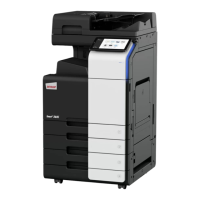
Develop ineo+35
368 pages
Print Icon
To Next Page IconTo Next Page
Loading...
Dynamic balance
www.develop.eu
ineo 35
+
User‘s Guide [Printer/Copier/Scanner]

Table of Contents

Questions and Answers

  • S
    Shannon OwenAug 22, 2025
    Why is my Develop All in One Printer printing blank pages?
    • D
      Drew HicksAug 22, 2025
      If your Develop All in One Printer is printing blank pages, it could be due to one or more of the toner cartridges being defective or empty. Check the toner cartridges and replace them if empty. Also, ensure that you are using the correct media type.
  • T
    Tracy GonzalesAug 25, 2025
    How to fix low image density on Develop All in One Printer?
    • P
      Peggy MillerAug 25, 2025
      If the image is too light or has low image density on your Develop All in One Printer, try the following: * Clean the laser lens. * Select a darker copy density. * Remove the moist media and replace it with new, dry media. * Replace the toner cartridge, as there may not be much toner left.
  • S
    Susan SnyderAug 26, 2025
    What to do if Develop ineo+35 doesn't turn on?
    • C
      Carolyn JacksonAug 27, 2025
      If your Develop All in One Printer is not powering on, check the following: 1. Ensure the power cord is correctly plugged into the outlet. Turn off the machine, confirm the power cord is correctly plugged into the outlet, and then turn on the machine. 2. Test the outlet by plugging another electrical appliance into it to see if it operates properly. 3. Make sure the power switch is correctly turned on (I position). Turn the power switch off (O position), then turn it back to the on (I position). 4. Verify the machine is connected to an outlet with a voltage or frequency that matches the machine specifications. Use a power source with the specifications listed in appendix A, “Technical Specifications.”
  • C
    Craig MaciasAug 28, 2025
    How to clear persistent media mis-feed message on Develop ineo+35?
    • K
      Kimberly NavarroAug 28, 2025
      If the media mis-feed message remains on your Develop All in One Printer, try these solutions: * Open and close the front cover again to reset the machine. * Check the media path again to ensure that you have removed all of the misfed media.
  • M
    Matthew NelsonAug 30, 2025
    What causes image defects on Develop ineo+35 All in One Printer?
    • T
      Theodore Gentry Jr.Aug 30, 2025
      If you are experiencing image defects with your Develop All in One Printer, the following steps may help: * Clean the laser lens. * Remove the toner cartridges and check for damage. If a toner cartridge is damaged, replace it.
  • C
    Charles GordonSep 1, 2025
    Why does my Develop All in One Printer feed multiple sheets at once?
    • L
      Laurie VasquezSep 1, 2025
      If several sheets are going through your Develop All in One Printer together, it could be because: * The front edges of the media are not even. Remove the media and even up the front edges, then reload it. * The media is moist from humidity. Remove the moist media and replace it with new, dry media.
  • C
    Christine TaylorSep 3, 2025
    What causes duplex mis-feeds in Develop All in One Printer?
    • J
      james58Sep 3, 2025
      If you are experiencing duplex mis-feeds on your Develop All in One Printer, consider the following: * Unsupported media (wrong size, thickness, type, etc.) is being used. Use approved media. * Media is still being misfed. Check the media path inside the duplex again to make sure that you have removed all of the misfed media.
  • A
    Andrew HillSep 5, 2025
    What to do if media is mis-fed in the ADF of Develop All in One Printer?
    • C
      Connie LeeSep 5, 2025
      If media is mis-fed in the ADF of your Develop All in One Printer: * The loaded document does not meet the specifications. Load the correct document. * The loaded document exceeds the maximum capacity. Load the document so that it does not exceed the maximum capacity. * The document guides were not slid against the edges of the document. Slide the document guides against the edges of the document.
  • M
    Mrs. Renee CervantesSep 7, 2025
    Why does Develop ineo+35 All in One Printer display 'Toner is low' prematurely?
    • D
      Dr. Mark ObrienSep 7, 2025
      If the control panel of your Develop All in One Printer displays [Toner is low.] much sooner than expected, it could be due to: * One of the toner cartridges may be defective. Remove the toner cartridges and check for damage. If it is damaged, replace it. * Printed with heavy toner coverage.
  • E
    Eric BarkerSep 9, 2025
    Why does my Develop All in One Printer reset or turn off frequently?
    • E
      Elizabeth BishopSep 9, 2025
      If your Develop All in One Printer frequently resets or turns off: * Ensure the power cord is correctly plugged into the outlet. Turn off the machine, confirm that the power cord is correctly plugged into the outlet, and then turn on the machine. * A system error occurred.

Summary

Introduction

Getting Acquainted with Your Machine

Learn about the machine's physical layout, including part names and space requirements.

Drivers CD;DVD

Information on printer, scanner, and fax drivers provided on the CD/DVD.

System Requirements

Lists the necessary hardware and operating system specifications for using the machine.

Control panel and touch panel screens

About the Control Panel

Explains the function of each button and indicator on the machine's physical control panel.

Touch panel screens

Details the various screens, icons, and functions available on the machine's touch panel.

User authentication and account track

Explains how to log in using user or account credentials for security and tracking.

Utility Settings

[Accessibility]

Settings related to user interface adjustments and operational preferences.

[Address Registration]

Describes how to register E-mail and fax destinations for easy access.

[User Settings]

User-configurable settings for machine functions like copy and scan.

[Admin Settings]

Advanced settings for machine administration, security, and network configuration.

Media Handling

Print Media

Details supported media types, sizes, specifications, and handling guidelines.

Loading Media

Instructions for loading paper and other media into the machine's trays.

About Duplex Printing

Explains the machine's double-sided printing capabilities and settings.

Using the Printer Driver

Selecting Driver Options;Defaults (for Windows)

Guide to verifying and changing default printer driver settings and installed options.

Uninstalling the Printer Driver (for Windows)

Step-by-step instructions for removing the printer driver from a Windows system.

Using the Postscript, PCL and XPS Printer Driver

Overview of common buttons and tab functionalities within the printer driver interface.

Proof;Print and Memory Direct functions

Proof;Print

Instructions for printing or deleting jobs that are saved on the machine's hard disk.

Memory Direct

How to print files directly from a USB memory device connected to the machine.

Performing Copy mode operations

Basic copy operation

General procedure for making copies, including document placement and setting specification.

[Original Size]

Specifies the size of the original document for accurate copying.

[Paper]

Settings for selecting the paper type and size loaded into each paper tray.

[Duplex;Combine]

Options for specifying double-sided printing and combining multiple pages.

Additional copy operations

Interrupting a copy job

How to temporarily pause a copy job to change settings or make a quick copy.

Copy programs

Storing and recalling frequently used copy settings as saved programs.

Scanning From a Computer Application

Basic Scanning Operation

General procedure for scanning documents from a computer via network connection.

Windows TWAIN Driver Settings

Detailed settings and modes available in the Windows TWAIN scanner driver.

Windows WIA Driver Settings

Configuration options for Windows WIA scanner drivers.

Macintosh TWAIN Driver Settings

Settings and modes available for TWAIN scanner drivers on Macintosh systems.

Using a Web Service

Instructions for scanning documents using Web Service features.

Scanning with the machine

Initial settings

Basic network and scan configuration required for machine scanning functions.

Performing Scan to E-mail mode operations

Steps for scanning documents and sending them via E-mail transmission.

Performing Scan to Folder mode operations

Steps for scanning documents and saving them to a network folder or USB device.

Registering destinations

Procedures for registering address book, group, and program destinations for scans.

Replacing Consumables

Replacing Consumables

General information and notes on replacing consumable parts of the machine.

Replacing a Toner Cartridge

Step-by-step instructions for safely removing and installing toner cartridges.

Replacing the Waste Toner Bottle

Procedure for replacing the waste toner bottle when it becomes full.

Replacing the Fuser Unit

Instructions for replacing the fuser unit, noting hot surfaces and safety.

Antistatic Protection

Essential safety precautions to prevent electrostatic damage to machine components.

Maintenance

Maintaining the machine

General guidelines for proper machine care, cleaning, and handling.

Cleaning the machine

Detailed instructions for cleaning various external and internal parts of the machine.

Media Rollers

Procedures for cleaning paper feed and transfer rollers to prevent misfeeds.

Troubleshooting

Introduction

Overview of troubleshooting information and guidance for resolving machine problems.

Clearing Media Misfeeds

Steps for safely removing misfed media from various locations within the machine.

Solving Problems with Media Misfeeds

Table of common media misfeed symptoms, causes, and their solutions.

Solving Other Problems

Table addressing common issues like machine power, printing time, and blank pages.

Solving Problems with Printing Quality

Table addressing various printing quality issues and their solutions.

Status, error and service messages

Explanation of machine messages and guidance on resolving them.

Installing Accessories

Lower Feeder Unit PF-P08

Details about the lower feeder unit, its contents, and installation procedure.

Appendix

Technical specifications

Lists the machine's technical details, performance specs, and capabilities.

Text input

Instructions on how to use the on-screen keyboard for entering text.

Our Concern for Environmental Protection

Information regarding the machine's ENERGY STAR compliance and energy efficiency.

Develop ineo+35 Specifications

General IconGeneral
Print Speed (Black & White)35 ppm
Print Speed (Color)35 ppm
ConnectivityEthernet (10/100/1000Base-T), USB 2.0, Wi-Fi 802.11 b/g/n (optional)
Dimensions (W x D x H)585 x 660 x 735 mm
WeightApprox. 76.5 kg
Color CapabilityColor
Duplex PrintingYes
Scan Resolution600 x 600 dpi
Copy Resolution600 x 600 dpi
Operating System CompatibilityWindows, macOS, Linux
Copy Speed35 cpm

Related product manuals