[Finishing]7-10
[Finishing]
Specify any settings for finishing outputted copies.
[Proof Copy]
Before printing a large number of copies, a single finished proof copy can be
printed in order to be checked. Select whether or not to print a proof copy.
Proof Copy operation
" When printing a proof copy, specify multiple copies.
1 In the home screen, press [Copy].
2 Place the document on the original glass or load it into the ADF.
" For details on positioning the document, refer to “Placing a document
on the original glass” on page 4-36 and “Loading a document into the
ADF” on page 4-37.
3 Specify the copy settings.
4 Press [Proof Copy].
5 Press [ON].
6 Press [OK].
7 Press the [Start (Color)] key or the [Start (B&W)] key.
A single proof copy is printed.
8 Check the proof copy.
If the proof copy was printed as desired, continue with step 9.
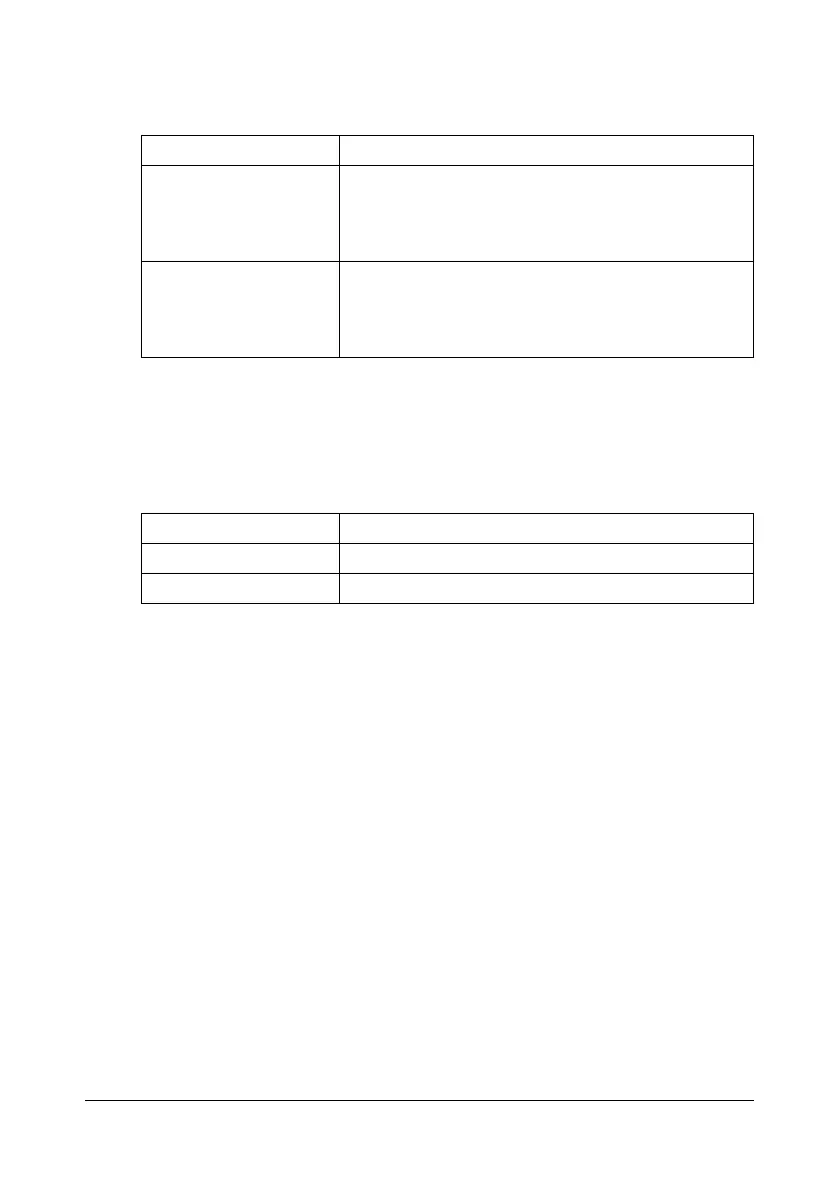
Item Description
[Sort] Select this setting when making multiple copies of
documents containing multiple pages so that they
will be automatically separated into sets of the full
document.
[Group] Select this setting when making multiple copies of
documents containing multiple pages so that they
will be automatically separated into sets of each
page.
Item Description
[ON] Select this setting to print a proof copy.
[OFF] Select this setting to not print a proof copy.











 To Next Page