Basic copy operation
2
2-4 ineo+ 220/280/360 (Version 3)
2.1
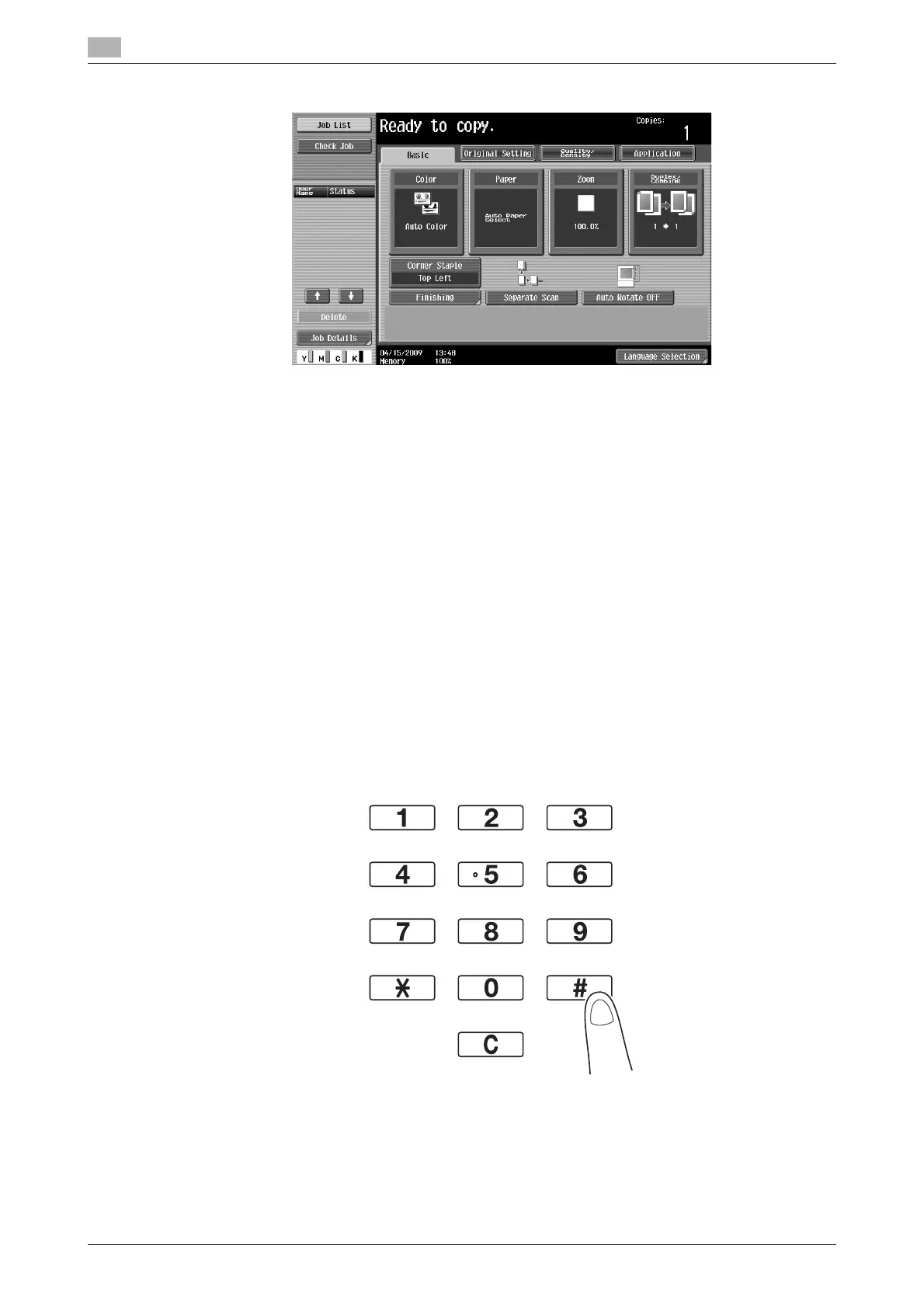
2 Select the Basic screen settings.
% Color: Select whether the document will be copied in color or in black and white. As a factory
default, "Auto Color", is selected.
% Paper: Select the paper tray that is to be used. As a factory default, "Auto" is selected.
% Zoom: For enlarged/reduced copying, change the zoom ratio. As a factory default, "100%" (Full
Size) is selected.
% Duplex/Combine: Change the setting when copying double-sided documents or making double-
sided copies of single-sided documents. In addition, multiple document pages can be combined
into a single printed page. As a factory default, "1-sided>1-sided" is selected.
% Finishing Program: Displays the finishing program button that is assigned to the frequently used
finishing function. You can configure the registered finishing functions at one time. The factory
default setting is Sort/(Offset)No/Corner Staple: Top Left.
% Finishing: The printed pages can be sorted by pages or by copies. In addition, the pages can be
stapled or holes can be punched in them.
% Separate Scan: Select this setting to scan a document in different batches. A document scanned in
different batches can be treated as a single copy job.
% Auto Rotate OFF: Select this setting to print copies with the image not rotated to fit the orientation
of the loaded paper.
% Language Selection: Display the Language Selection screen to specify the language to be displayed
in the touch panel.
% For details, refer to chapter 5 of the [User’s Guide Copy Operations].
3 Type in the desired number of copies.
% To change the number of copies, press the [C] (clear) key, and then type in the desired number.










 To Next Page