EN - 8 SE-DV54-1
Enable Menu List
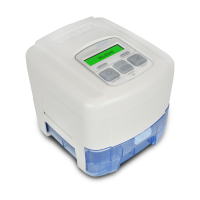
The Enable menu is available in all modes and is a sub-menu that allows you to control various functions of your
SleepCube. It is accessed by pressing the down button while “Enable Menu” is shown on the Display.
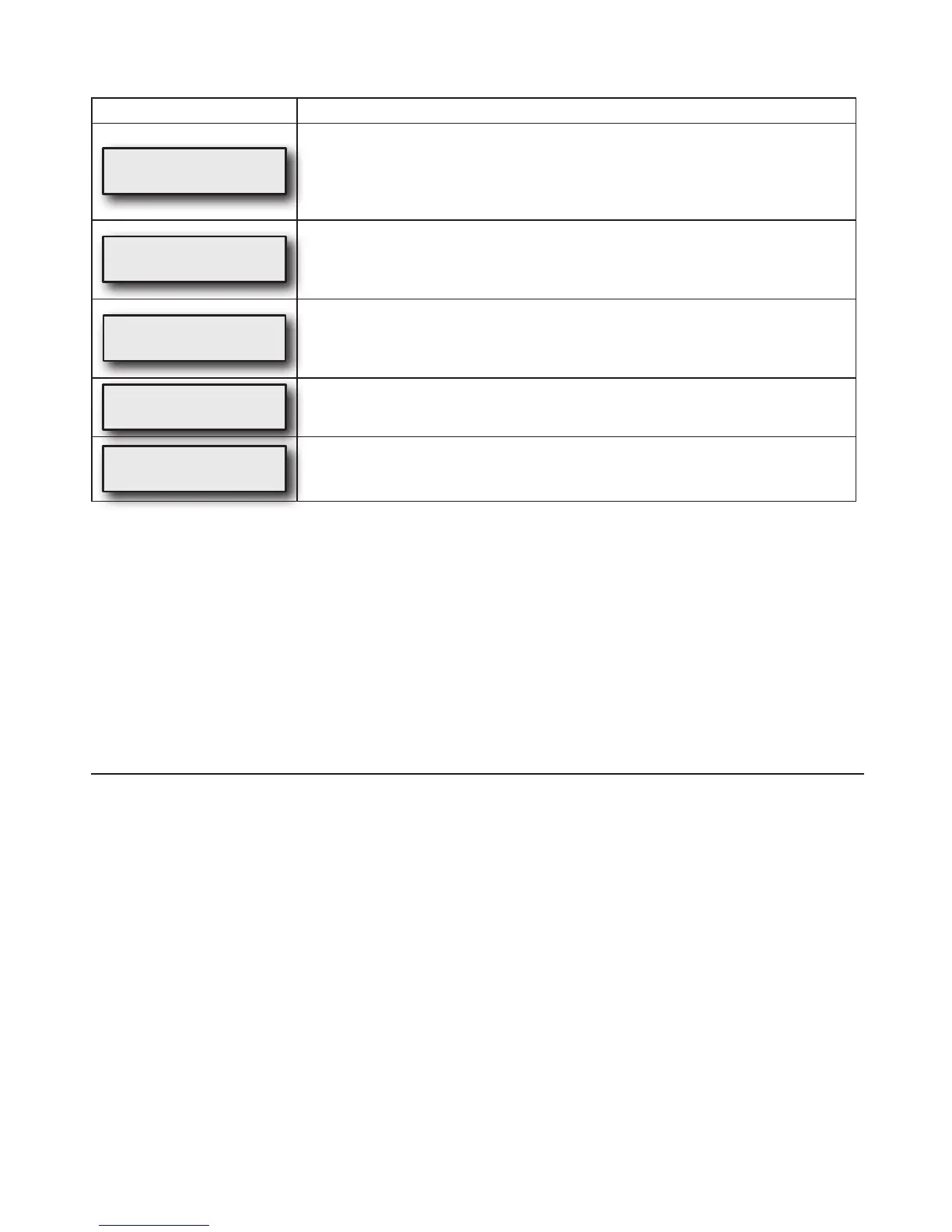
DisplayExample EnableMenuItemDescription
Auto-OFF
Enabled
ThisoptioncontrolstheAuto-OFFfeature,whichautomaticallystopstheowofair
after taking off the mask. The device will require at least 30 seconds to turn OFF
depending on the kind of mask used. When Auto-OFF is enabled, Auto-ON is also
enabled.Iftheunlockedsymbolisshown,youareabletoadjustthissetting.Ifthe
lockedsymbolisshown,thissettingcanonlybeadjustedbyyourprovider.
Auto-ON
Enabled
ThisoptioncontrolstheAuto-ONfeature,whichautomaticallystartstheowofair
after breathing once or twice into the mask. This is always enabled when Auto-OFF is
enabled.Iftheunlockedsymbolisshown,youareabletoadjustthissetting.Ifthe
lockedsymbolisshown,thissettingcanonlybeadjustedbyyourprovider.
MaskFitCheck
Enabled
Thisoptioncontrolsthemasktcheckfeature.Theairowtoyourmaskisconstantly
measuredandiftheamountofairowexceeds95liters/minuteformorethan10%of
thetimeused,anoticationwillbecreated.Thisnoticationwillbedisplayedthenext
time you use the SleepCube.
LowBacklight
Enabled
Low backlight Enable will keep the backlight dim during operation. Low backlight
Disabled will turn the backlight OFF during operation.
ExitMenu
Press
Pressing the up key exits the Enable menu.
SmartCode and Adherence Score Information
Your homecare provider may contact you to retrieve SmartCode and Adherence Score information. To display the
SmartCode, press the LEFT arrow key once. Use the UP arrow or DOWN arrow keys to change the SmartCode reporting
period. Press the LEFT arrow key again to display the Adherence Score.
The Quick View Menu shows a summary of information which is reported in the SmartCode data. Information in the Quick
View includes: Number of days used more than 4 hours (or can be set to 5 hours by clinician), AHI (Apnea/Hypopnea
Index), High Leak percent (percent of time at leak >95 L/m), and Daily Usage (average hours per day used). Each
parameter can be viewed in any of four time periods, 1 day, 7 days, 30 days and 90 days.
Compliance information can be viewed without turning the CPAP on. With the blower OFF (display shows OFF), press the
left or right arrow keys on the keypad to scroll through the information.
PATIENT MESSAGES
Your SleepCube will alert you of issues that may require some action on your part in order to make your therapy more
effective. You can press any key or button to clear the message from the display, but the SleepCube will operate normally
evenifthemessageisnotcleared.Twokindsofmessagesaredisplayed:RemindersandNotications.
Reminders
Reminders alert you when parts of your system need to be replaced. Some components of your system wear over time
and, if not replaced, may compromise your therapy. If you see a message on the display that is not listed below, you may
have the optional DeVilbiss SmartLink Module attached to your device, which provides additional messages. Refer to the
documentation that was provided with the SmartLink Module.
CleanFilter–Theltershouldbecheckedevery10daysforsignsofdirtorwearsothatitcanbecleanedasneeded.
This message helps to remind you to check it regularly.
Notifications
NoticationsidentifyconditionsinyourSleepCubethatmayrequireactionbyyouoryourequipmentproviderinorderto
maintain a high level of therapy. If you see a message on the display that is not listed below, you may have the optional
DeVilbiss SmartLink Module attached to your device, which provides additional messages. Refer to the documentation that
was provided with the SmartLink Module.
DelayRunningxxMinutesLeft–Whileacomfortdelaysessionisactive,thismessageisashedonthedisplayevery5
seconds to let you know how much time is left in the delay.


 To Next Page