18
INSTRUCTIONS
3. Once the settings have been entered then press the OK button to scan current
channel or press EXIT button to go back.
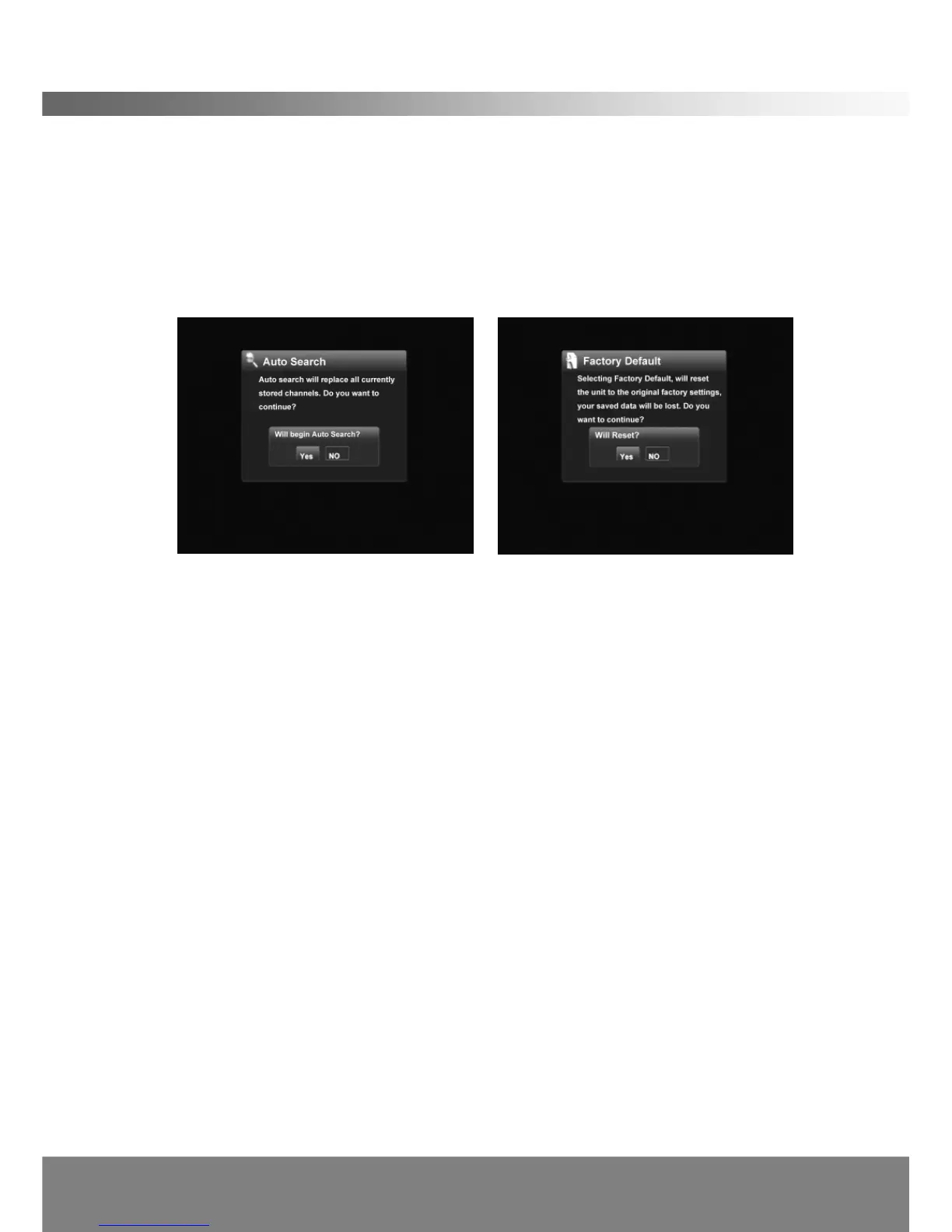
< Auto Search >
If you press OK on Automatic Search in Installation Menu, the STB will scan TV and
RADIO programs automatically. (The default password is 0000)
< Factory Default >
Deletes all the data and settings currently saved and brings the system to the initial
state.
<Version Info >
Use Left/Right buttons to select the Version Info Menu, press OK and the menu will
show the hardware and software version.
2.8 USB Menu
Use Left/Right buttons to select the USB Menu, press OK and the following screen
will appear.
< USB File >
You can see the files in a USB storage device. (Might not be compatible with all
devices)
< USB Upgrade >
An upgrade can be performed using the USB port. (Only to be advised by DGTEC
technician)


 To Next Page