18
IOX
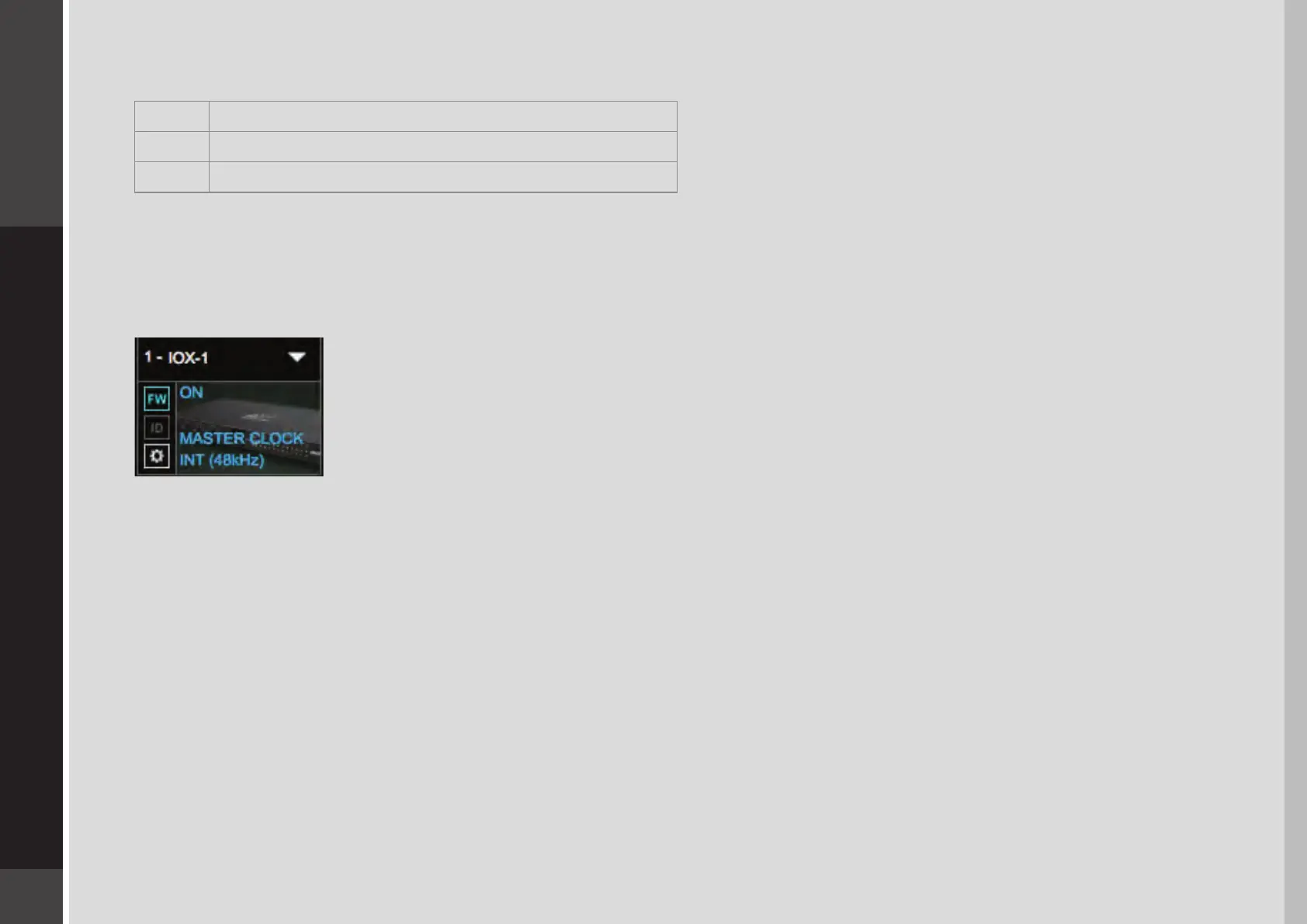
System Inventory page and locate the device. Next to each device slot is a button labeled FW, whose color indicates rmware status.
Grey Compatible rmware
Blue Compatible rmware, but a newer version exists
Red Firmware not compatible and must be updated in order to use
Click on the FW button to launch the rmware Updater. This will initiate a scan of the hardware and then oer options. Do not
disconnect the device or turn o the computer until you see “Done.” After updating, turn the IOX o and back on to reset the device.
4.1.1 Resetting the Unit
If an unsuccessful rmware update results in the IOX no longer being recognized by MultiRack or
SoundGrid Studio
(the IOX device is not showing in the inventory panel), you can use the Reset button to try to recover the
unit.
The Reset button is on the IOX rear panel.
■
Turn o the unit.
■
Press and hold the Reset button.
■
Restart the unit while holding the button.
■
Release the Reset button once the device has fully booted.
The unit is now in “force update” mode, and a new rmware update can be performed.
4.2 Identifying a Device from the SoundGrid Studio Device Rack
Just below the FW button is an ID button. Clicking on this button activates LEDs on the front panel of the hardware device. This
serves the same function as the Identify button on the Control Panel Top Bar.
5. CONTROL PANEL
Access the IOX Control Panel by clicking on the Gear symbol in the SoundGrid Studio Device Rack.


 To Next Page