Digital Ally, Inc. | FirstVu HD Operation
5-4
FirstVu HD Operation Guide | 860-00177-00 Rev J
Go Back To Table of Contents
Secure USB Port Method
To upload video les from the FirstVu HD when the Secure USB Port is enabled, plug the
supplied USB cable into the computer USB port and insert the other end of the cable
into the FirstVu HD USB port. Make sure your device is powered on.
1. To manually upload video les from the FirstVu HD when the Secure
USB Port is enabled, plug the supplied USB cable into the computer
USB port and insert the other end of the cable into the FirstVu HD PC
USB port. Make sure your device is powered on. When Secure Mode is
enabled, les cannot be removed from your FirstVu HD until they are
rst uploaded into VuVault
®
.
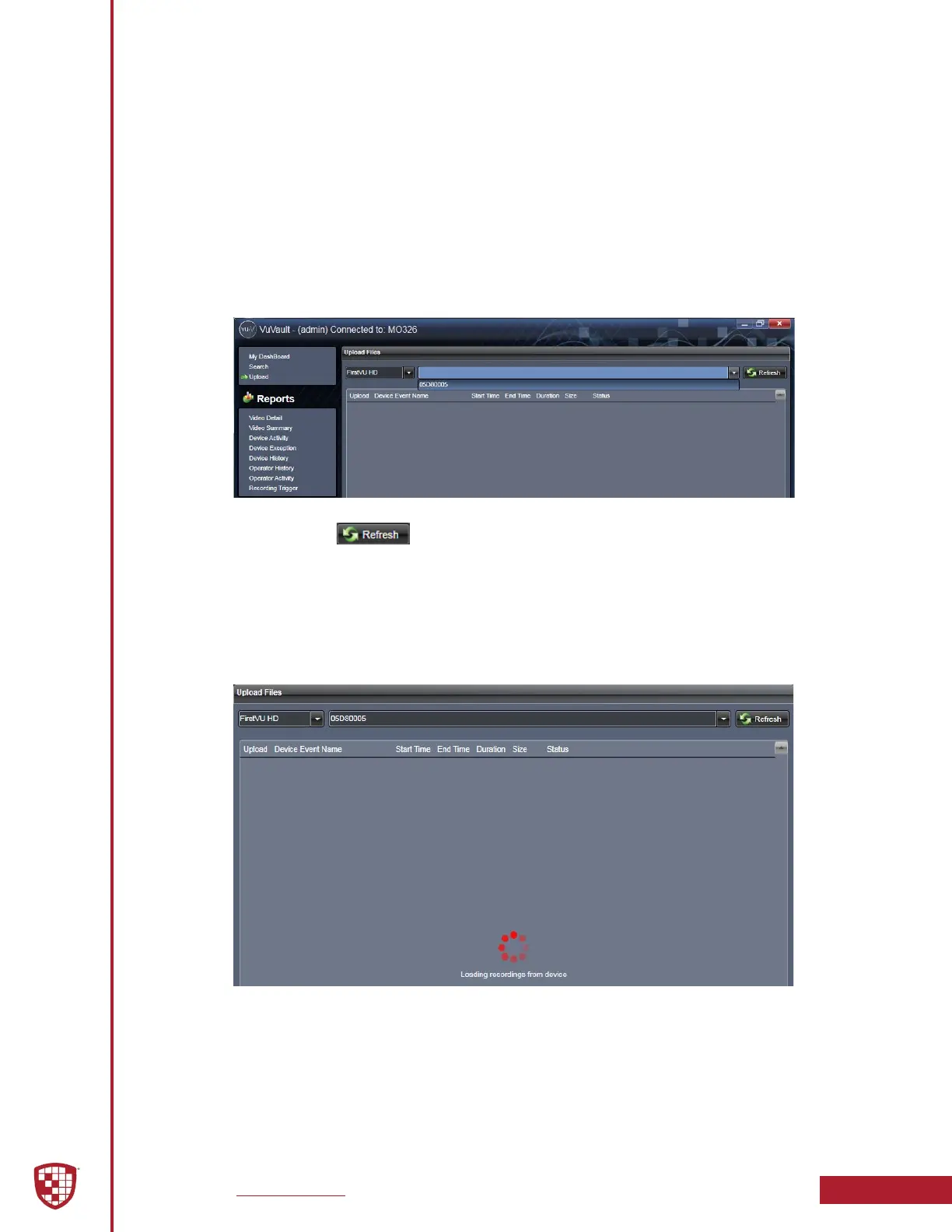
2. Select Upload from the Main navigation bar, then select FirstVu HD.
3. Use the dropdown list to highlight and select your device serial number.
Then click the button.
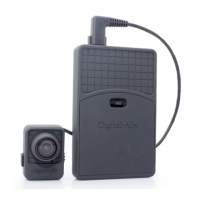
4. VuVault
®
will load and display a list of the available recordings from
your device and verify the les to be uploaded. If event les are being
uploaded from a device that is not recognized by the system, the user
will be prompted to add them with the Device Add Wizard by clicking
on Dene Device in the lower right-hand corner of the Device Event
Details pane. Please refer to the “VuVault Administrator’s Guide” for
further details on how to add a device.


 To Next Page