Digital Ally, Inc. | FirstVu HD Operation
5-5
FirstVu HD Operation Guide | 860-00177-00 Rev J
Go Back To Table of Contents
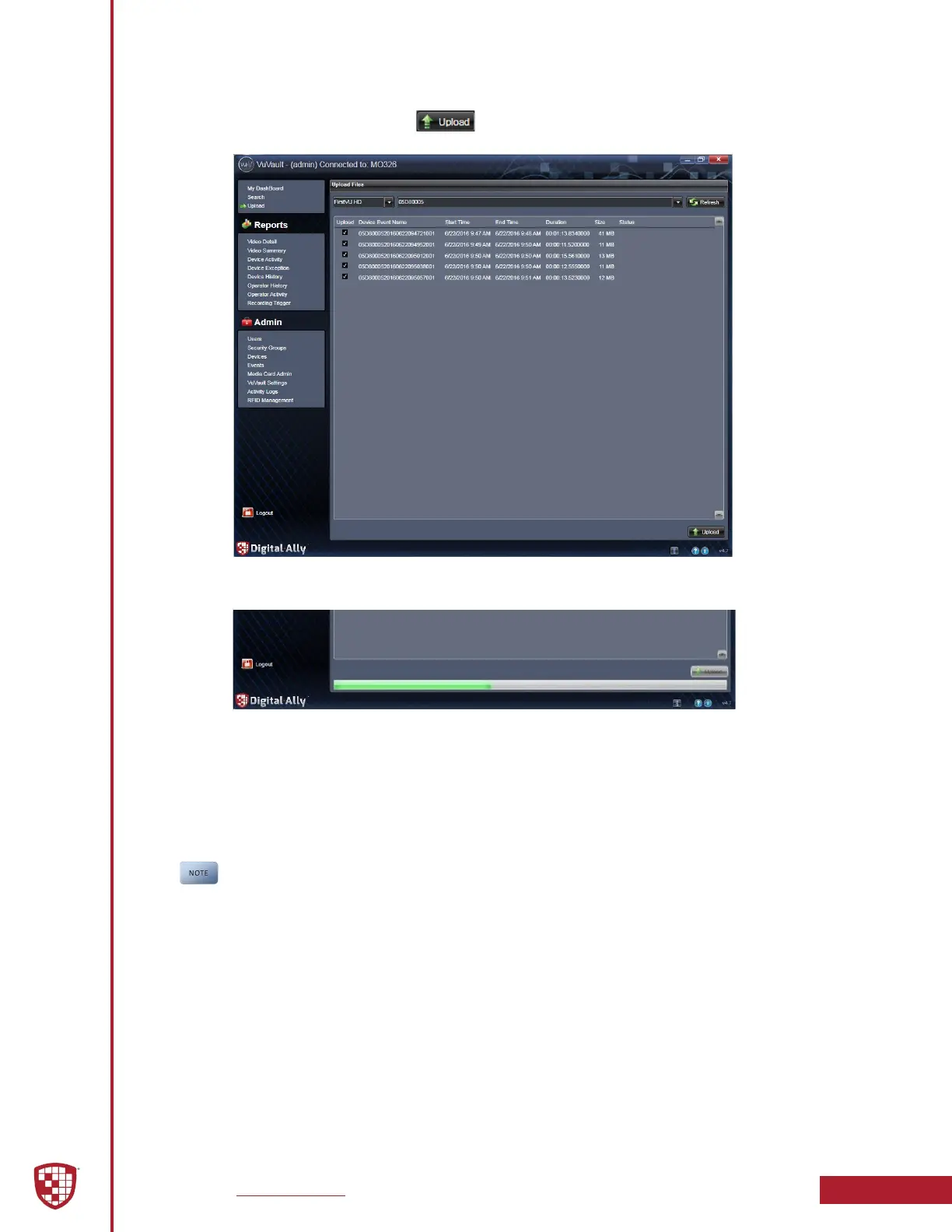
5. Once the les have been veried, the system will automatically list and
select all of the les for upload. Check the box next to each record you
want to upload. Click the button to begin uploading data to
the system.
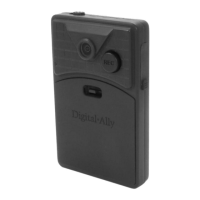
6. A progress bar will move from left to right on the bottom of the screen,
and details of the upload process will be displayed in the window.
7. After the upload process nishes, the uploaded les will be available
for viewing in the My Dashboard and Search screens. For more
information, consult the “VuVault User’s Guide”.
8. If congured to do so in the Admin > VuVault Settings tab, VuVault
®
will
remove the les from the FirstVu HD after the upload is complete. If
you choose to remove the les, you MUST unplug the USB from the
FirstVu HD when nished to complete the delete process.
When using Secure USB Port Mode, the les will not be deleted until the
FirstVu HD USB cable is unplugged.


 To Next Page