15
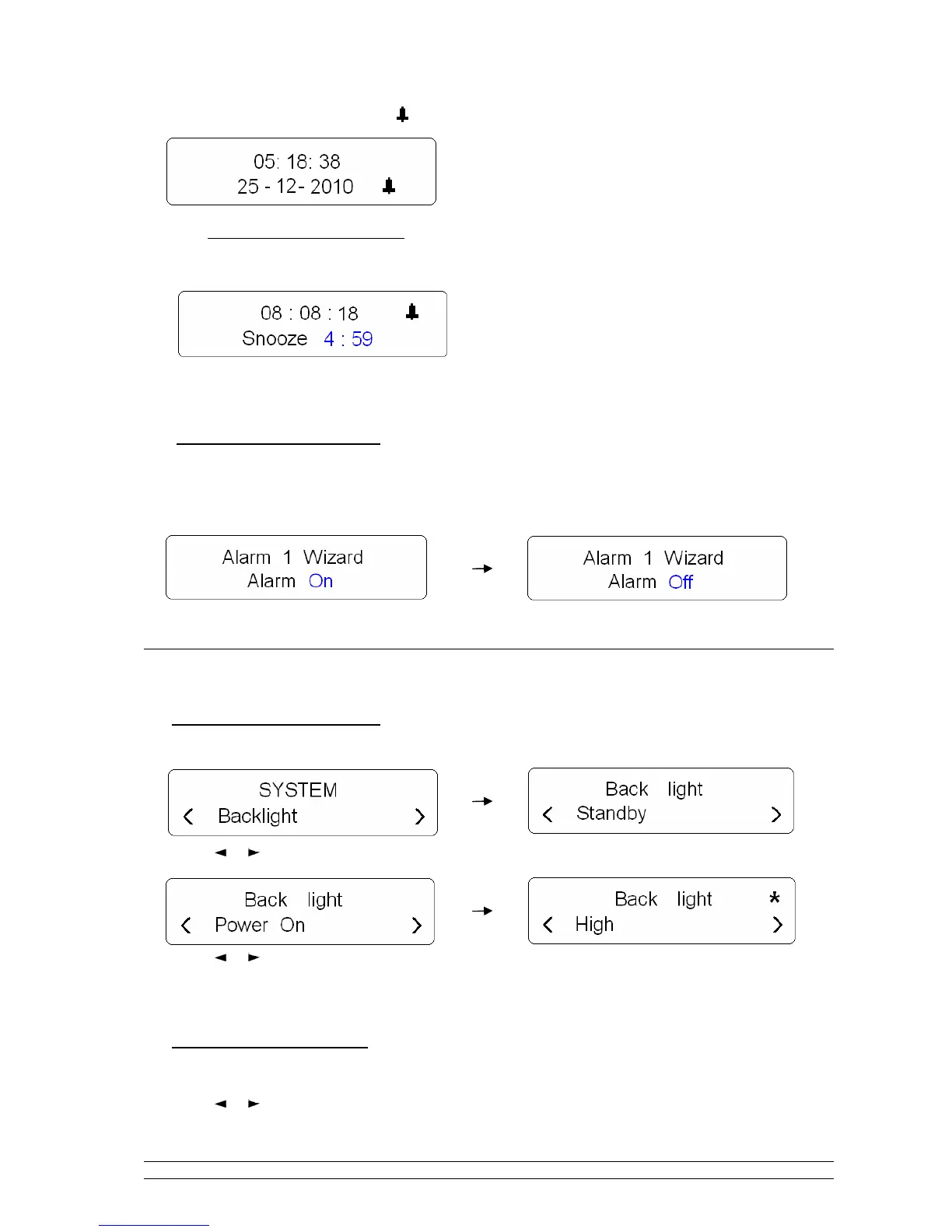
In standby mode, the Alarm icon ( ) will be shown on screen.
• To cancel Alarm temporarily
When alarm come, press STANDBY to cancel it, or press SNOOZE to postpone it for 5minutes.
Note: a. The alarm will be sound again after the pre-defined period of time elapsed.
b. Want to continue enjoying your program? Press STANDBY to have alarm cancelled.
To cancel Alarm permanently
Except perform a ‘factory reset’, you also can:
Enter alarm setting mode, and then convert alarm status from ‘On’ to ‘Off’, steps by steps until your
setting is saved.
How to Set Backlight?
A. For ‘Power On’ condition
1. It can be activated from < System > < Backlight >, press SELECT to confirm.
2. Press or button to ‘Power On’,
press SELECT to confirm.
3. Press or button to cycle through options:
‘High’, ‘Medium’ and ‘low’
three options, then press
SELECT to confirm the one you want.
B. For ‘Standby’ condition
1. Continue above step1, while cursor point to ‘Standby’, and then press SELECT to confirm.
2. Press or button to your expecting one, ‘High’, ‘Medium’ or ‘low’, press SELECT to confirm.


 To Next Page